
· save files
Where Did My File Go? How to Save and Organise Your Files
15 min read
It's Sunday evening. The Geography project is due tomorrow, and you know you saved it. You typed two pages, you pressed something, and now the document is gone. What's left on the screen is a row of icons called New Document (2), final2 and Scan0042, and none of them is yours.
Losing a file is the most common computer frustration there is, and it's usually not a disaster. The work is almost always still on the machine, sitting in a folder you didn't choose, under a name you didn't write. Three habits prevent most of it: save on purpose, name files clearly, and keep a small set of folders. Everything in Where Did My File Go? How to Save and Organise Your Files comes back to those three.
Start with the search side, because that's where the panic lives.
Table of Contents
- Find a Lost File in Five Checks
- Set Up Folders as Your Filing Drawers
- Name Files So You Recognise Them Later
- Save Versus Save As, and When to Use Each
- Keep a Second Copy Somewhere Safe
- Protect Files on Shared and Family Phones
- Practise Saving and Finding Files Today
Find a Lost File in Five Checks
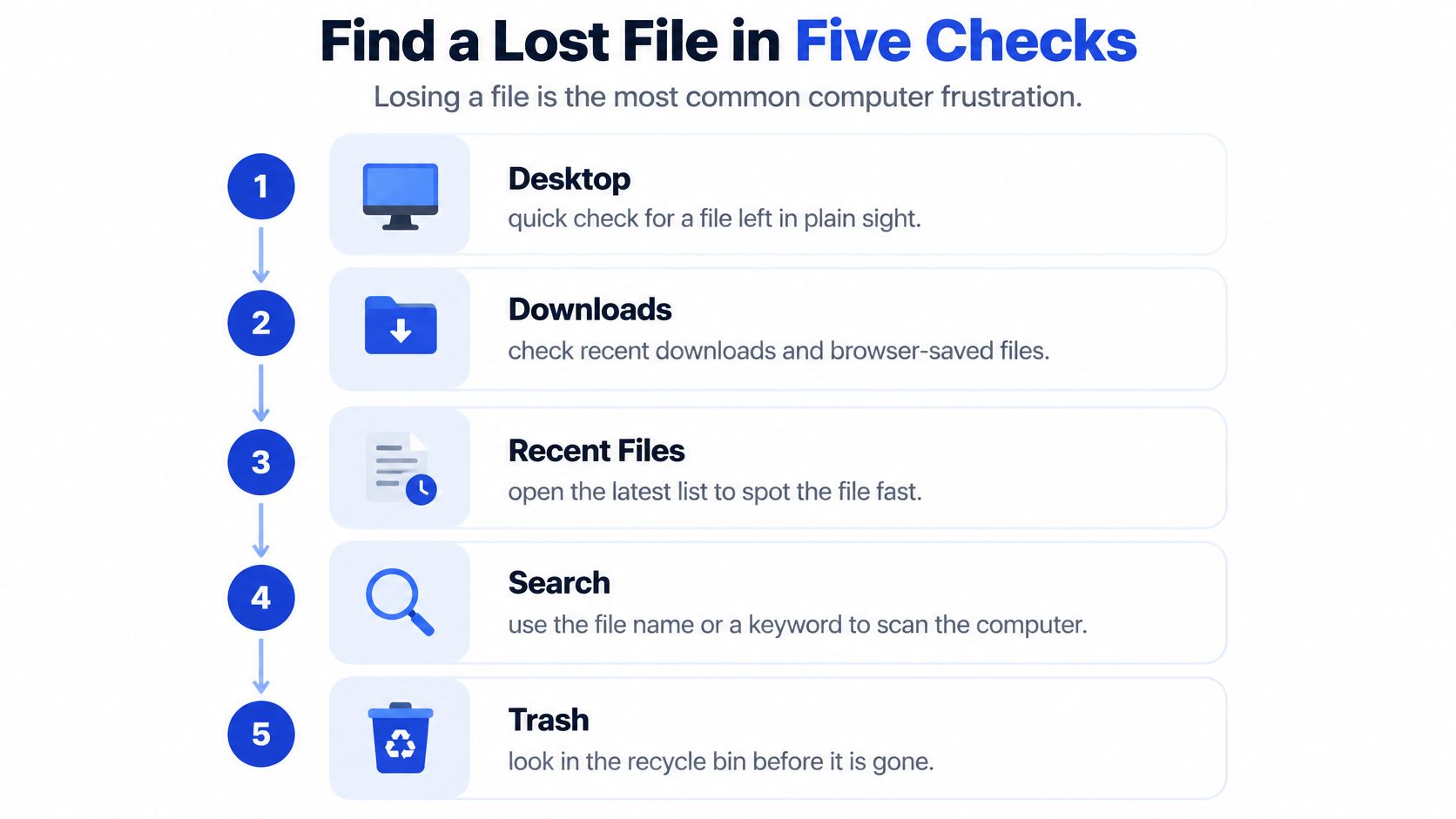
Almost every missing file is not lost. It's misfiled. Work through these five checks in order, quickest first, before you consider rewriting anything.
Learners don't all come to a computer with the same experience, so these steps need teaching rather than assuming. The ICT fact sheet published by the Kenya National Bureau of Statistics and Communications Authority reports internet usage of 59.3% among people aged 25 to 34 but 46.6% among those aged 15 to 24, the age range that includes many secondary and post-secondary learners. A student who has used a phone for four years may still never have saved a document into a named folder.
Five places to look, quickest first
- Recent files in the app. Open the program you used, whether that's Word, Google Docs or a school portal, and look at its list of recently opened documents. Most apps keep one, and your file is usually near the top.
- The Downloads folder. Anything saved from email, a browser or WhatsApp Web lands there by default. Open File Explorer and click Downloads.
- The search box. Type one word from the file name, a subject like Geography, into the search box on the taskbar and press Enter. You don't need the full name, and you don't need to remember the folder.
- Date modified. Open the folder you think it's in, then click Date modified at the top of the list so the newest files sit at the top. This is the check that saves you when the name has gone completely.
- The Recycle Bin. Deleted files wait there until someone empties it. Look before you rewrite.
Here's the five checks laid out as a single path you can follow on any machine.
Set yourself a simple test: find last week's assignment using only these five checks, in under two minutes. If it takes longer, the problem isn't the computer. It's the filing.
A file is not lost until you have checked the Recycle Bin and run one search.
If nothing turns up, the file was probably saved to a different drive, a memory card, a phone or a school account. That's a placement problem, and the rest of this guide fixes it. Folders decide where things live, names make them findable, Save and Save As decide which copy you're editing, and a second copy protects the work you can't afford to lose.
Macs word their menus differently but run the same logic, and Mac file management basics covers where a Mac keeps recent items and downloads. If words like taskbar, File Explorer or title bar still feel vague, read computer basics for beginners first.
Set Up Folders as Your Filing Drawers
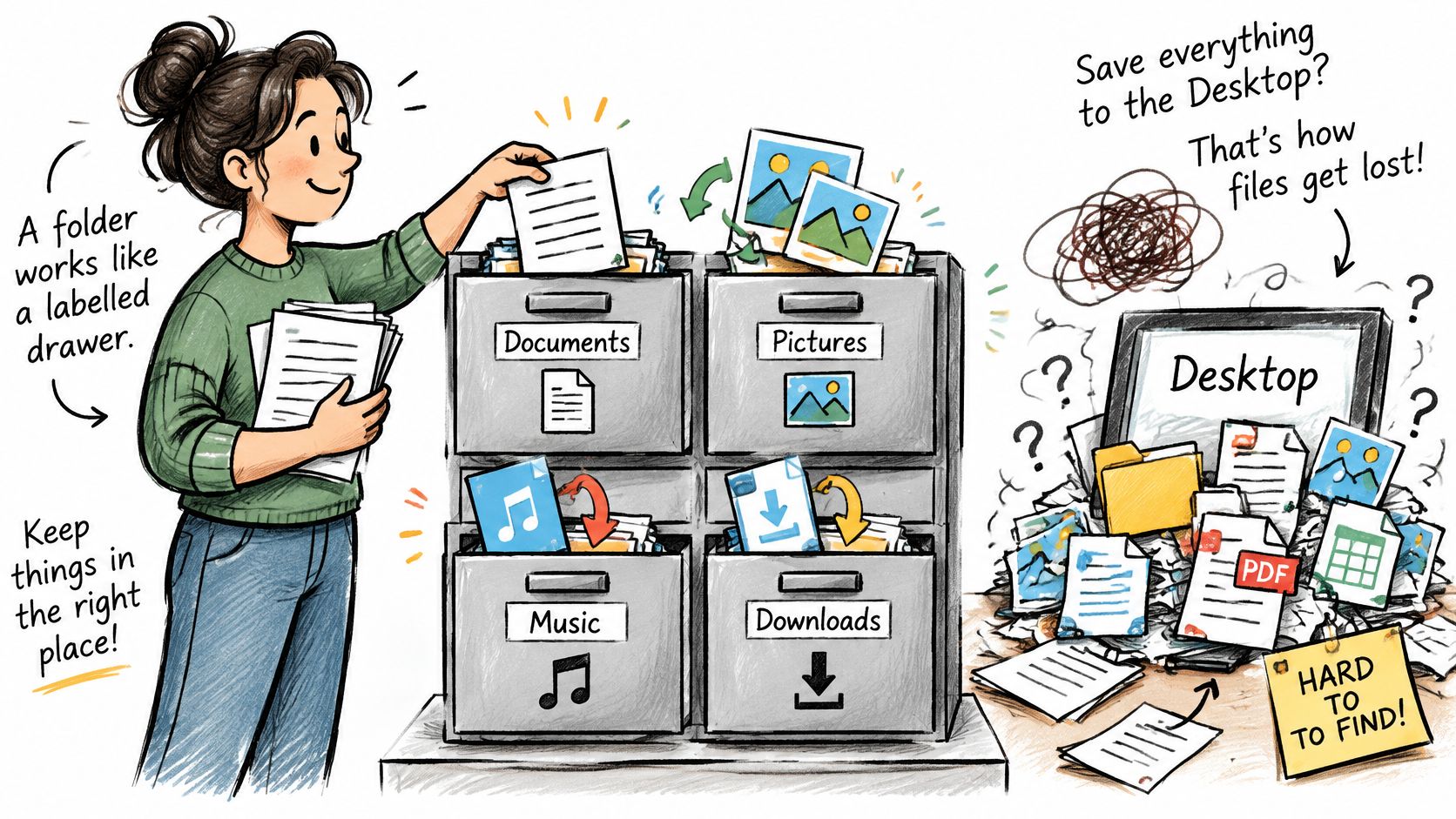
A folder is a labelled drawer. You wouldn't tip a whole term's work onto the kitchen table and hope, yet that's exactly what the Desktop becomes: icons pile up until nobody can see what's there, and the one file you need hides underneath a screenshot from March.
Four drawers most learners need
- Documents holds typed work, notes and drafts. This is the main cabinet, and everything substantial belongs here.
- Desktop is a working surface, not a store. Keep only the files you're touching this week.
- Downloads is a temporary tray for whatever arrives from email or a browser.
- Your own subject or project folders sit inside Documents, one per subject or project, so a name like Biology leads straight to the right drawer.
A clear path reads like a sentence: Documents, then Form 2, then Geography, then Term 2. Add one folder just for photos of handwritten work, so camera files never mix with lesson notes.
| Folder | Keep here | Example |
|---|---|---|
| Documents | Typed work, notes and drafts | Form 2 > Geography > Term 2 notes |
| Desktop | Only files you are working on this week | Today's assignment draft |
| Downloads | Temporary tray for email and browser files | Textbook PDF before you move it |
| Own subject folders | Everything for one subject or project | Documents > Biology > Lab Reports |
The same idea works on a handset. In 2025, smartphone penetration in Kenya reached 83.5%, according to the Communications Authority of Kenya, and phones are where a lot of school material gets saved and shared. In the Files app, Downloads and Documents are separate spaces, just as they are on a computer. The 2023/24 Kenya Housing Survey found 64.9% of people aged three and above used a mobile phone while only 11.6% used a computer, according to the Kenya National Bureau of Statistics, so the phone version of the drawer system matters as much as the laptop one.
Quick notes typed during a lesson often live in a note app rather than a document, and the same drawer logic applies there, as this breakdown of note app options from Acres sets out.
One rule makes the whole system hold: move anything in Downloads into its subject folder within the same week, so the tray never fills up.
Name Files So You Recognise Them Later
A file name has one job, and that's to answer three questions later: what is it, whose is it or which class, and when was it made. If you can't answer all three from the name, the search box can't rescue you, because search only finds words that exist.
The three-question test: what is it, whose is it, and when? Untitled answers none of them.
| Weak name | Clear name | Why it works |
|---|---|---|
| New Document | Geography-Project-Draft-2 | Says the subject, the work and the version |
| Untitled | Form2-Rivers-Notes-Term2 | Shows the class, topic and term |
| final2 | Maths-Algebra-Test-Marks-2026-03 | Year and month sort files in order |
| Scan0042 | Amina-Biology-LabReport-2026 | Shows whose work it is and what kind it is |
A pattern that works for school work
One pattern covers almost every school file: Grade, Subject, Topic, Type, Date, Version. Written out, it looks like Grade7_Science_Plants_Quiz_2026-03_v2.
Each choice in that name earns its place. Hyphens or underscores replace spaces, because a space is what breaks some upload forms and links. The date goes year first, so files sort into order when you click a column heading. Words like Draft, Final or Marks replace numbers, because nobody remembers what version three meant. Keep the whole name under about 60 characters so it stays readable in a search result instead of being cut off with dots.
Save Versus Save As, and When to Use Each
You edit an essay, close the laptop, open it the next day, and the essay has jumped back to how it looked two days ago. Nothing is broken. You're almost certainly editing a different copy from the one you think, or you saved over the wrong one.
Save writes your changes into the same file, in the same folder, and the earlier version is replaced. Save As creates a new file, asks you where to put it and what to call it, and leaves the original untouched.
| Command | What it does | Use it when | Shortcut |
|---|---|---|---|
| Save | Writes changes into the same file and location | Routine updates to a file you already named | Ctrl+S |
| Save As | Creates a new file with a chosen name, folder or type | First save, new drafts, copies for a teacher | Ctrl+Shift+S |
The four-step saving routine
- Start every new piece of work with Save As. Choose the subject folder and write the clear name before you type the first sentence, not after the last one.
- Press Ctrl+S after every paragraph. A file saved a few minutes ago survives a power cut. One saved an hour ago loses the hour.
- Use Save As before a big change, such as rewriting a whole essay or editing a marks sheet, so the older version stays safe and you can compare.
- Check the title bar. The file name sits at the top of the window. Read it and confirm it's the copy you meant to open.
Saving early matters more than it sounds in homes where power cuts and low phone batteries interrupt evening study. A working copy saved locally also protects you when the connection drops, and Kenya's Data Protection General Regulations already expect this kind of discipline from organisations, with retention schedules, periodic review of stored data and backups where necessary. Families storing learner records can borrow the same habit: keep the current version obvious and move superseded drafts into an archive folder.
Keep a Second Copy Somewhere Safe
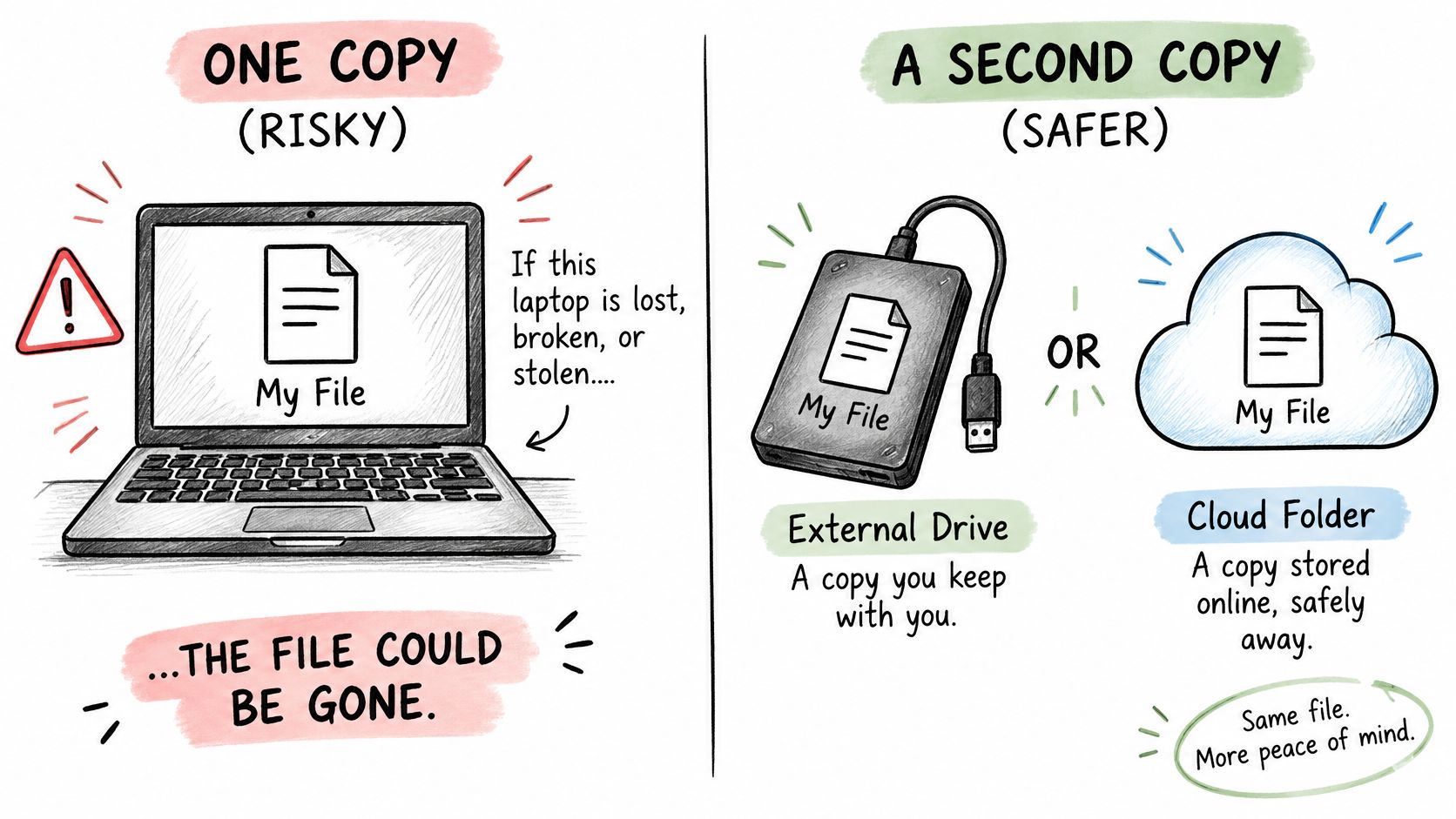
If a file exists in exactly one place, one accident removes it. A cracked screen, a lost flash disk, a shared desktop someone wipes on a Friday afternoon, a phone sold with the memory card still inside. There is no recovering a single copy.
Connectivity shapes when you can make that second copy. Kenya's 2023/24 survey shows 56.6% of people in urban areas used the internet compared with 25.0% in rural areas, and household internet access was 36.3% nationally, made up of 34.9% mobile internet and 7.0% fixed internet, according to the Kenya National Bureau of Statistics. Learners move between connected and limited weeks, so the organised local copy comes first and the second copy happens when there's signal.
| Option | Strength | Weakness |
|---|---|---|
| Flash disk | Works offline and you choose what goes on it | Can be lost, damaged or used by someone else |
| Personal cloud account | Opens on a phone and computer when online | Needs data bundles and a strong password |
| Shared computer desktop | Nothing, because it is not a backup | The next user can open, move or delete the file |
Open the copy before you trust it
Three steps, repeated every week, do more than any clever tool.
- Save into the right subject folder first. A second copy of a badly filed file is just two copies of a mess.
- Copy your important files to a flash disk every Friday. Final projects, assessment records, anything a teacher will ask for on Monday.
- Open the cloud copy on a second device once a month. Confirm the file downloads and opens.
That last step is the one people skip. A backup you have never opened is only a hope. The Office of the Data Protection Commissioner's guidance treats regular backups and disaster-recovery procedures as the measures that keep personal data available, and also recommends controlling access so only authorised people can reach it. If you're unsure which storage on your machine is internal and which is external, parts of a computer and what they do explains it plainly.
If you learn better by watching, this walkthrough covers the same ground.
Protect Files on Shared and Family Phones
Deleting a file feels like the end of it. On a shared phone or a school computer, it usually isn't. A second copy and a shared device pull in opposite directions: the copy protects schoolwork from one accident, while an open account, a forwarded WhatsApp attachment or a signed-in desktop shows a child's marks, identity details or a family phone number to whoever picks the device up next.
Most families skip this step because nobody explained it. A 2025 Kenya study found that 63% of respondents were unaware of the risks of sharing personal information online, and only 27% were familiar with the Data Protection Act 2019, as reported by the Communications Authority of Kenya.
The law gives families real power here. The Data Protection Act, 2019 gives people the right to be told how their personal data is used, to access it, to correct false or misleading information, to request deletion, and to receive it in a structured, machine-readable format. None of those rights is easy to exercise when a learner's marks and phone number sit in files nobody can name or find.
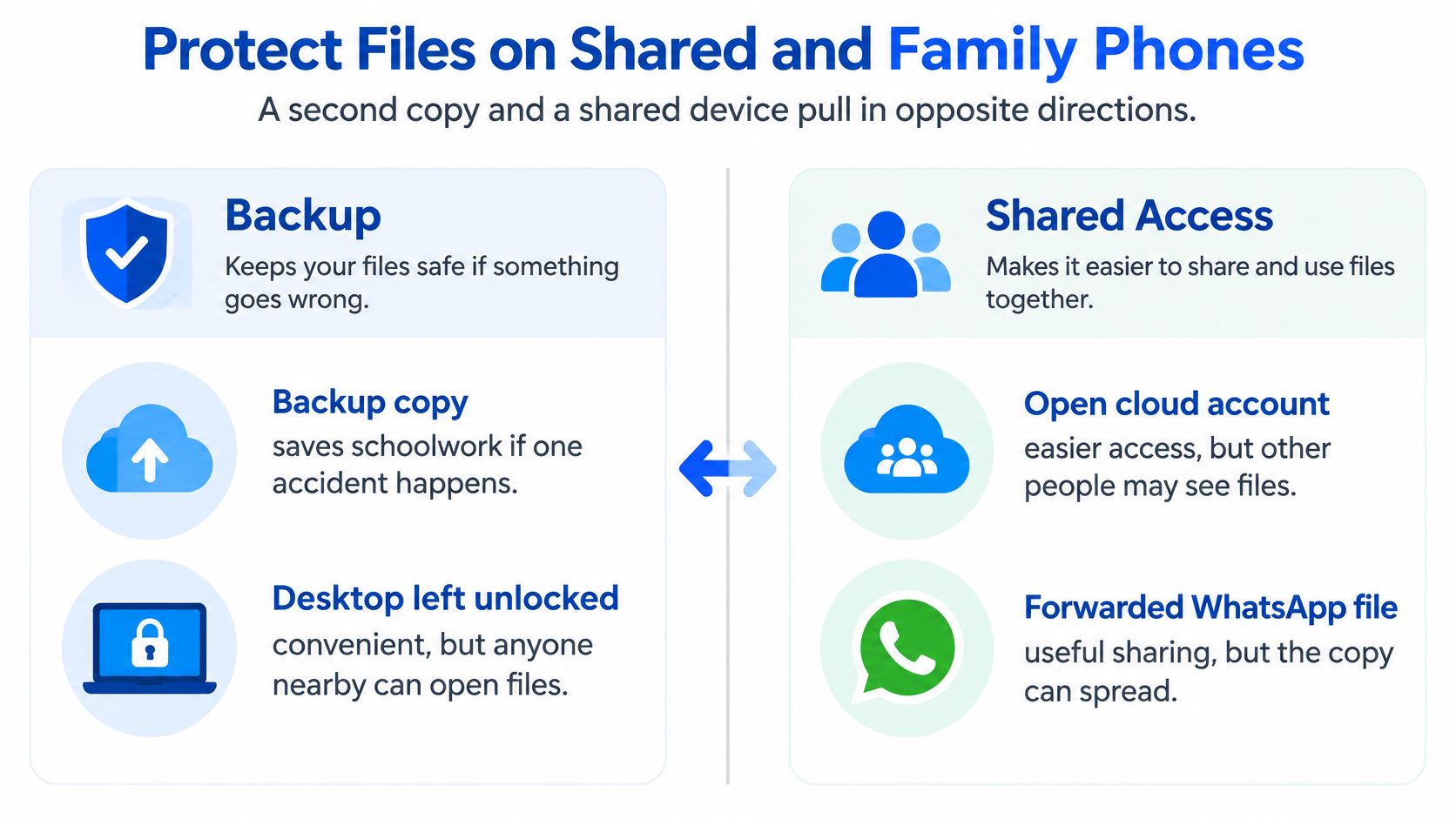
Before you lend, repair or sell a phone
Separate ordinary lesson notes from sensitive records, then work through this list.
- Gather the sensitive files. Move learner records, marks and phone numbers into one clearly named folder you can delete later.
- Use neutral names for assessment files, such as Biology-LabReport-2026 rather than a child's full name.
- Open the cloud app's sharing settings and remove links and people you no longer trust.
- Copy what you still need onto your own flash disk.
- Empty the Recycle Bin or the Recently Deleted folder.
- Sign out of accounts and remove any extra user profile on the device.
- Remember the copies you don't control. Deleting a file on the phone does not delete a cloud copy or a WhatsApp attachment already sent.
If your files live in our app, you can export everything or delete the account at any time from Settings, then the Privacy panel. For the school-computer version of this routine, see using a shared computer safely. And close the document before you walk away. The next person shouldn't find your essay open on the screen.
Practise Saving and Finding Files Today
Reading about folders doesn't build the habit. Doing it four times does. Pick one real school document and run it through the four actions below. If you would like guided practice first, Keybaki Labs has practice exercises on files and folders that walk you through the same moves.
Four actions for this week
- Create one subject folder. Documents, then Form 2, then Geography.
- Use Save As on one real school document and name it Geography-Project-Draft-2.
- Copy that file to a flash disk or your own cloud account, so it no longer lives only on a shared desktop.
- Find the file again a day later using the five checks, without opening a single wrong folder. If you land in the right place straight away, your folder and your file name both did their job.
One slow, correct pass counts more than twenty rushed ones. And if step 4 fails, that is useful information, not a disaster. Ask which habit slipped. Did the file drop into Downloads because you clicked Save in a hurry? Does the name describe what is inside? Fix that one thing, then run the four actions again on a different document.
For teachers working on a small data bundle, lesson plans, bookmarked library items and the classroom presenter keep working offline once you've opened them online at least once.
Then go back to the three habits. Save on purpose, so you know where a file went the moment you finish typing. Name it clearly, so search has something to grip. Keep folders, so the drawer you need is the one you open. Do that for a fortnight and the Sunday-evening panic stops happening.
Keybaki is a competency-based e-learning platform built in Nairobi for Kenya's CBE curriculum, with a shared lesson planner, a CBE-mapped digital library and continuous assessments for Grades 7 to 12. The same discipline of clear names, sensible folders and a safe second copy runs through how lesson plans, library items and assessment records are handled, so nothing important depends on one device. Visit Keybaki to see how planning, teaching and evaluation fit into one weekly loop that teachers, parents and learners can all follow.
Comments
Loading…