
· parts of a computer
Parts of a Computer and What They Do: A Simple Guide
13 min read

You have a science report to finish, but the school computer looks different from the phone you're used to. Where do you type? Which part keeps your work? And is the large case under the desk really the CPU?
Every computer, from a school desktop to a laptop, has parts that take information in, work on it, show it and keep it. Understanding the parts of a computer and what they do starts with a familiar task: typing your science report, saving it and opening it again tomorrow.
Table of Contents
- Four Jobs Every Computer Does
- Parts You See, Touch and Power
- The Processor, Memory and Storage Team
- Desktop and Laptop Parts Side by Side
- How One Task Moves Through the Parts
- Test Your Parts Knowledge
- Practise Identifying Parts on Keybaki Labs
Four Jobs Every Computer Does
Suppose you're a Grade 8 learner writing about plant growth. You type your observations, check the words on the screen and save the report. Later, you print it for your teacher.
The next day, you open the saved report to correct a sentence. Different computer parts helped at each stage, but their work fits into four main jobs.
The four jobs of a computer
| Job | What It Means | Everyday Example |
|---|---|---|
| Input | Taking in what you tell the computer | Pressing keys to type a name |
| Processing | Working out results by following instructions | A calculator app adding up a sum |
| Output | Showing or sounding the result | Seeing a finished report on the screen |
| Storage | Keeping files for later use | A saved report that opens tomorrow |
A computer is a system of specialised parts working together, not a single part doing everything. The processor follows instructions, while other components receive your commands, hold active work or present results.
Don't worry if you haven't used a desktop before. Only 8.8% of Kenyan households owned a computer, according to the Communications Authority and KNBS analysis of the 2023/24 Kenya Housing Survey.
Start with the job: Ask what a part helps you do before trying to remember its name.
These jobs apply to desktops, laptops and tablets. Your phone follows the same pattern, even though you touch its screen instead of using a separate keyboard and mouse.
Recognising this pattern is a useful foundation for broader digital literacy skills. You can begin learning it with a shared device, a photograph or a classroom demonstration.
Parts You See, Touch and Power
Main computer parts, their jobs and categories
| Part | Main Job | Category |
|---|---|---|
| Monitor (screen) | Shows the results of your work | Output |
| Keyboard | Sends typed letters and commands | Input |
| Mouse or touchpad | Moves the pointer and selects items | Input |
| System unit (case) | Holds and protects the internal parts | Support |
| Motherboard | Connects parts so they can communicate | Support |
| Processor (CPU) | Carries out instructions | Processing |
| Memory (RAM) | Holds what's open and in use right now | Working memory |
| Storage (hard drive or SSD) | Keeps files when the power is off | Storage |
| Ports (USB, charging) | Connect devices and bring in power | Connection |
| Speakers and microphone | Play sound out and pick up your voice | Output and input |
| Power button and charger | Start the computer and supply electricity | Support |
Use this visual reference to connect the names with their jobs.
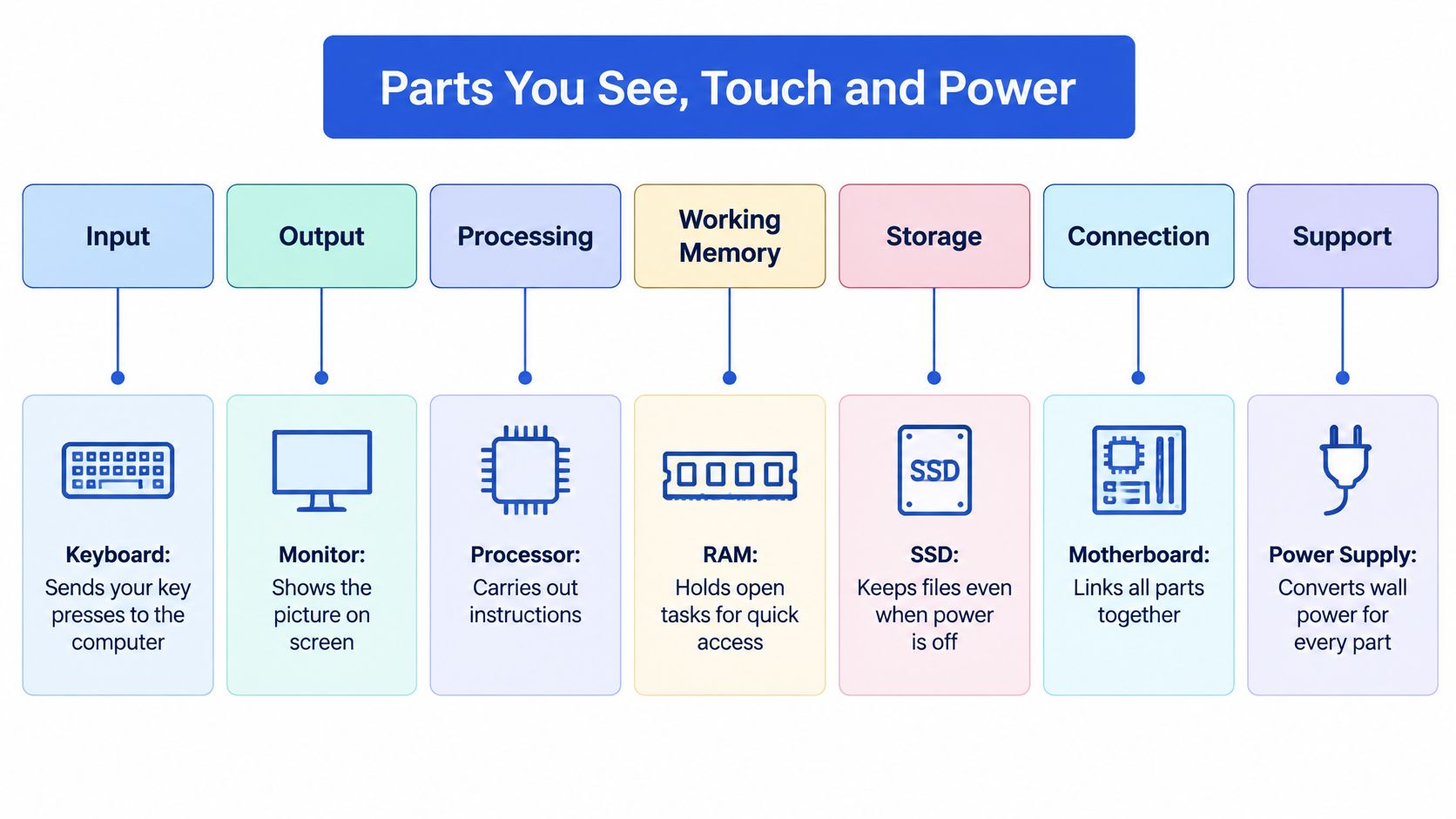
The parts outside the case
The monitor shows your science report. It lets you see your title, sentences and pictures, but an ordinary monitor doesn't receive your typing.
The keyboard sends letters and commands. For your report, use Shift for a capital letter, Backspace to remove the character before the typing position and Enter to begin a new paragraph. A shortcut such as Ctrl+C sends a copy command.
The mouse moves the pointer so you can select a word or click Save. A laptop's touchpad does the same job: slide a finger to move the pointer and tap to select. To drag, you can hold the touchpad button while moving your finger.
- Speakers send sound out: You might hear audio from a science lesson.
- A microphone takes sound in: You could record yourself explaining your observations.
- A touchscreen does both jobs: It displays the report and receives your taps.
The parts inside and around the case
The system unit is the case containing the main internal components. It isn't the CPU. The CPU is a smaller component inside it.
The motherboard connects the internal parts. The processor, RAM and storage have different responsibilities, which become easier to understand when you compare them as a team.
At the edges, USB ports connect suitable devices such as flash drives and printers. A laptop's charging port receives power from its charger. Don't force a plug into a port that doesn't fit.
The power button starts the computer. The charger converts mains electricity into the lower-voltage power a laptop needs and supplies power for charging its battery. A desktop uses an internal power supply.
Safe checks before asking for help
If a laptop won't start, check whether it needs charging and whether the wall socket is switched on. For a blank desktop screen, check the monitor's power light and visible cable connections before assuming an internal part has failed.
Power access matters in Kenyan homes and schools. The Communications Authority's analysis of electricity and device ownership found computer ownership in 17.6% of households with electricity, compared with 1.4% without electricity.
Never open a charger or power supply. Switch off and unplug equipment before cleaning ports, and ask a qualified technician to handle electrical faults.
If you only have a phone, identify its touchscreen, speaker, microphone and charging port. You're already recognising computer hardware, just in a smaller body.
The Processor, Memory and Storage Team
Think of preparing a meal. The processor is like the cook, following instructions. RAM is like the kitchen counter, holding what's needed for the current task. Storage is like the pantry, keeping things between tasks.
The illustration below makes that comparison visible.
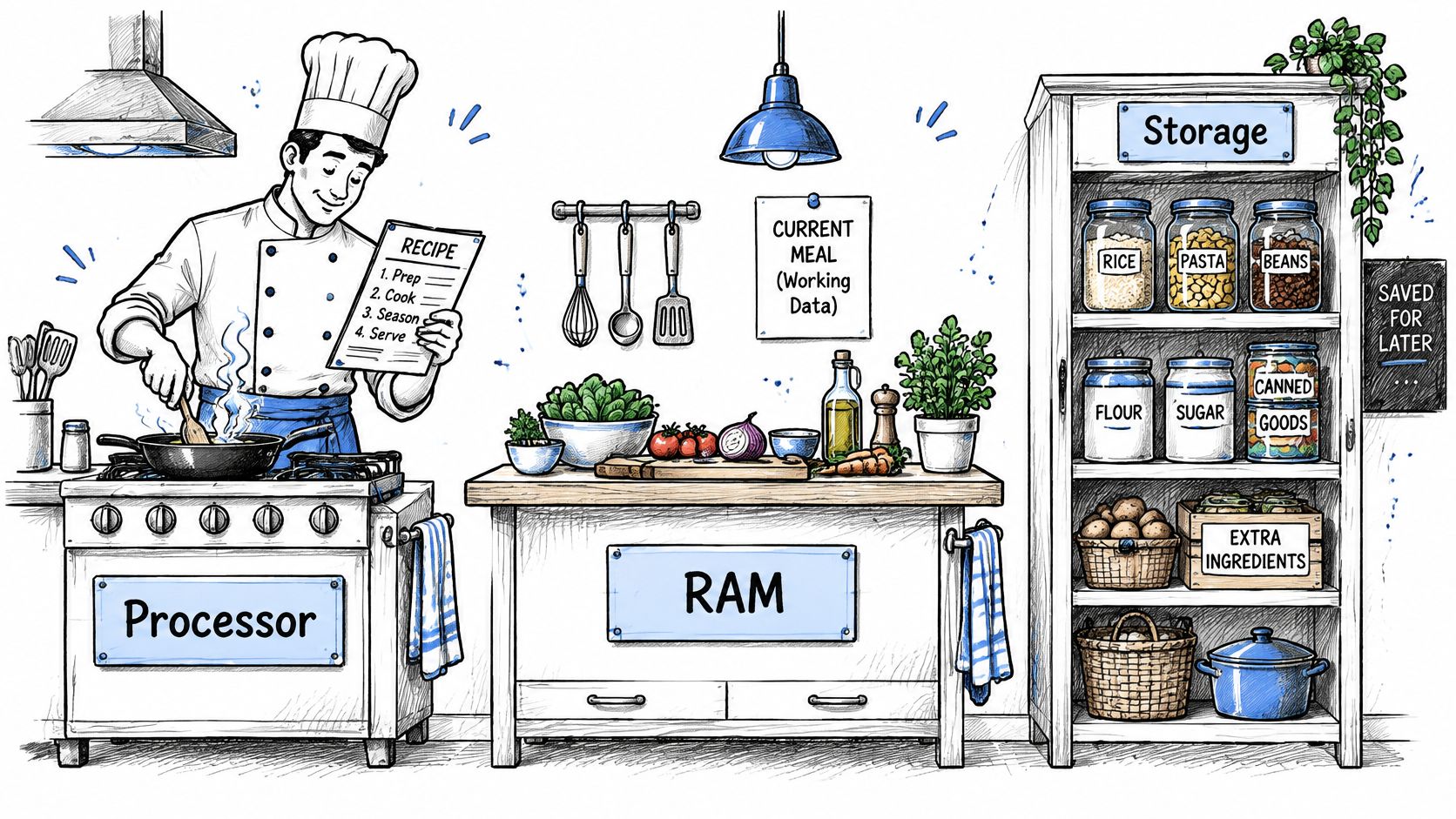
For your science report, the CPU carries out the program's instructions. It isn't where you keep saved homework. RAM is temporary working memory for the program and document you're using, and its contents are lost when power goes off.
Storage, whether a hard drive or an SSD, keeps saved files when the computer is switched off. That's why typing a sentence isn't the same as saving it.
What the specification numbers mean
The Kenya ICT Authority's end-user computing standard sets the following minimums for learner and teacher devices.
Minimum processor, memory and storage for Kenyan devices
| Part | Learner Device Minimum | Teacher Device Minimum |
|---|---|---|
| Processor (clock speed) | 1.0 GHz | 1.6 GHz |
| Memory (RAM) | 1 GB | 2 GB |
| Storage | 64 GB | 500 GB |
GHz describes processor clock speed, while GB describes capacity for RAM and storage. These are the standard's minimum specifications, not a promise that every device meeting them will suit every task.
A teacher may have a lesson plan, slides and a PDF open while presenting through a projector. That needs more working space than reading a single lesson. When RAM is insufficient, the system may move inactive data to slower storage, so processor speed alone doesn't determine responsiveness.
Choosing a device: Check the processor, RAM and storage together, rather than judging by one number.
For another visual explanation of these components, use the video below.
Saved schoolwork and account information also need protection. Kenya's Data Protection Act establishes rules for handling personal data. Don't share passwords unnecessarily, and sign out or lock a shared computer when you finish.
Desktop and Laptop Parts Side by Side
The basic parts are similar, but their arrangement is different. A desktop normally separates the screen, keyboard, mouse and system unit. A laptop combines these functions into a portable device.
Where the same parts sit in desktops and laptops
| Part | Desktop | Laptop |
|---|---|---|
| Monitor | Separate screen plugged into the system unit | Built into the lid |
| Keyboard | Separate keyboard | Built into the body |
| Mouse | Separate mouse | Touchpad in place of a mouse |
| System unit | Separate case holding the motherboard, processor, memory and storage | Internal parts fitted inside the portable body |
| Speakers | Separate speakers or built into the monitor | Built into the body |
| Power | Plugs into mains through a power supply | Charger and battery |
| Ports | Often at the back and front of the case | Usually fewer, commonly at the sides |
For your science report, you still type, select, read and save. You reach for the controls in different places.
The KNBS report on ICT ownership and use distinguishes owning technology from using it. That's a helpful reminder: you can learn these differences on a shared school computer without owning one yourself.
Which arrangement suits the task?
- Desktop: Often easier to upgrade, with more room for cooling. It can suit a school lab where learners work at fixed desks.
- Laptop: Easier to carry between classrooms. Its battery can keep it running for a time without mains power, depending on its charge and condition.
- Either option: Consider the budget, available power, repair needs and the work you expect to do.
Neither arrangement is automatically the better choice. When you encounter an unfamiliar device, locate its screen, typing controls and ports first. Recognise that the processor, RAM and storage may be hidden inside.
How One Task Moves Through the Parts
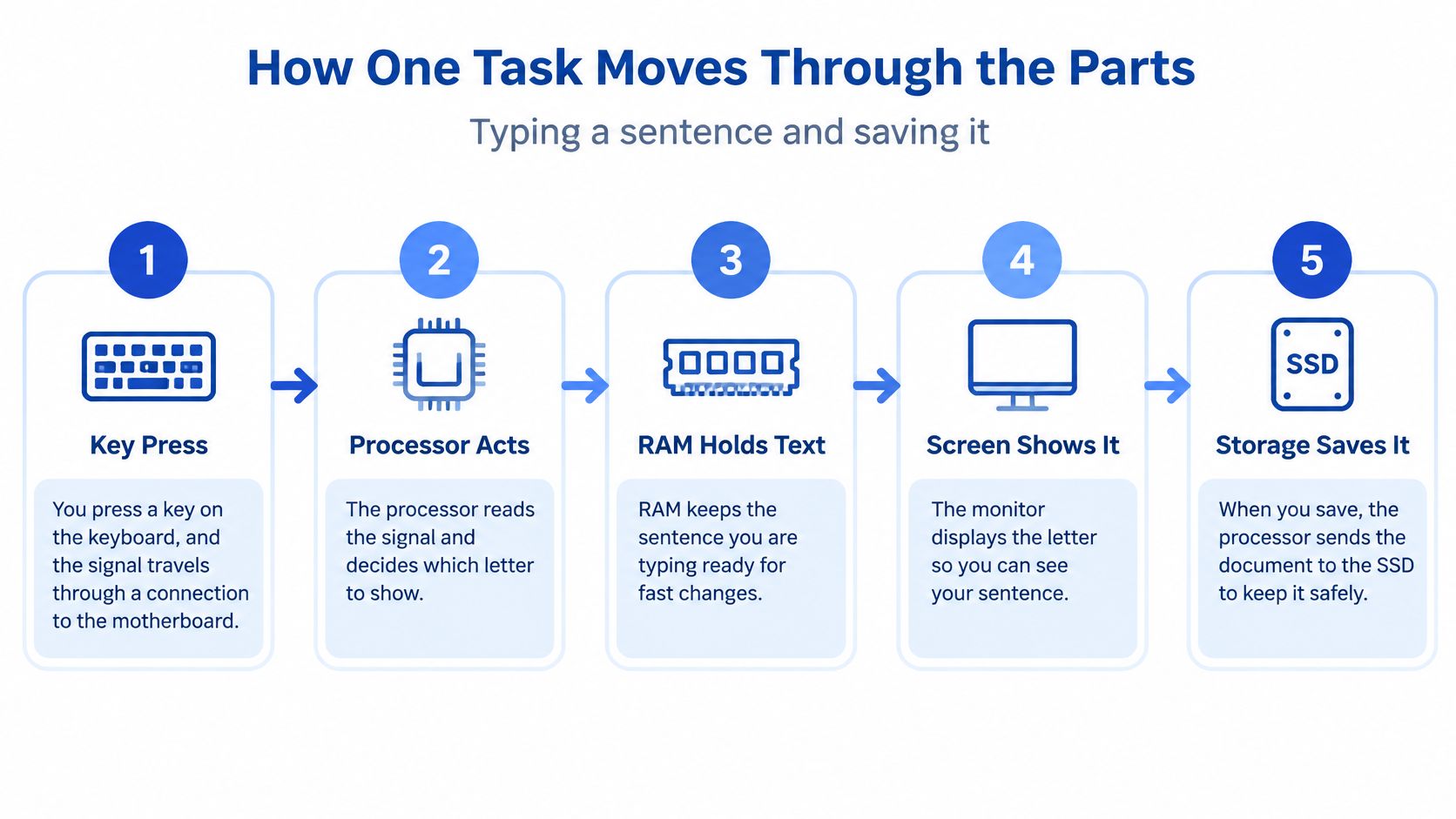
Open a document and type a sentence about your plant observations. Follow this simplified path to understand how the parts cooperate.
- Press a key. The keyboard sends a signal through its connection to the computer's internal system. The motherboard provides communication pathways.
- The processor follows instructions. Working with the document program, it processes your key press so the appropriate character can appear.
- RAM holds the active work. Your open document stays available for changes while you continue typing.
- The monitor displays the result. You can check the sentence and notice mistakes because the computer produces visible output.
- Choose Save. The program, processor and storage system work together to write the document to the SSD or hard drive.
- Shut down properly. The temporary working contents of RAM are lost, while the saved document remains in storage for your next session.
The diagram follows the typing and saving stages.
Connections matter too
Think of the motherboard as a road network for signals between the processor, memory, storage and connected devices. It helps the parts communicate, but it doesn't replace their individual jobs.
Power follows its own connections. The charger or power supply provides suitable electricity to the computer, including the motherboard and other components. A separate desktop monitor also needs its own power connection.
A problem in one connection can look like a fault elsewhere. A blank screen doesn't prove that the processor is broken. A loose display cable or a switched-off monitor can prevent you from seeing work that the computer is otherwise performing.
Test Your Parts Knowledge
Cover the parts table and answer from memory. You can write your answers in an exercise book or say them aloud to someone sharing the device.
The questions check one skill: connecting a part's name to its job. Owning a computer is not required. If you have only used a phone, ask which part of the phone does the same job before you choose your answer.
Questions
- Which part keeps your saved homework after the computer is switched off?
- Which part holds the files and programs you have open right now?
- Which part connects the processor, memory, storage and other components so signals can move between them?
- A laptop has no mouse plugged in. Which part moves the pointer?
- Which job does the monitor do: input, processing, output or storage?
Question 3 takes you back to the road network. Every other part relies on one shared component to pass messages along.
Check your reasoning
- Name the job: Saying what a part looks like is only the first step.
- Use the report example: Ask what the part does while you type, view or save your science work.
- Notice uncertainty: If RAM and storage still blur together, revisit the kitchen comparison before checking the answers.
If you miss two or more, go back to the parts table and the processor, memory and storage explanation before continuing. The answer key sits near the end, so finish your own answers first.
Practise Identifying Parts on Keybaki Labs
A learner who has only ever used a phone can still walk through each part on a shared school computer. The Keybaki Labs Computer Foundations area starts with Parts of a computer, then covers switching on, the mouse and the keyboard. A guide called Tcha shows each step first, then lets you practise through Show me, Guide me and Let me try.
Follow this practice path:
- Open Learn computer basics on Keybaki Labs.
- In Show me, watch Tcha demonstrate the identification steps, including the monitor, keyboard, system unit and ports.
- During Guide me, repeat the identification with guidance. Point to each part and say its name and its job, the way you would explain what happens while your science report is typed and saved.
- Use Let me try to identify the parts independently.
- Take the skill check Identify and use a computer's basic hardware.
Keybaki's workflow runs in four steps: Learn for theory with worked examples, Do for practice sets, investigations and practicals, Prove for competency assessment, and Adapt for a recommendation engine that suggests what to try next. The Do stage is where reading about a keyboard becomes the skill of using one.
If the skill check reveals a gap, return to the relevant row in the parts table and repeat that part of the practice.
Answers
- Storage.
- RAM, the working memory.
- Processor, RAM and storage. The ICT Authority standard table sets minimums for these three parts.
- The touchpad.
- Output.
Keybaki offers guided computer-basics practice to help you move from naming parts to using them. Visit Keybaki, start with Parts of a computer, and practise until you can explain each part's job in your science report task.
Comments
Loading…