· sign out checklist
Using a Shared Computer Safely: Sign Out and Leave Nothing Behind in 2026
12 min read
You've finished checking a school portal, printed a document, and packed your bag. Someone is waiting for the computer, so you close the window and stand up. But have you signed out, and what have you left in Downloads?
School labs, cyber cafés and family laptops are shared spaces. Using a shared computer safely: sign out and leave nothing behind is a useful rule for every session. It means protecting both your accounts and the files the machine keeps after you finish.
Table of Contents
- What Stays Behind After You Leave a Shared Computer
- Check the Real Site and Your Settings Before You Sign In
- Keep Files Off the Shared Machine While You Work
- The 30-Second Checklist Before You Stand Up
- Recovery in Five Steps If You Forgot to Sign Out
- Practise Signing Out Before Your Next Shared Session
What Stays Behind After You Leave a Shared Computer
Say a Form Four student checks a school portal at a cyber café, closes the window and walks out. The student assumes the account is closed too. The next customer opens the browser and may find that the portal still recognises the previous user.
Closing a window is not signing out. A service can keep an account session active after its window closes. Using the service's sign-out button ends that access, but it doesn't automatically remove downloaded documents or saved login details.
What the next user might find
The exposure isn't limited to someone reading your email. A stranger could copy a document, print your results or use details stored in a form without ever opening your main account.
What stays behind and what the next user could do
| Trace | Where it stays | What the next user could do |
|---|---|---|
| Open email or social media session | Browser session | Read messages and send posts as you |
| Saved passwords | Browser password store | Sign in to your accounts without typing a password |
| Downloaded files | Downloads folder and recycle bin | Open school records, IDs or assessment results |
| Open documents | Desktop and recent files list | Read, copy or print your work |
| Browser history | History page | See which sites you visited and when |
| Autofill entries | Browser form data | Fill a form with your phone number or ID number |
Saved passwords may have additional device protection, but you shouldn't rely on that protection on a machine other people control. Likewise, removing a document from a recent-files list doesn't delete the document itself.
Sign-out protects only part of the session
A Kenya-focused cybercafé study found that 60% of the computers examined were infected with malware, and most participating managers and customers regarded logging out as the primary protective measure. That finding concerns the computers examined, not every cyber café in Kenya.
The practical lesson is to treat the computer as untrusted storage, even when the screen looks tidy. Clearing visible traces won't make an infected computer safe, but leaving fewer personal details behind reduces what another user can immediately access.
Practical rule: Sign out of everything, then remove what the browser and the Downloads folder kept.
On a family laptop, the next person may be a sibling rather than a stranger. The boundary still matters. They shouldn't have to guess whether they're submitting homework, sending a message or changing settings under your name.
Check the Real Site and Your Settings Before You Sign In
Start with the address, not the password box. Type the official web address yourself or use a bookmark you trust. Don't begin from an unexpected message or assume an old page in the browser's history is genuine.
The Infohub guide to cybercafés in Kenya recommends starting from the relevant agency's official website, entering passwords personally and declining password-saving prompts. Apply those habits before opening your school portal, email or cloud account.
Run the checks before typing
- Read the address bar. Check the service's domain carefully for changed letters or extra words. A familiar logo isn't enough to establish that a page is genuine.
- Untick Remember me or Keep me signed in. These settings are intended to preserve access, which isn't what you want on a shared machine.
- Decline password saving. If the browser offers to save your login, choose No or Never for this site. Don't enable browser sync or sign into the browser profile itself.
- Type your password yourself. An attendant can help you find a menu without learning your credentials. Ask anyone helping to look away while you enter them.
- Keep verification on your own phone. Receive verification codes there, and never read them aloud to an attendant or friend.
Never enter an M-Pesa PIN, banking password or one-time code on a shared computer. Complete those sensitive steps on your personal phone instead. If a service requires a code to finish signing in, move that task to your phone rather than exposing the code on the public machine.
Know when to stop
Unexpected extensions, repeated pop-ups or unfamiliar permission requests are reasons to pause. Tell the attendant or lab teacher and use your own device instead. Reading public notes is a different risk from entering an ID number or accessing medical or financial records.
Prepare your account beforehand with strong passwords and 2-step verification. If the login page offers to remember you, fix that setting before continuing.
Keep Files Off the Shared Machine While You Work
A shared computer is a window, not a storage place. Save work to your own account, flash disk or cloud storage you control, rather than keeping the only copy on the shared desktop. Before deleting any temporary copy, confirm that your saved version opens.
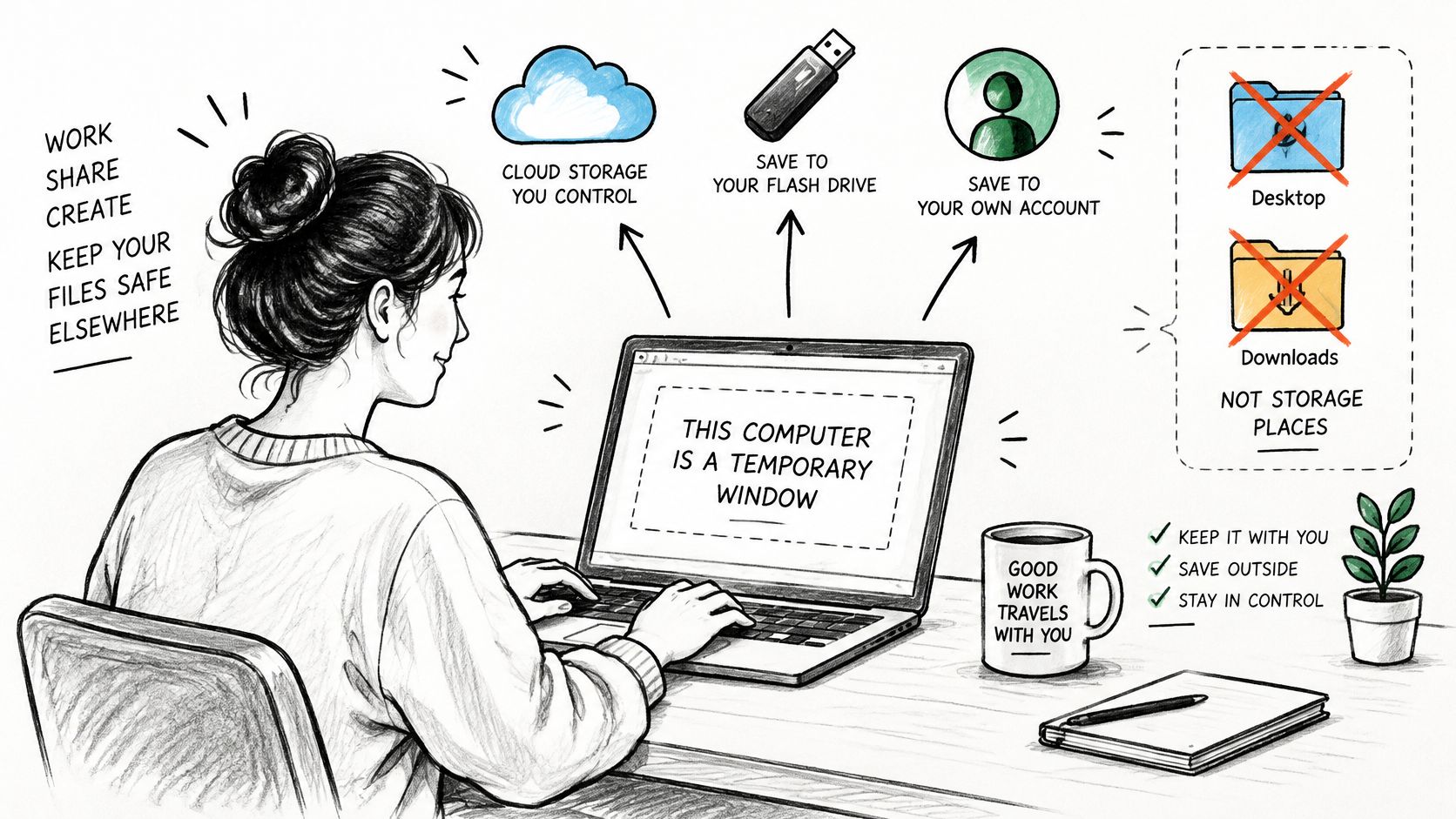
Use recognisable filenames so you can find your files during cleanup. Avoid putting an ID number or other sensitive detail in the filename. If cloud folders are unfamiliar, Simply Tech Today's guide to getting started with cloud storage provides a useful introduction before you need to upload schoolwork.
Follow the file from download to departure
Say a Grade 10 learner downloads a notes PDF and prints an assessment result. The learner copies the notes to a flash disk, checks the copy, deletes the local original and collects the printout. The assessment PDF needs attention too, even if printing was the only reason for downloading it.
- Downloads and Desktop: Check both locations for files you created or saved.
- Screenshots: Treat a picture of a results page like the results document itself.
- Printed pages: Collect every page, including failed prints that contain personal details.
Copying a file to a flash disk doesn't remove the original. Uploading it to cloud storage doesn't remove the local copy either. Keep sensitive pages on screen only while you need them, and close documents before deleting their temporary copies.
Step away without leaving access behind
Lock the screen only if you have a personal computer login that others can't access. If the lab uses a common login, save your work and sign out of your services before stepping away. Closing a document can hide its contents, but it isn't a substitute for ending account access.
Ask the attendant or teacher to watch your belongings if necessary, not to act as your account protection. Schools can build cleanup time into computer rotations using this practical plan for running a school computer lab with few computers.
If you wouldn't leave a personal folder on a classroom desk, don't leave its digital copy on the computer.
The 30-Second Checklist Before You Stand Up
Start your exit routine before your paid time or lesson ends. The 30-second checklist is a reminder, not a deadline. If you've downloaded sensitive documents or opened several services, take the time needed to check them properly.
Kenya's ODPC Personal Data Protection Handbook identifies access controls and security safeguards as relevant protections against unauthorised access and disclosure. For an individual user, that means checking both account access and local copies.
Finish the work and end account access
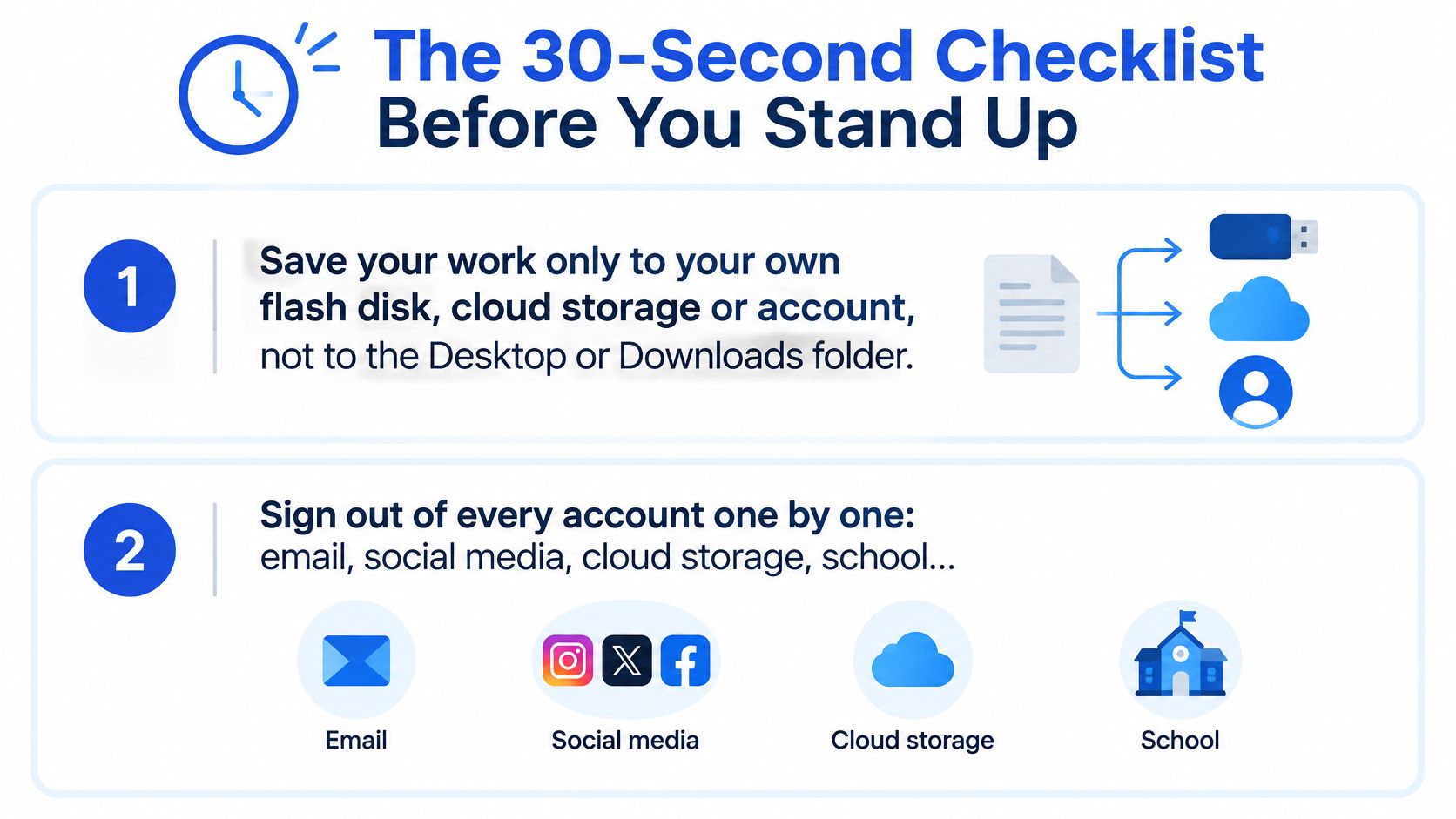
Save and close your work. Confirm it's in your own flash disk, cloud storage or account, not only on Desktop or in Downloads. Wait for any upload to finish before closing the document.
Sign out of every account individually. Check email, social media, cloud storage, the school portal, messaging and any payment service you opened. Use each service's sign-out function, including applications outside the browser.
Reject saving prompts. Choose No when offered password, passkey or card saving. If you accidentally saved a password, remove your entry from the browser's password manager without viewing or changing anyone else's entries.
Clear your browser traces and close all browser windows. Where permitted, remove your session's history, cookies, cached files and autofill data, then exit the browser completely. Don't delete other users' browser profiles or change managed settings.
Remove copies and verify the result
Delete your local files. Inspect Downloads, Desktop and any folder you used, including screenshots, then remove your deleted files from the recycle bin. Clearing the browser's download list alone doesn't delete the actual files.
Check what remains visible. Reopen the service's official address if necessary and confirm it asks for a login rather than showing your account. Dismiss personal notification previews and replace copied sensitive text on the clipboard by copying harmless text.
Take your belongings. Remove your flash disk and memory card, and collect printed pages. Your personal copies should leave with you, not remain beside the keyboard or in the printer tray.
The common slip is signing out of email while leaving cloud storage active in another tab. Use a two-pass check: first inspect applications and browser tabs, then inspect local files, autofill, the clipboard and removable media.
If a school or cyber café blocks cleanup controls, tell the administrator exactly what remains. Don't bypass restrictions or install a cleaning tool. On a family laptop, agree beforehand which personal browser profile each person uses and avoid clearing someone else's work.
A clean exit means the next person reaches a login screen, your Downloads folder contains none of your session's files, and your flash disk is in your pocket. It doesn't mean the service has deleted information held in your online account.
Recovery in Five Steps If You Forgot to Sign Out
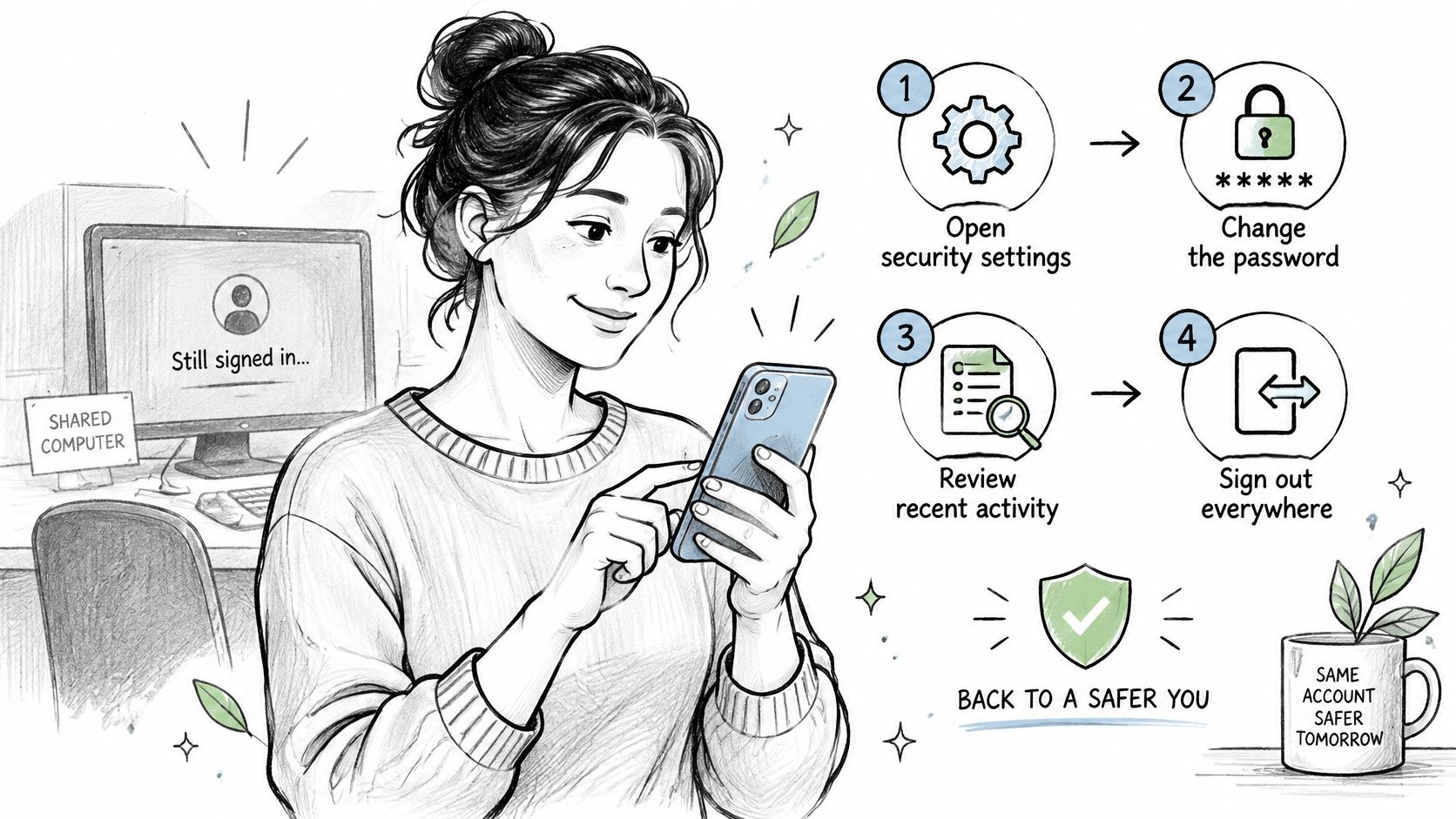
Don't use the shared computer for recovery. Start from a trusted device, such as your own phone, and open the service manually. Don't follow an unexpected message claiming that you must verify your account.
The National KE-CIRT/CC cybersecurity report for October–December 2025 describes phishing campaigns targeting email, cloud services and mobile-banking users through messages imitating legitimate brands and payment platforms. Use the official app or a carefully checked address when securing your account.
Secure access from your trusted device
Find the account's security settings. Look for active sessions, signed-in devices or recent sign-in activity. Compare device details and times with your own use, but don't assume a location label identifies a particular cyber café accurately.
End the shared computer's session. Use Sign out, Remove device or Sign out of other sessions where available. If you can't identify the machine confidently, end all other sessions and sign back in only on devices you trust.
Change your password. Choose a different password from the one typed on the shared computer, and replace it elsewhere if you reused it. Don't assume a password change ends every session, check the service's options or help guidance.
Protect account recovery. Confirm that the recovery email and phone number belong to you, then enable 2-step verification if available. Remove unfamiliar recovery details or connected applications you don't recognise.
Review what happened. Check sent messages, recent documents, profile changes and email forwarding rules. Report activity you didn't authorise, and ask the lab teacher or cyber café administrator to remove any files you left locally.
Not every service provides a device list. If yours doesn't, change the password and use its official support route to ask how to end remaining sessions.
Treat financial exposure as urgent
If you entered banking or M-Pesa details, or discover activity you didn't start, report it the same day. Contact the affected service and, where financial access is involved, your bank or mobile-money provider through trusted contact channels.
Private browsing isn't protection against an already-compromised machine. It can reduce local browsing traces, but it doesn't stop malware, screenshots or someone watching you type. Remote sign-out also can't retrieve a document another person has already copied, so report exposed school or family records to the responsible organisation.
Practise Signing Out Before Your Next Shared Session
A session ends only after you sign out and check the device. Practise the routine when you have time: sign out of each account you opened, remove any files you saved, and check that the browser has not kept your password.
Build the habit at school and home
At school, make signing out part of finishing the task. At home, let each person finish and close their session before someone else uses the device. Closing a window does not sign you out.
- At school: Sign out before packing up, then check for saved files and passwords.
- At home: Give each person time to finish and check the device before handing it over.
- For a refresher: Use this step-by-step guide to computer basics alongside practice.
Families sharing a phone can add up to three children to one Keybaki account, each with their own PIN. Children sign in without an email address, phone number, or exposed parent credentials. They can use the PIN to access their learning without needing a parent's password.
Before your next shared session, practise the full exit routine once: sign out, remove downloaded files, and check saved passwords and autofill. Then explore Keybaki's CBE-mapped learning resources for Grades 7–12.
Comments
Loading…