
· online safety Kenya
Strong Passwords and 2-Step Verification: A Guide for Students and Parents
14 min read
Kenya's National KE-CIRT/CC detected more than 4.5 billion cyber-threat events between October and December 2025, according to the Communications Authority's quarterly cyber-security report. That's a measure of detected threats, not a count of people whose accounts were hacked. For a family sharing one phone, the useful response is practical protection, not panic.
Many hacked WhatsApp, Facebook and email accounts start with a reused password or a code someone was tricked into sharing. Two habits tackle much of this risk: use a different strong password for each important account, and protect it with two-step verification. This guide to strong passwords and 2-step verification for students and parents starts with the family phone you already have.
Table of Contents
- Why Reusing One Password Opens Every Account
- How to Build a Strong Password You Can Remember
- How to Turn On 2-Step Verification
- Never Share a Code, Even With Someone You Trust
- Keeping a Shared Family Phone Safe
- What to Do If an Account Is Taken Over
- Practise Locking Your Accounts This Week
Why Reusing One Password Opens Every Account
Kenya's Communications Authority annual report records 8,623,731,788 cyber-threat events during the 2024–2025 financial year, compared with 3,449,333,823 the previous year, and 51,664,678 threat advisories, up from 27,522,657, an increase of about 88% in advisories. The threat events represent detected attempts, not successful account takeovers; advisories are warnings, not additional hacked accounts.
Those distinctions matter. You don't need to assume someone has entered your account because the national figures are large. You do need to remove an avoidable weakness: one password opening several services.
One key should not open everything
Think of a key that opens your gate, bedroom, school locker and a drawer holding money for M-PESA transactions. Losing it puts everything behind those locks at risk. Reusing a password creates a similar problem online.
Say a shop website leaks your password. An attacker can try the same email address and password on your email service, then Facebook and other accounts. They may also try related financial services, although mobile-money services have their own authentication controls.
The leak doesn't automatically open every account, but every account using that password becomes a target. If the attacker enters your email, they may also find password-reset messages for other services.
Practical rule: Give each important account its own key, then add a second check before anyone can enter.
Start with the email or phone account used for recovery, followed by school and personal services. A unique passphrase limits the consequences of one service being exposed. Two-step verification adds protection when someone obtains the password.
How to Build a Strong Password You Can Remember
One shared family phone can hold a parent's email, a student's school portal and a learning app at the same time. Each account needs its own secret, and each secret must be simple enough for its owner to type on a small screen while someone else waits for the handset.
Work through the method once together, then let the learner build their own phrase.
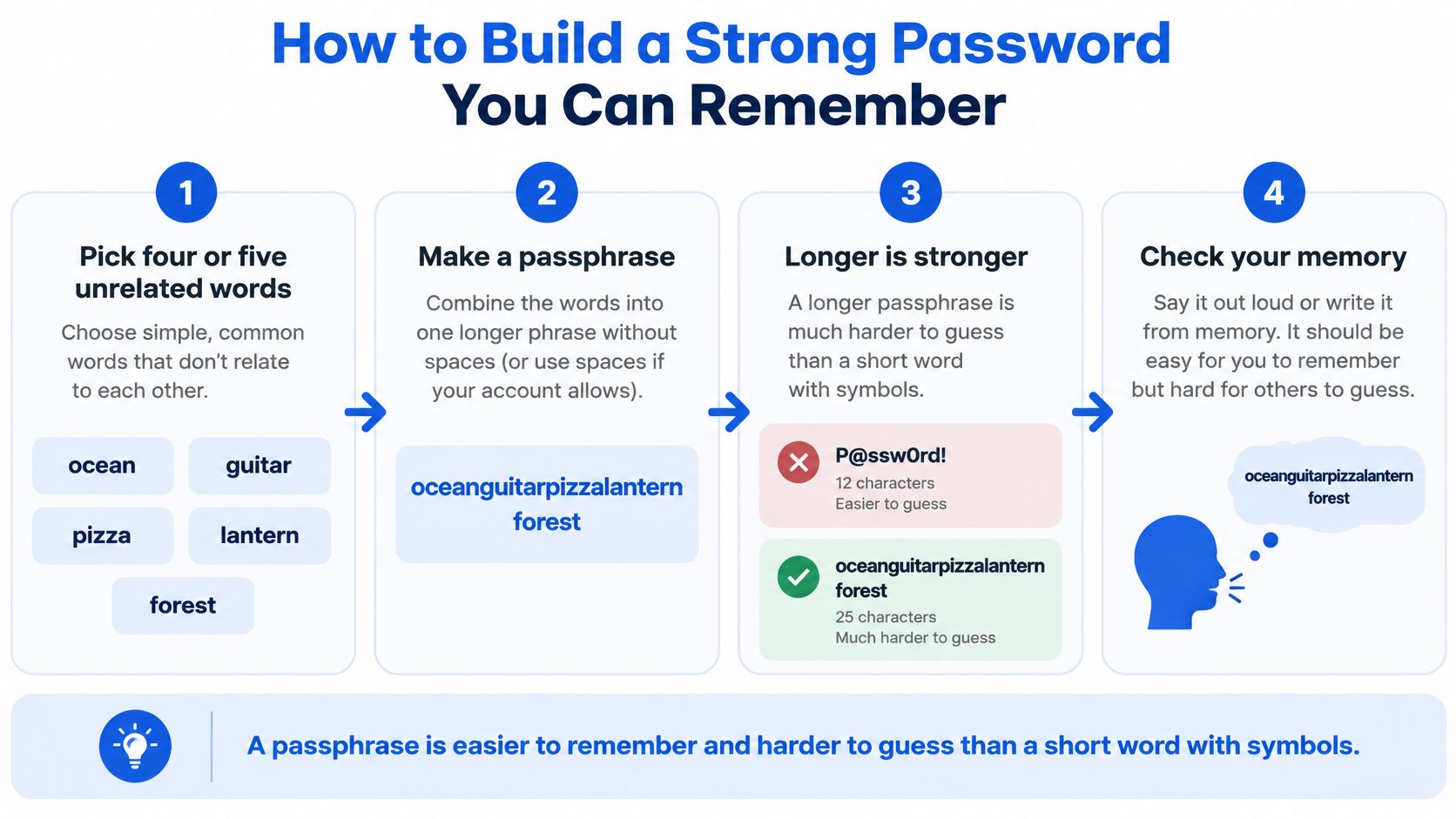
- Pick four or five unrelated words. Choose words that don't describe your family, school or interests. A fruit, place, object and animal can help you start, but avoid a predictable sentence.
- Join the words. Use spaces or hyphens if the service accepts them. The result is a passphrase, a password made from several words.
- Add a number or symbol you can recall. Follow the service's requirements, but don't rely on a symbol to rescue a short, predictable word.
- Let the words carry the strength. A passphrase built from several unrelated words is much harder to guess than a short word with a symbol, so add another word before you add another symbol.
- Create a separate phrase for each important account. Prioritise email and school portals. Where a service asks for a PIN, choose a separate PIN rather than shrinking a passphrase into digits. A child can sign in to Keybaki with their own PIN on the family phone, with no email required, and that PIN should differ from every other code on the device.
- Store it safely. Use a reputable password manager, or keep a written record in a secure place at home, not a shared school notebook.
Use this visual routine when practising with a learner.
Choose length without personal clues
Longer is stronger when the words aren't predictable. A school motto or a favourite song lyric feels long, yet anyone who knows the learner could guess it. Random words a stranger cannot connect to your family do the heavy lifting.
Weak passwords compared with stronger passphrase styles
| Weak example | Why it fails | Stronger passphrase style |
|---|---|---|
| Wanjiku2012 | Uses a name and a birth year that people can find | Four unrelated words and a number, such as Mango-River-Pencil-Tiger-7 |
| KenyaForm3 | Uses a school and class that friends know | An unrelated phrase, such as Kite-Harbour-Blanket-Maize |
| Password1 | A common, predictable pattern that automated guessing tools can try | Unique passphrase used only for this one account |
Don't copy these examples as real passwords. They're public teaching examples, not secrets.
Leave out names, birthdays, phone numbers, school names and favourite football teams. Then run the classmate test: could someone who shares the handset connect any chosen word to its owner? A sibling may open the same phone every day and still have no business guessing your phrase.
For another practical reference when reviewing how you create and store credentials, use the Digital Footprint Check password security guide. A trusted adult can help a child check that every account has its own phrase without ever needing to know the phrases themselves. Remembering a password isn't enough if you've reused it: each important account needs its own.
How to Turn On 2-Step Verification
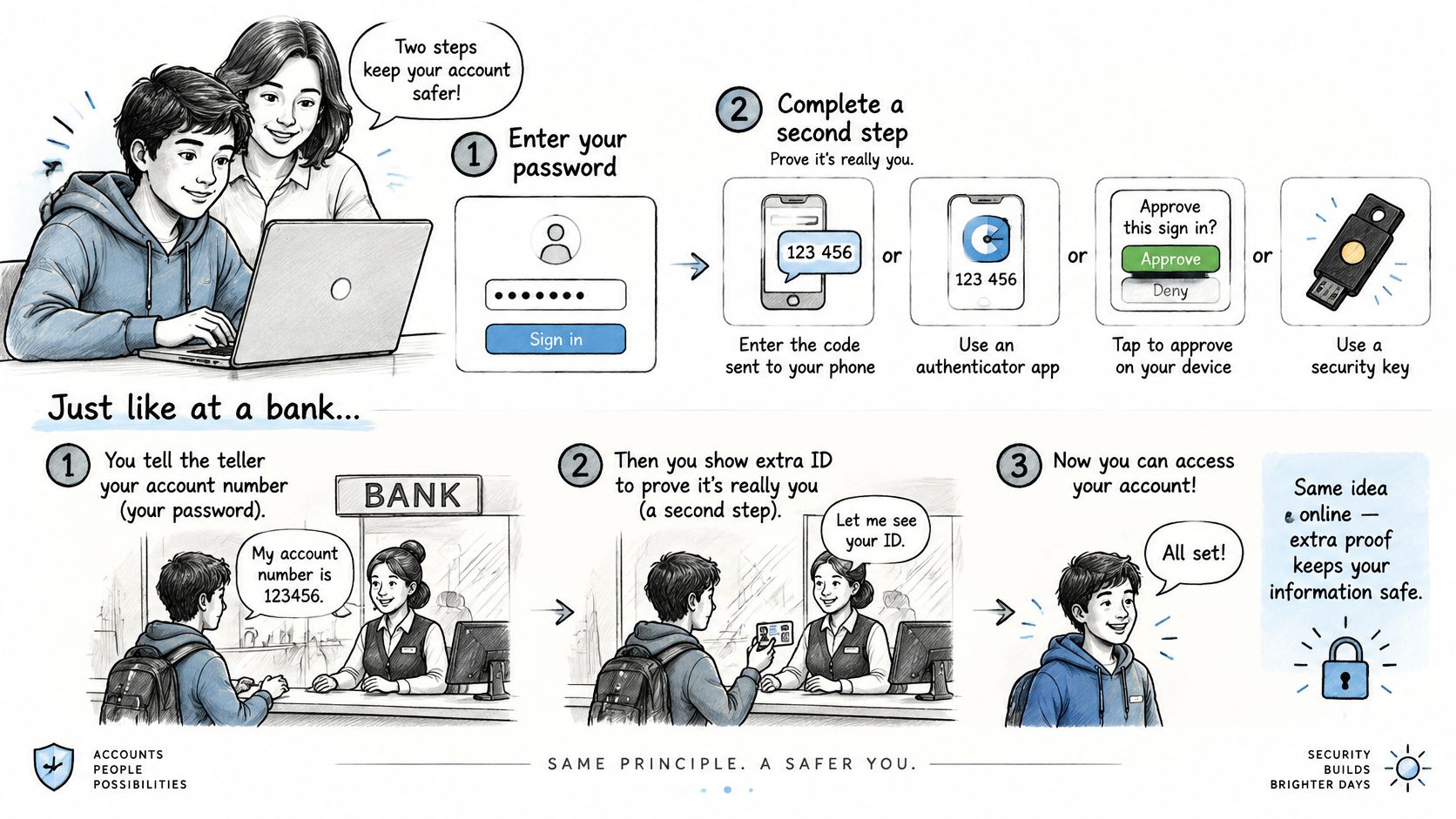
Two-step verification adds another check after the password, such as a code, approval prompt or, in some services, a PIN. Think of a bank asking for both your signature and your ID card. A copied signature alone shouldn't be enough.
This illustration explains the extra check.
The Communications Authority's April–June 2026 cyber-security report identifies weak passwords and inadequate authentication controls among routes to unauthorised access. Adding another check addresses a different problem from making the password longer: it helps stop a stolen password being sufficient by itself.
Find and enable the extra check
In most apps, start under Settings, then look for Account, Privacy or Security. Menu names change, so search for two-step verification, two-factor authentication or multi-factor authentication rather than expecting an exact path.
- Sign in through the official app or website. Don't start from an unexpected message.
- Open the account's security area and select its additional sign-in protection.
- Choose the second step the service supports and your family can reliably use.
- Follow the prompts, then save any backup or recovery codes offline in a secure place.
- Test the setup by signing out and back in, after confirming that your recovery options work.
An authenticator app or security key is preferable to SMS where supported. SMS codes can be exposed through phone-number takeover or social engineering. If SMS is the only option, enable it rather than leaving the account password-only.
Second-step options compared
| Option | How it works | Strength | Best use |
|---|---|---|---|
| Authenticator app | An app shows a code that changes after a short time | Strong; generates codes without mobile signal | Email, social media and any account that offers it |
| Security key | A small device is plugged in or tapped to confirm you are present | Very strong | The most important accounts, such as email |
| Approval prompt | You tap approve on a device you already trust | Strong when you read the request before approving | Your own phone or laptop |
| SMS code | A text message contains a one-time code | Better than nothing, but a SIM can be stolen or duplicated | Fallback when no stronger option exists |
For a family using one phone and one SIM, decide what happens if that phone is lost before finishing setup. Don't keep the only recovery copy on the device you might lose.
Use the video alongside the setup routine.
Never Share a Code, Even With Someone You Trust
A verification code is a second key. Giving it to someone who contacts you is like handing over a spare key because they say they're helping.
One-time codes and PINs are for the account owner only. A caller's confidence, familiar profile photograph or knowledge of your name doesn't make their request safe. The Communications Authority's January–March 2026 cyber-security report describes deceptive messages and credential-harvesting methods, supporting the need to verify sensitive requests independently.
Recognise the request, not just the sender
Common approaches include a customer-care caller asking for a verification code, a supposed bank representative requesting a PIN to reactivate a card, or a friend asking you to forward a code sent by mistake. Even a real friend's account may be under someone else's control.
Common requests for a code and the right response
| What someone says | What it usually is | What to do |
|---|---|---|
| I am from customer care and need the code to verify you | An account takeover attempt | Don't share it; end the call and use the official number |
| I am from the bank and need your PIN to unlock your card | A fake bank contact | Hang up and call the number printed on your card or on the bank's official site |
| Your friend asks for a code that was sent to you by mistake | A friend's account may have been taken over | Don't forward it; call the friend directly to check |
| A link asks you to enter a code to claim a prize or refund | A phishing page that copies a real login | Don't open it; go to the app or site yourself |
A legitimate support conversation shouldn't require you to surrender a login code or secret PIN. Enter a code only in the genuine sign-in process you started yourself.
You can end a conversation without proving that the caller is a scammer.
Call your friend using a number you already know. Contact a bank or company through its official app or independently verified contact details, not those supplied by the caller. Practise the same pause with fake M-PESA messages and the sent-by-mistake scam.
Keeping a Shared Family Phone Safe
A child borrows a parent's phone for homework. The browser may already contain the parent's email password, and an app may still be open from an earlier session. Sharing the device isn't the problem; sharing access unintentionally is.
Use a handover routine
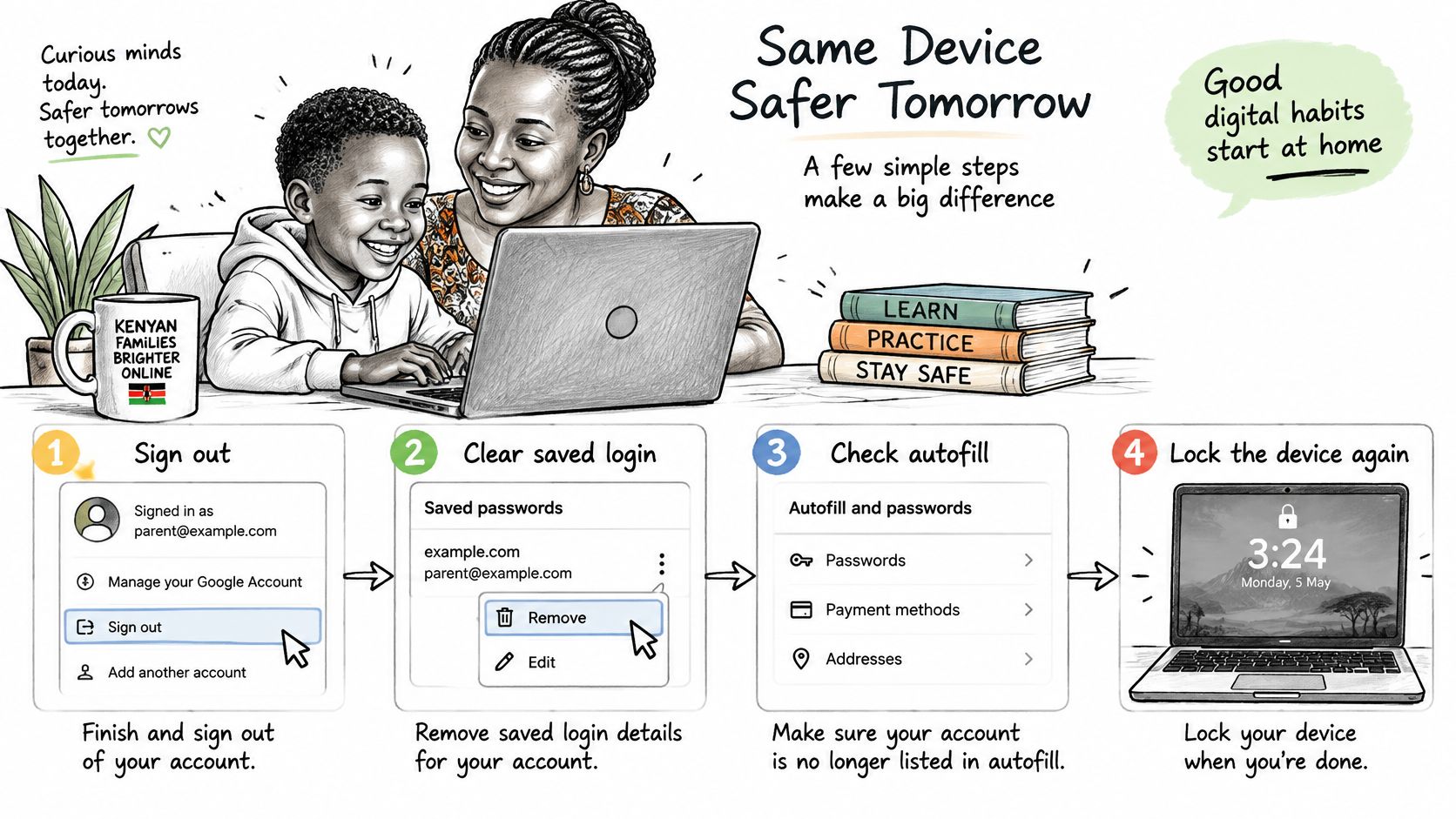
- Sign out after use. Close sessions for email, social media and mobile-money services where sign-out is available. Closing a browser tab does not count as signing out.
- Decline browser password saving. Remove existing saved passwords from the shared browser after ensuring the owner has a safe record elsewhere.
- Use separate device profiles or app sign-ins for each child where supported.
- Set a device PIN or screen lock. Lock the screen whenever you put the device down, and use app locks where appropriate.
- Update recovery details. Make sure the recovery email and phone number reach the adult responsible for helping with a reset.
Use the following illustration as a reminder beside your family's learning routine.
At Keybaki, parents can add up to three children to one account, each with their own PIN, with no email or exposed parent login required. Children sign in with their PIN, without an email, phone number or exposed parent credentials. This separates learning access from the adult's sign-in details.
Help without reading everything
The ODPC guidance on processing children's data calls for parental or guardian consent when creating children's accounts and recommends strong authentication and privacy controls. Share only the details a learning service needs, and agree on when an adult should help.
A left-behind session lets the next user enter without guessing anything. Teach children to finish with a deliberate handover, whether they're using a browser or following a mobile learning routine.
Agree on emergency access and gradually hand over recovery responsibility as the learner matures. Helping a child stay safe doesn't require reading every message.
What to Do If an Account Is Taken Over
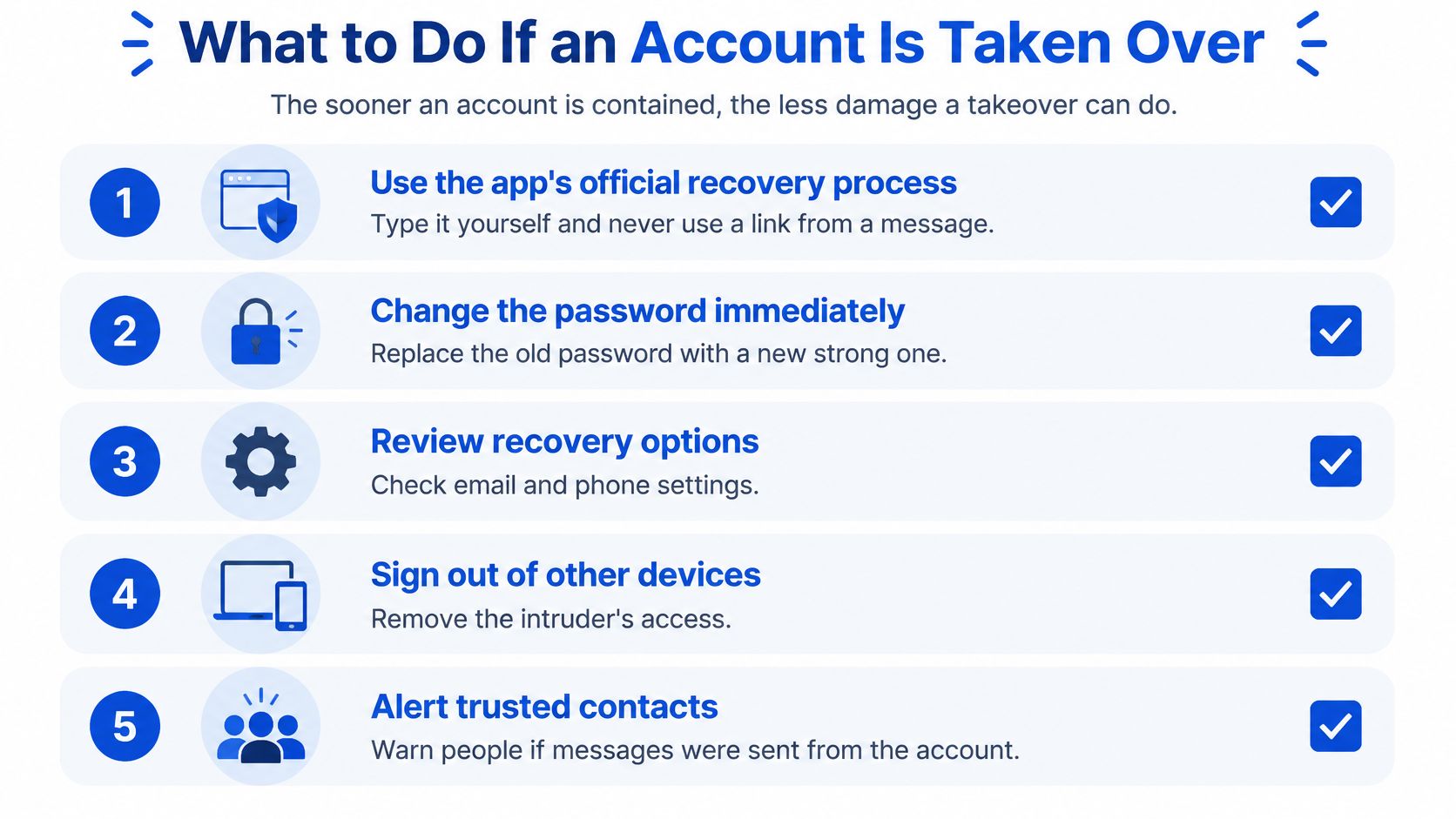
On a shared family phone, a taken-over account can look ordinary at first. The app still opens, the wallpaper is the same, yet messages go out that nobody in the house wrote. The moment someone notices, speed matters: the sooner you contain the account, the less time the intruder has to contact people or change settings. If a child reports a mistake, thank them for telling you and work through the steps calmly.
Contain the account and protect contacts
Work through the recovery on the family phone itself, since the SIM that receives reset codes is already inside it.
- Use the app's official recovery process. Open the genuine app or type the known website address yourself. Ignore recovery links sent by strangers.
- Change the password as soon as access allows. Choose a new passphrase, not a small alteration of the exposed password.
- Sign out of other sessions and remove devices you don't recognise. Check that the recovery email and phone number still belong to your family.
- Warn your contacts through another trusted channel. Ask them to ignore requests for money or codes coming from the affected account.
- Replace the password on every other account where it was reused, starting with email and financial services. Change any exposed financial PIN through the service's official process.
- Enable or restore two-step verification. Confirm the second step belongs to you, and replace recovery codes if they may have been exposed.
Keep this checklist beside the family phone while you work through it.
Save screenshots of suspicious messages, account changes and recovery notices. They help you explain what happened later, but never post screenshots containing private codes or personal details publicly. Recovery can take time, so warn your contacts even while you are still waiting.
Understand the reporting deadline
The ODPC Personal Data Protection Handbook states that controllers should report personal-data breaches to the Data Commissioner within 72 hours of becoming aware of them. That duty sits with the organisations holding the data. For a family, the deadline that matters is the next hour: secure the account first, ask questions after.
Recovery priority: Don't wait for a reporting deadline before securing your own account.
Once access is restored, scroll through recent messages and profile changes for anything the intruder touched. If the SIM or phone itself was also lost, contact your mobile provider through an official channel to secure the number, since SMS codes for every account arrive on that one line.
Practise Locking Your Accounts This Week
Pick one account and finish it before touching the next. Start with the email that receives password resets, since control of that inbox can open several other doors. On a shared family phone, practise while the trusted adult is nearby: the learner signs in, changes the password, checks that the second step reaches the family phone, then signs out again.
Treat this as part of your family's digital literacy skills, the same steady habit as reading a message before tapping its link. A shared device works like a family key rack: everyone may use the front-door key, while private account keys stay private. Use this plan for the week:
- List your important accounts, including school and recovery accounts.
- Replace reused passwords on your top three.
- Enable two-step verification for email.
- Agree which trusted adult handles recovery, without needing every password.
- Save recovery codes offline in a secure place.
Practise asking for help, too. A learner who can say “this message looks suspicious” without fear is better prepared to act quickly.
Keybaki offers CBE-aligned learning activities and assessments, with individual child PINs designed for learning on a shared family phone. Visit Keybaki to explore learning resources and keep each child's profile separate.
Comments
Loading…