
· computer basics
Computer Basics for Beginners: A Step-by-Step Guide
14 min read

You're sitting at a school computer, a cybercafé desk or a borrowed family laptop. Someone says, “Just open the lesson,” but you're still wondering where to put your hands. That's a perfectly reasonable place to begin.
Table of Contents
- Everyone Starts Somewhere
- The Main Parts of a Computer and What Each One Does
- Switching On, Charging and Shutting Down Safely
- Getting Comfortable with the Mouse and Touchpad
- Typing Your First Words on the Keyboard
- Opening Apps and Staying Safe on a Shared Computer
- Looking After Yourself and Practising with Keybaki Labs
Everyone Starts Somewhere
Perhaps the person beside you seems to know every button. You may be worrying that everyone else already understands computers, or that one wrong click will break the machine. Neither worry needs to stop you from learning.
Using a computer is a collection of small skills, not a talent you either have or don't have. Moving an arrow, typing your name and opening a lesson are separate actions. You can practise each until it feels familiar.
Ordinary mistakes in a practice activity, such as typing the wrong letter or opening the wrong window, are normal and usually easy to reverse. Use a blank practice document rather than someone else's work. If an unfamiliar message asks you to delete, install or pay for something, pause and ask for help.
You don't need to understand the whole computer before you can learn your next small skill.
Begin with the access you have
Not owning a computer doesn't mean you can't begin. Kenya's housing survey found that 8.8% of households owned a computer, compared with 93.8% that owned a mobile phone, according to the national ICT analytical report. Shared-device practice belongs at the centre of beginner teaching.
If you're reading on a phone, mobile learning can help you prepare before your next computer session. Then practise the physical actions when a school, family or cybercafé machine is available.
Think of computer basics for beginners: a step-by-step guide to recognising the parts, using the power button, controlling the pointer, typing and protecting your account. There's also a no-timer practice path waiting at the end.
The Main Parts of a Computer and What Each One Does
Before pressing anything, take a moment to look. The physical parts you can see and touch are called hardware. You don't need to open the machine or know what's inside to begin using it.
Use this diagram to match the names to the equipment in front of you.
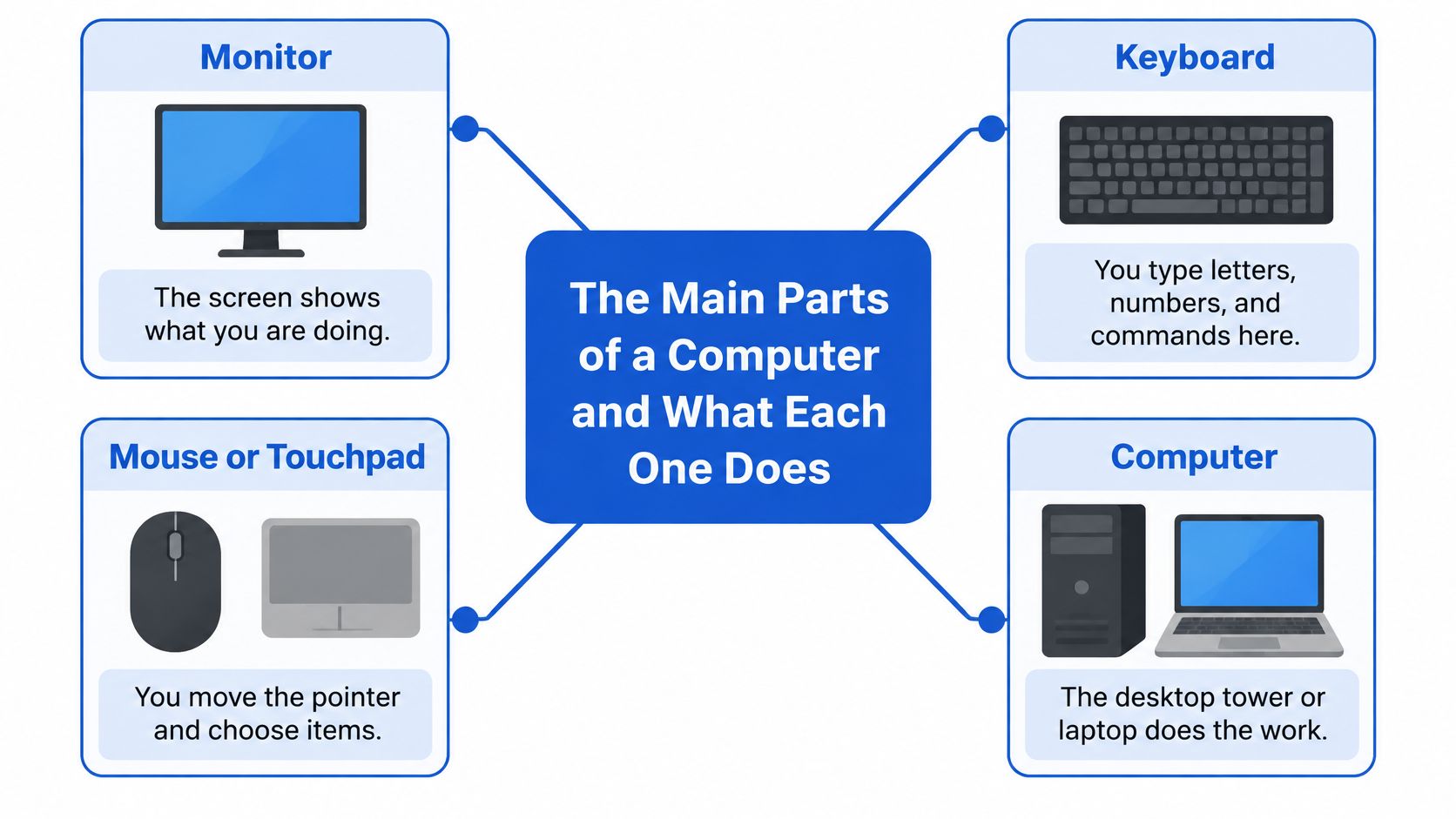
Match each part to its job
| Part | What it does | How to recognise it |
|---|---|---|
| Screen or monitor | Shows words, pictures and what you're doing. | The display facing you, a little like a television you control. |
| Keyboard | Lets you enter letters, numbers and instructions. | The arrangement of labelled keys. |
| Mouse or touchpad | Moves the pointer and helps you choose items. | A small device beside the keyboard, or a flat pad below a laptop keyboard. |
| Computer body | Carries out the work and holds the internal components. | A separate desktop tower, or the main body of a laptop. |
A desktop computer usually has separate parts connected by cables. Its tower may sit on the desk or underneath it. Switching off only the monitor doesn't necessarily switch off the computer.
A laptop brings the screen, keyboard and computer body together in a folding device. Its touchpad does the job of a mouse, although a separate mouse may also be connected.
Try a naming exercise
Ask a helper to name a part, then point to it without pressing anything. Swap roles and explain what each part does in your own words. “I type here” is a good beginning.
The computer also has storage, the place where saved work is kept.
For now, being able to identify the equipment is enough. On a shared machine, ask before connecting or unplugging anything, and never force a connector into a socket that doesn't fit.
Switching On, Charging and Shutting Down Safely
Start by asking whether the shared computer is ready for you. A dark screen doesn't always mean it's switched off; it may be resting. If someone else's work is visible, ask the teacher, owner or cybercafé attendant before continuing.
The picture below shows the order of a normal laptop session.
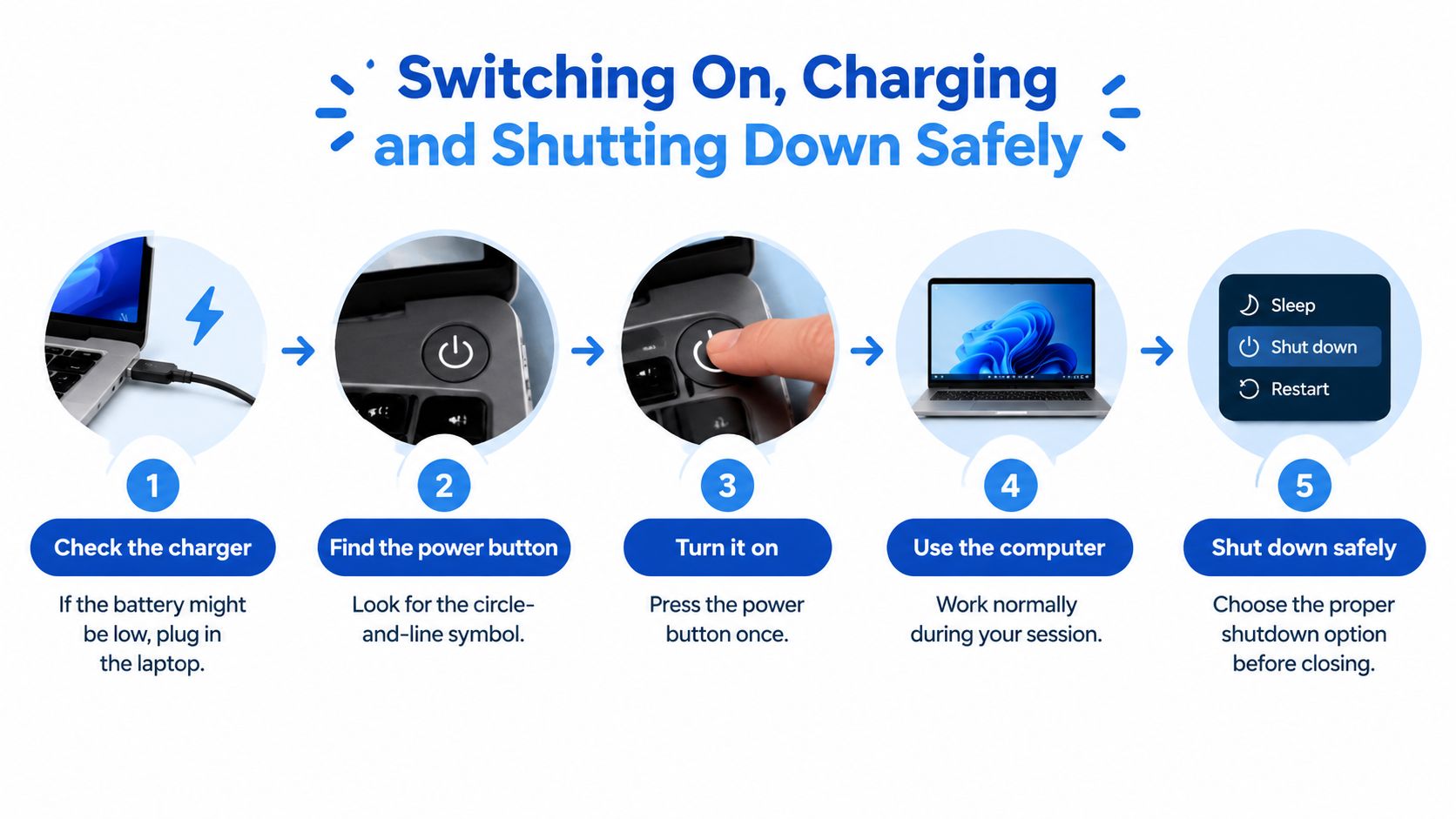
Connect power and start patiently
Check the charger. A charger supplies electricity to a laptop and replenishes its battery, which stores power for use away from a socket. If the battery might be low, ask for the correct charger.
Connect gently. Put the charger connector into the matching laptop socket and connect the plug to the power supply. Don't use damaged cables or handle a plug with wet hands.
Find the power button. It's usually marked with a circle-and-line symbol. Press it once, then wait while the computer gets ready.
Starting takes a moment, rather like waking up. Repeatedly pressing the button won't help. A desktop may also have a separate power button on its monitor.
If nothing happens, ask the person responsible for the machine to check the power connections. Don't open or repair a borrowed computer yourself.
Finish through the computer's controls
Before leaving, save your work, which means keeping a copy you can open later. Ask your helper where practice work should be saved.
On a Windows-style computer, select Start, the button that opens the main menu, then Power, then Shut down. These steps match the documented Windows shutdown procedure. Wait until shutdown finishes before switching off the electricity.
Power habit: Don't pull the plug or hold down the power button to finish an ordinary session. Cutting power can lose unsaved work.
In a school or cybercafé, ask whether staff want the machine shut down or left ready for the next learner. Either way, finish your own account session using the sign-out routine described below.
Getting Comfortable with the Mouse and Touchpad
The pointer is the small shape that moves across the screen, often an arrow. Slide the mouse gently across the desk, or slide a finger across the touchpad, and watch where it goes.
The illustration gives you a reference while you practise.
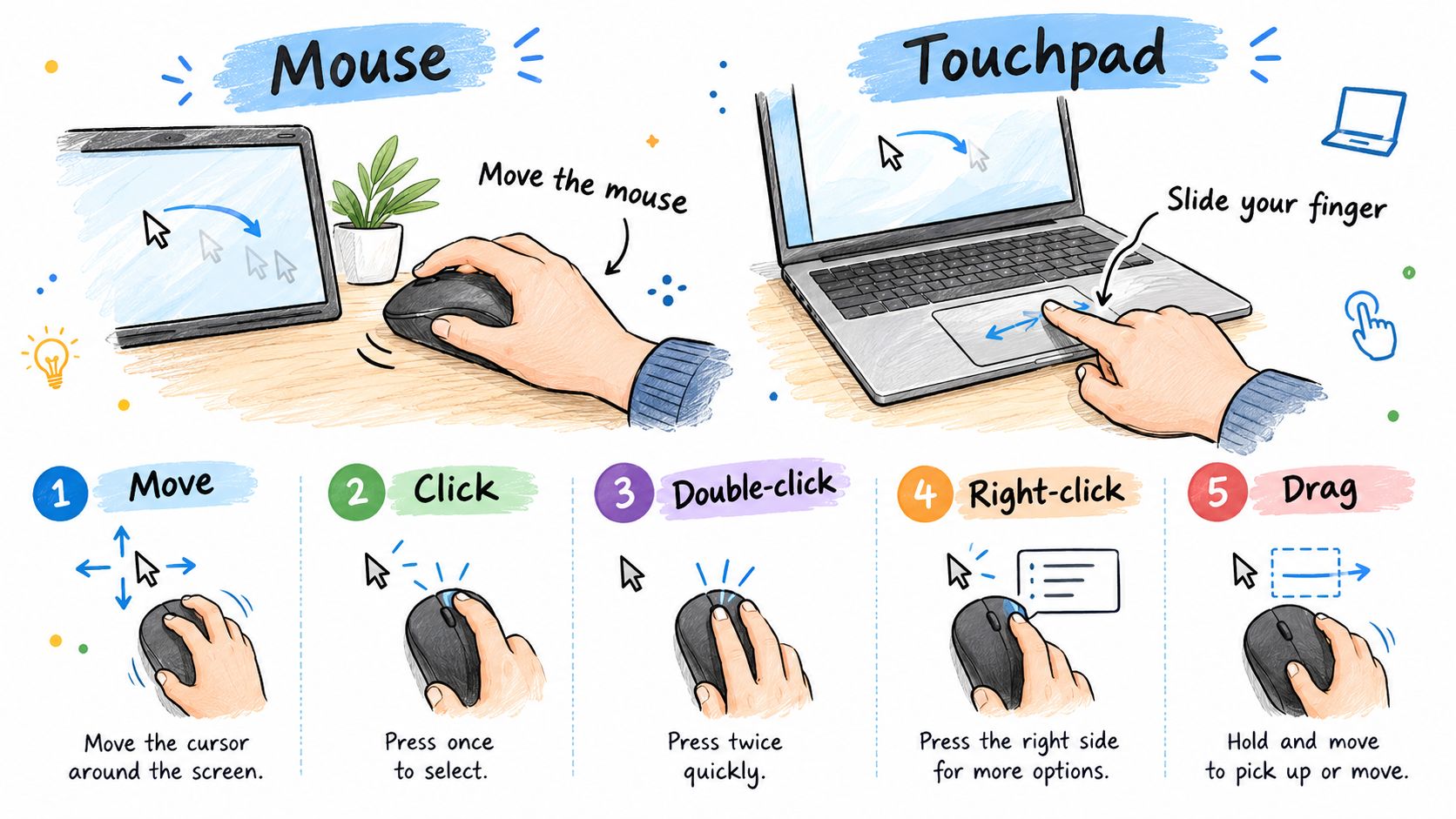
Move and choose
Rest your hand lightly on the mouse. Try moving the pointer towards each corner of the screen without clicking. With a touchpad, lift your finger and place it nearer the middle whenever you need more room.
A single click means pressing and releasing the main mouse button, usually the left one. It often selects an item, meaning you've chosen it. Try clicking a practice icon, a small picture representing an item or program.
A double-click means clicking that button twice quickly without moving the mouse between clicks. It often opens a desktop item. Ask your helper to choose a safe practice icon, then try opening it.
Right-click. Press the right mouse button to reveal a menu of choices. Look at the menu, then click a blank area to dismiss it without choosing anything.
Drag. Hold the main button down while moving, then release it. Practise moving a shape in an activity designed for dragging, not somebody else's files.
Scroll. Roll the mouse wheel to reveal more of a page. Many touchpads let you slide two fingers together to scroll, though settings vary.
Keep each attempt small
Touchpads may let you tap to click or use particular finger gestures. Ask a helper to demonstrate the method on your machine rather than trying to memorise every possible arrangement.
If you miss your target, stop moving and try again. Clicking the wrong place in a safe practice activity is part of learning, not a sign that you're failing. Aim for control before speed.
Typing Your First Words on the Keyboard
Ask your helper to open a blank document, a page where you can enter and keep writing. Click in the writing area and look for a text cursor, usually a blinking vertical line showing where the next letter will appear.
The text cursor isn't the mouse pointer. The pointer helps you choose where to work; the text cursor marks your typing position. That distinction can feel confusing at first, so take a moment to find both.
Learn the everyday keys
| Key | What to try |
|---|---|
| Letters | Press the keys that spell your name. |
| Space | Press the long bar near the bottom to leave a gap between words. |
| Enter | In a document, press it to begin a new line. Elsewhere, it may confirm a choice. |
| Backspace | Remove the character immediately before the text cursor. |
| Shift | Hold it while pressing a letter to make a capital. |
| Caps Lock | Switch continuous capitals on, then press it again to switch them off. |
| Numbers | Use the number keys along the upper part of the keyboard. |
For a name such as Amina, hold Shift, press the letter A, then release Shift before typing the remaining letters. You don't need Caps Lock for a single capital.
If everything suddenly appears in capitals, check Caps Lock. If a letter repeats many times, you may have held its key down. Neither mistake means you've damaged anything.
Slow, accurate typing is a better practice goal than rushing to match somebody else's speed.
Try your first writing exercise
Type your name. Find each letter at your own pace, using Shift for the first capital.
Correct it. With the text cursor at the end, press Backspace until the name disappears.
Type it again. Add a space and the word “learning”, then press Enter.
Add numbers. On the new line, type a short number sequence for practice, not a private PIN or phone number.
If no letters appear, click back inside the writing area. Looking down to find keys is completely acceptable. Parents and teachers can name the next key, then let the learner locate and press it independently.
Opening Apps and Staying Safe on a Shared Computer
An application, usually shortened to app, is a program used for a task, such as writing or viewing lessons. A window is the area on the screen where an app appears.
To open an app, select it from the Start menu or double-click its desktop icon. The desktop is the main background area you see after entering the computer. Use an app already approved by your teacher or the device owner; you don't need to install anything for these exercises.
Know where your app has gone
These controls can look similar when you're new, but they do different jobs.
| Control | Meaning | Safe practice |
|---|---|---|
| Minimise, often a short horizontal line | Tucks the window out of view without closing the app. | Minimise a blank practice document, then select its button on the taskbar to bring it back. |
| Close, usually an X | Closes the window or app. | Close an empty practice window. Read any save message before answering. |
| Back arrow, where available | Returns to a previous page or screen. | Move between practice pages, then use Back. |
The taskbar is the strip, usually along the bottom of the screen, where buttons for open apps appear. Minimising doesn't delete your work. It moves the window out of view.
Not every window has a Back button. It's common in a browser, an app for opening websites, and in some learning apps. If you're choosing learning tools with a parent or teacher, the guide to learning apps for students offers a separate starting point.
Leave your account private
An account is your personal space within a computer or online service. Signing in means entering the details that identify you, often a username and password. A password is a secret used to protect access.
At a cybercafé, the machine may already be ready for customers. That doesn't mean your school website or email account is already signed in. Ask which account you're entering before typing private details.
Keep your password to yourself. A helper can point to the password box while you type privately.
Decline saved passwords. On a shared device, don't accept offers to remember your password.
Read unexpected messages. Pause if a message requests money, a private PIN or an unfamiliar download.
Sign out when finished. Choose Sign out or Log out in each personal service, then sign out of your computer account if you used one.
Closing a window isn't the same as signing out. Check that the service shows its sign-in page again, so the next person can't continue using your account. Also ask about removing any private files you downloaded; signing out doesn't remove files left on a shared machine.
Looking After Yourself and Practising with Keybaki Labs
A useful practice session should leave both you and the equipment in good condition. You don't need to stay at the screen until your shoulders ache or your eyes feel tired. Stop, adjust your position and return when you're comfortable.
Set up a comfortable practice space
Keep food and drinks away. Put cups and bottles somewhere they can't spill onto the keyboard or cables.
Use clean, dry hands. Ask the device owner how they want the equipment cleaned rather than spraying liquid onto it.
Sit comfortably. Bring the keyboard and mouse within easy reach, and position the screen so you aren't constantly bending your neck.
Take short breaks. Look away, relax your hands and change position instead of pushing through discomfort.
Leave things orderly. Return shared equipment to its place and tell the responsible person about any problem you noticed.
Parents and teachers should adjust the workspace for the learner, rather than asking the learner to struggle with an unsuitable chair or distant mouse.
Practise the same skills without a timer
Keybaki Labs offers a practice path in its Computer Foundations area. Tcha, the guide, takes you through Show me, where you watch the action; Guide me, where you receive help; and Let me try, where you attempt it independently. There's no timer, so you don't have to rush.
This is the practice area you'll be using.
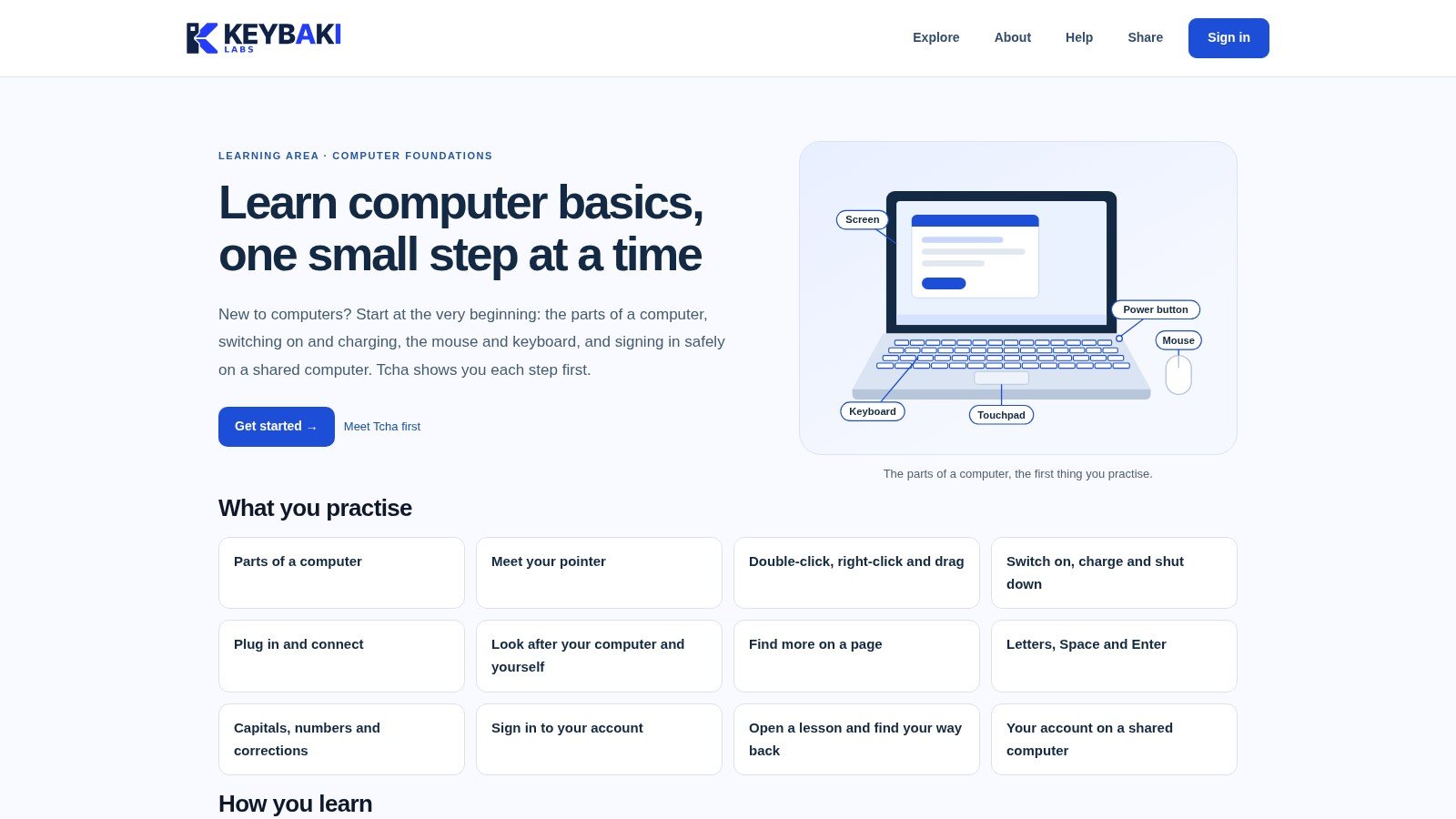
The lesson names match the actions you've been learning:
Recognise and move. Parts of a computer; Meet your pointer; Double-click, right-click and drag.
Handle the equipment. Switch on, charge and shut down; Plug in and connect; Look after your computer and yourself.
Read and type. Find more on a page; Letters, Space and Enter; Capitals, numbers and corrections.
Use your learning space. Sign in to your account; Open a lesson and find your way back; Your account on a shared computer.
If computer access is occasional, choose a small skill before your session. Let your helper demonstrate, take your own turn, then repeat without prompting. When pairing learners, swap who controls the mouse and keyboard so both people get hands-on practice.
For a broader understanding of finding, judging and using information safely, continue with digital literacy skills. You don't need to master that whole subject today.
Start learning computer basics on Keybaki Labs, beginning with Parts of a computer or whichever action still feels unfamiliar. One small skill at a time is how every confident computer user began.
Keybaki offers guided computer-basics practice alongside curriculum-linked learning resources for Kenyan learners, parents and teachers. Visit Keybaki to explore the learning tools and plan your next shared-computer practice session.
Comments
Loading…