
· digital skills Kenya
Never Used a Computer? Where to Start Learning Computer Skills in Kenya
16 min read
Your child needs help with homework on a laptop, or a job application asks you to upload a document. You can use the family phone, but the computer screen feels unfamiliar. You're not sure where to click, and you don't want to spoil anything.
It's never too late to learn. Computer skills are small actions learned one at a time, not knowledge you're supposed to have already. Start with a safe practice task, repeat it without rushing, and let yourself be a beginner. You don't need to buy a laptop before you begin.
Table of Contents
- The Six Skills to Learn in Order
- Where to Practise on a Phone or Computer
- Staying Safe on Shared and Online Computers
- How to Run One Practice Session
- What a Realistic First Month Looks Like
- Getting Help Without Feeling Embarrassed
- If Reading, Sight or Disability Makes Starting Harder
- Start Learning with Keybaki Labs
The Six Skills to Learn in Order
You're not alone if a phone feels familiar but a computer doesn't. The 2023/24 Kenya Housing Survey, produced by the Kenya National Bureau of Statistics with the Communications Authority of Kenya, found that 11.6% of people aged three years and above had used a computer, compared with 64.9% who had used a mobile phone, according to the KNBS survey publication.
Knowing how to use a phone doesn't mean you should automatically understand a mouse, keyboard or computer screen. Those actions need direct teaching too.
Learning order for beginners
| Order | Skill | Why It Matters | Where You Use It |
|---|---|---|---|
| 1 | Computer basics: switching on, mouse and keyboard | Every other skill depends on it | Schools, offices and any device |
| 2 | Typing | Faster, calmer work on forms and documents | Assignments, applications and email |
| 3 | Files and folders | Finding and keeping your work | Saving school notes, CVs and photos |
| 4 | Documents and spreadsheets | Writing letters and tracking money or marks | Homework, job applications and household budgets |
| 5 | Internet and email | Research, messages and online forms | Searching, school portals and official forms |
| 6 | Staying safe online | Protecting ID numbers, passwords and money | Every login, payment and shared computer |
Computer basics begin with recognising the screen, power button and keyboard. A mouse moves the pointer, the small arrow on the screen; a laptop's touchpad does the same job when you slide your finger across it. Practise switching on and using the Shut down command, so opening the family computer for a child's homework feels manageable.
Typing lets you enter names, sentences and application details yourself. Begin with the home row, the middle row of letter keys where your fingers rest, and practise accuracy before speed.
A file is a saved item, such as a letter or photograph; a folder holds files together. Practise naming your work, choosing its save location and finding it again. Ask a helper to show you how to safely eject a USB drive, a small portable storage device, before removing it.
Documents hold writing, while spreadsheets organise information in rows and columns. Write a short letter in Microsoft Word or LibreOffice Writer, then try a household spending table in Excel or Calc.
A browser is an app for opening websites. Learn to search for a clear question, check who published the answer, and send an email with an attachment, a file included with the message.
Online safety belongs throughout your learning, even though it appears last in the sequence. Recognising a password request matters whenever you open an account.
Start with movement, not complicated menus
Each skill uses the one before it: you need pointer control to open a document, and file skills to attach it to an email. Use How to Use a Mouse or Touchpad for the First Time if clicking feels awkward.
Leave website customisation for later. If that eventually becomes your goal, you can browse custom code add-on options from Premier Broadband to see a more advanced task, not a beginner requirement.
For today, switch on a computer, find the mouse and practise moving the pointer onto a target without clicking.
Where to Practise on a Phone or Computer
The family phone is a useful starting tool. You can open apps, search for information, read messages and become comfortable with a browser before you have regular computer access.
Kenya's internet use is strongly mobile-based: the United Nations Kenya country analysis reported that about 99% of internet users accessed the internet through mobile data. Starting on a phone is practical, not a lesser way of learning.
A notebook beside the phone can help you keep track of what you've tried.

Match the device to the task
Phones can handle files, documents and spreadsheets, but they can't give you the same practice as a computer. A physical keyboard, desktop folders and a larger document window need hands-on computer time.
The ICT Authority's device-affordability document identifies affordability as a barrier to access. Plan around a device you can use, rather than waiting until you can buy one.
Where to practise and what each place is best for
| Option | Best For | Main Limit |
|---|---|---|
| Family phone | Browser, messages, search and first taps and swipes | Cannot replace computer-keyboard, desktop-file or spreadsheet practice |
| School computer room | Teacher-led lessons and guided practice | Access may be restricted to timetabled sessions |
| Public library | Quiet practice, with staff help where available | Computers, opening hours and booking rules need checking |
| Cyber cafe | Computer access when you need it | Busy and shared, so privacy must be managed |
| Family laptop | Regular daily practice at home | Shared with others and may be slow or old |
Before travelling, ask whether beginners can use the computers, what the opening hours are, whether booking is needed and what the hourly charge is. Don't assume every library has public computers or every school admits adult learners.
Bring a notebook with the task you want to practise. Write actions in your own words, such as open Practice folder, rather than copying every label you see.
Choose a regular weekly slot and arrange it with anyone sharing the device. Where internet access is limited, prepare an offline typing or document task so you can still practise.
If you share a family phone, begin with browser searches and messages, then reserve computer time for typing and files. On shared machines, keep practice work separate from personal accounts and follow a leaving routine.
Choose a place to visit this week and write its opening hours in your notebook.
Staying Safe on Shared and Online Computers
Safety is a set of repeatable habits, not a reason to fear computers. You can learn to pause, check and leave a shared machine without leaving personal information behind.
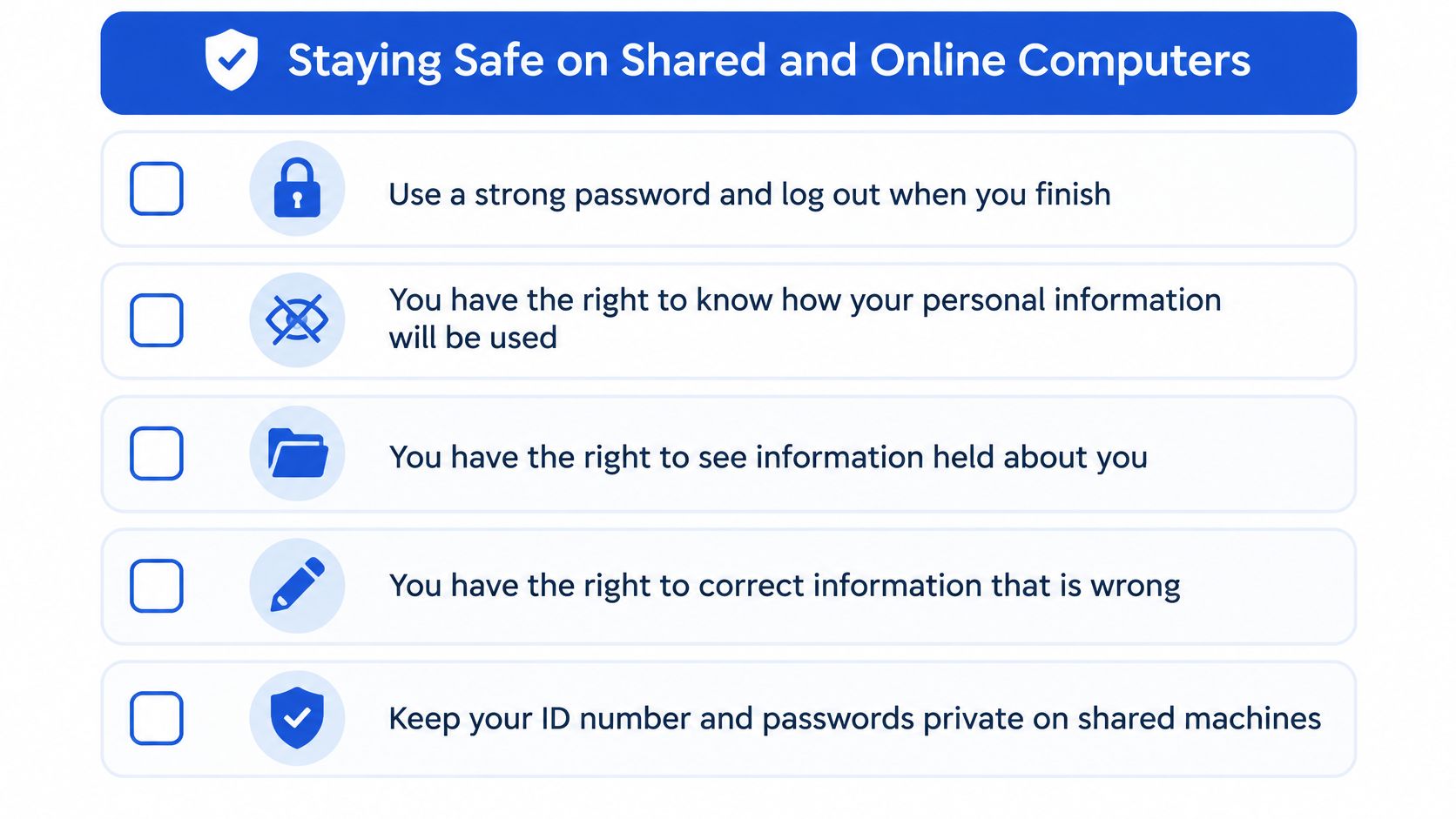
Kenya's Data Protection Act, 2019 gives you rights to know how your personal information will be used, access information held about you, correct false or misleading information, and request deletion of false or misleading data. These rights don't mean every organisation must erase every record whenever asked.
Keep this visual reminder beside your practice notes.
A checklist for every visit
- Pause before entering details. Check who wants your ID number, phone number, school record or payment information, and why. Don't enter private information on a computer you don't trust.
- Protect passwords. Use a long, unique password, keep it out of other people's view and refuse offers to save it on a shared browser. Enable two-factor authentication where available, which adds another check when you sign in.
- Check downloads and attachments. Don't open an unexpected file just because its message sounds urgent. Confirm with the sender through a contact method you already trust.
- Limit children's information. Before entering a child's name or school details, ask what is necessary and who will see it.
- Sign out properly. Use the account's Sign out command for email and money services. Closing the window alone may leave you signed in.
- Remove your saved copies. Check Desktop, the main working screen, and Downloads, the folder that commonly receives downloaded files. Delete your personal copies, empty the Recycle Bin where appropriate and remove your USB drive.
A private browsing window can reduce the browsing history left on a machine, but it doesn't make an untrusted computer safe. For sensitive transactions, use a device you trust.
Rehearse leaving as carefully as starting
Use Using a Shared Computer Safely to build a repeatable departure routine.
You can also use this video during a supported safety lesson.
Choose three checklist items to practise at your next computer visit. Keep the checklist visible until the actions feel familiar.
How to Run One Practice Session
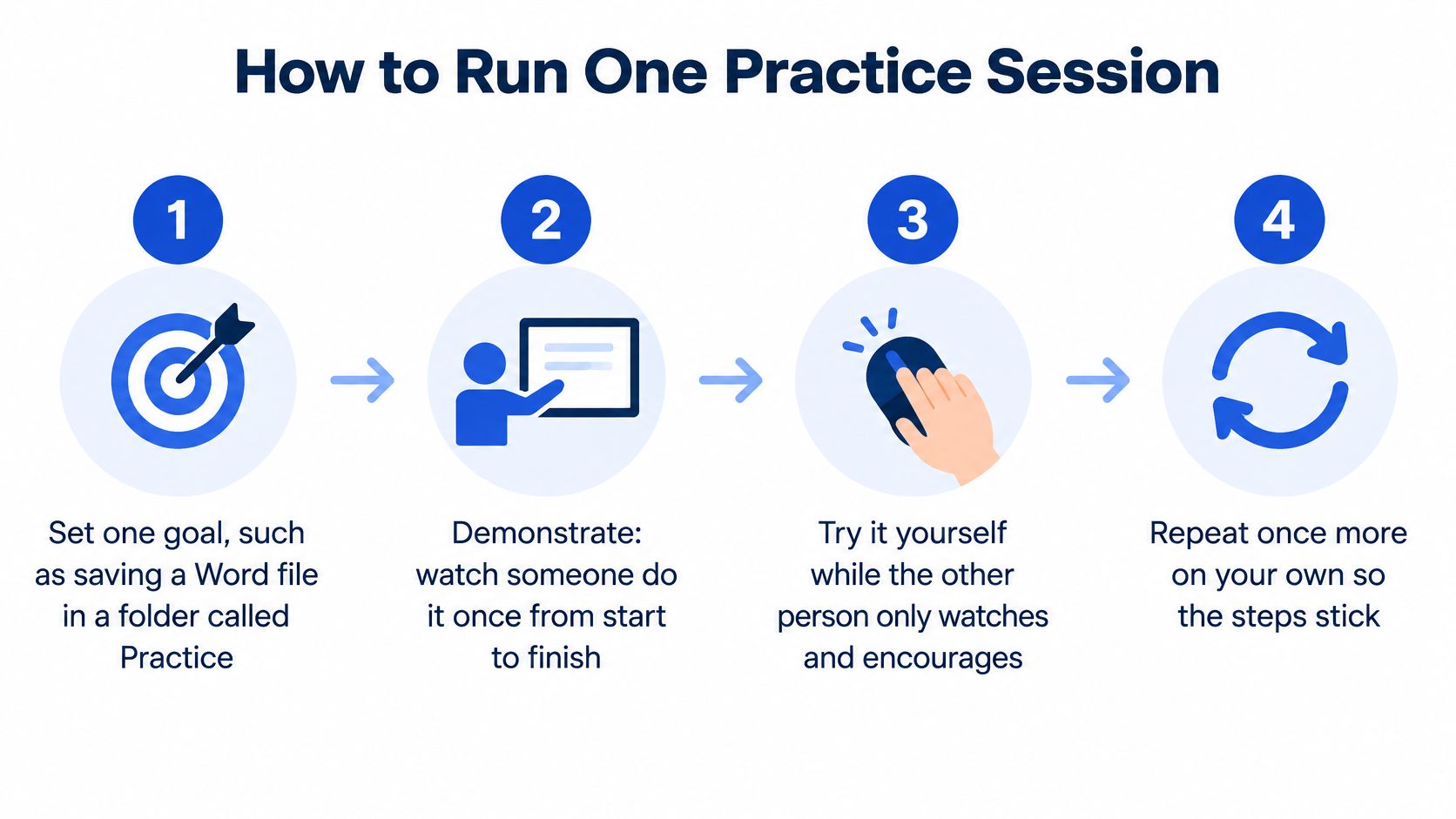
A useful session ends with something you can do, not a screen full of terms you've heard. Choose a small task with an obvious finish, such as saving a document in a folder called Practice.
Use this visual as a reminder of the learning cycle.
Work towards doing it alone
- Set a goal. Write the finished task in your notebook. Save my letter in Practice is clearer than learn Word.
- Watch a demonstration. Ask your helper to move slowly and say each action aloud. Watch the whole task before trying it.
- Practise with guidance. Keep your hand on the mouse while your helper stays ready nearby. Ask for a spoken hint before physical help.
- Try from memory. Close your notes and repeat the task alone. This shows which actions you can recall.
- Correct an error. Notice what changed and use Undo where appropriate. Repeat the troublesome action rather than restarting everything automatically.
- Finish with an exit test. Explain the steps aloud, then complete the task without prompts. If you need help, you've found tomorrow's practice goal.
Practical rule: Aim for four successful independent repetitions across two sessions, with no unsafe actions such as opening an unknown download or exposing a password.
Treat that as a practice standard, not an exam or a deadline.
Avoid the usual obstacles
- Menus before purpose. Start with a real goal, then learn only the commands needed.
- The helper takes over. Ask them to point or describe while you control the mouse.
- Everything needs internet. Keep an offline document or typing exercise ready.
For a typing goal, use Touch Typing for Beginners, which starts with the home row rather than speed tests.
Write tomorrow's session plan now: a goal and an exit test.
What a Realistic First Month Looks Like
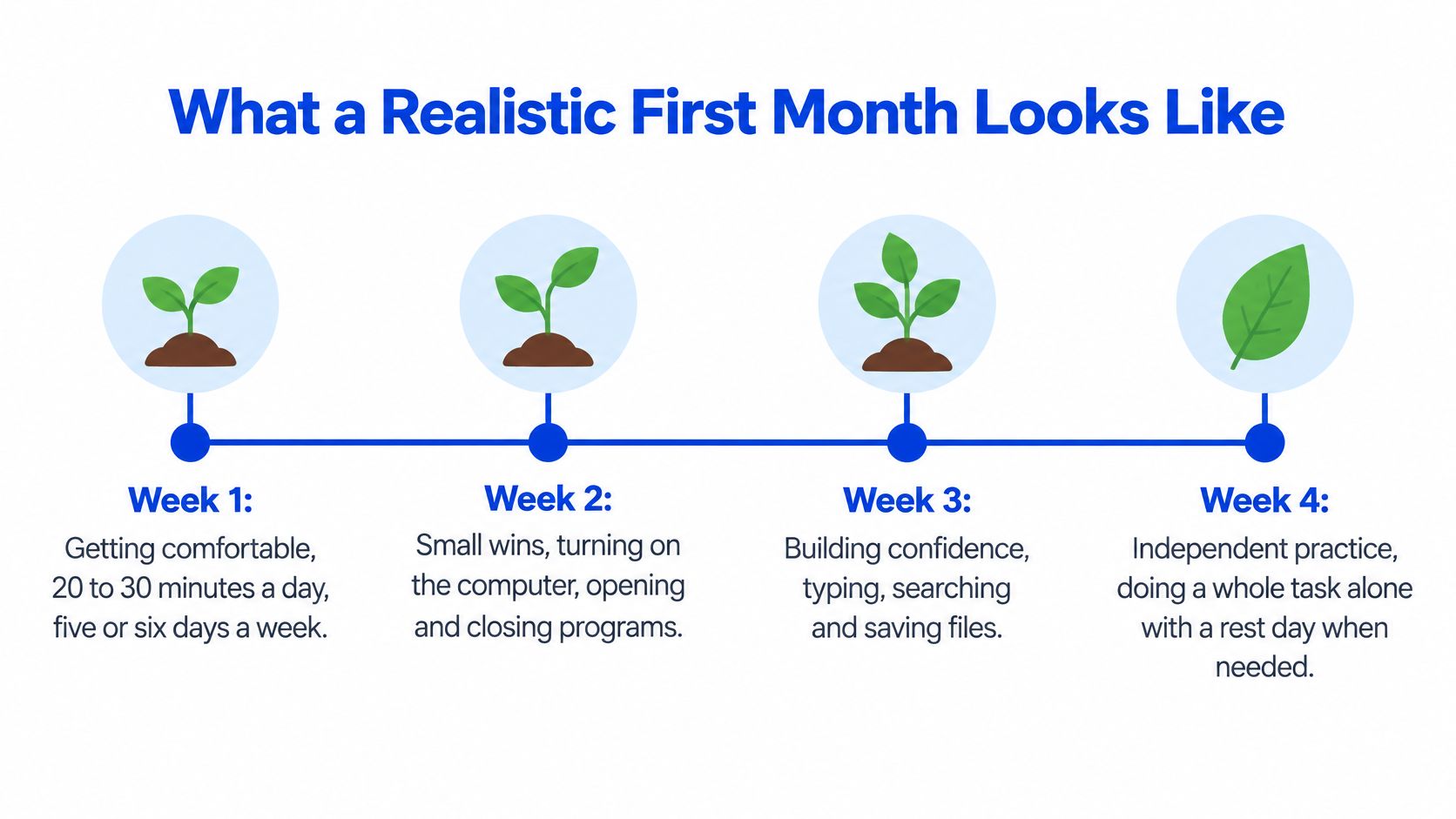
Short, regular sessions are easier to sustain than long, tiring ones. Try 20 to 30 minutes a day, five or six days a week, as a starting routine, with a rest day whenever you need one. Shorten it if your hands, eyes or attention become tired.
These are suggested practice times, not a promise about how quickly you'll learn. Your age, eyesight, previous experience and access to a device all affect the pace.
This month-long outline gives you something manageable to work towards.
Begin with familiarity
During the first week, concentrate on switching on and shutting down, moving the pointer onto targets and pressing keys in a practice document to see what happens. You may become less hesitant about touching the controls, even if you still need reminders.
During the second week, try opening and closing a folder, moving a practice file and typing a short sentence slowly. If moving a file is confusing, stay with opening and finding it until that feels clearer.
Build a small complete task
During the third week, work towards saving a simple document and finding it again after closing it. You might begin looking at the keyboard less often, but there's no need to force that change.
During the fourth week, try searching for a topic and reading a relevant page, with help if needed. A useful month-end task might be writing a short homework note, saving it and reopening it later.
Being slow doesn't mean you're failing. Aim to need less help before you aim to work faster.
Compare your own progress
At the end of each week, ask: Can I do a task today without help? Record a few simple measures in your notebook:
- Tasks finished. Note what you completed, not just what you attempted.
- Errors made. Name the sticking point so you can practise it.
- Time taken. Compare similar tasks under similar conditions.
- Prompts needed. Record how often someone had to remind you what came next.
Compare your notes across weeks, not against your child, colleague or neighbour. A month of steady practice is a real start, even if you're still working on the mouse.
Getting Help Without Feeling Embarrassed
Asking a child or colleague for help can feel like admitting you've fallen behind. But using a computer is a learned skill, and someone who knows the buttons isn't more capable than you in every part of life.
A child, grandchild, friend or colleague can be a good helper when the roles are clear. You control the computer; they help you notice what to do. A completed task isn't the same as a learned task if someone else did all the clicking.
Give your helper a clear role
You can say this in your own words:
Please show me once, then let me try. If I get stuck, tell me what to look for before touching the mouse.
When something goes wrong, describe what you see rather than apologising. You might say that the box is blank, the pointer has disappeared or the document has closed. That gives your helper something specific to respond to.
Ask them to follow these rules:
- Pause before speaking. Give you a few seconds to recognise the next action.
- Return the task to you. After explaining a difficult step, let you repeat it yourself.
Make room for harmless mistakes
Use practice files with made-up information. Deleting a spare practice file, closing an unsaved exercise or restarting a training document gives you a chance to learn recovery without risking important work.
Keep original family photographs, real applications and payment accounts out of those exercises. This week, ask someone to watch a practice session, then ask them to name a useful step for you to repeat.
If Reading, Sight or Disability Makes Starting Harder
A standard beginner lesson may not fit your needs. Small text, unfamiliar language or controls that are difficult to operate are reasons to adapt the setup, not reasons to stop learning.
A Kenya-focused assistive-technology study found smartphone ownership of 12% among disabled people, compared with 41% among non-disabled people, a 72% gap; its intervention produced statistically significant improvement in 71% of measured digital-skills items, with particularly strong gains in file management and accessibility settings.
The study identified affordability, accessibility, awareness, connectivity and digital skills as linked barriers. Access involves more than placing a device in front of someone.
Adjust the setup before the lesson
- Make the screen readable. Ask for larger text and higher contrast, the difference between text and its background.
- Choose a comfortable language and pace. Ask your helper to explain unfamiliar words without rushing.
- Explore accessibility settings early. Try magnification, captions, voice input or a screen reader, software that reads screen content aloud.
- Reduce reading strain. Keep sessions short and ask a trusted helper to read practice prompts aloud.
- Check the practice venue. Ask which accessibility features its computers offer and whether your preferred settings can be used.
Choose support that suits the task
For an explanation of tools that make written material easier to use, consult TTS Pro's guide to reading access.
Follow the same learning order, adapted to your needs. Practical competence matters more than typing speed: being able to find a file using your preferred controls is a meaningful achievement.
Start Learning with Keybaki Labs
Keybaki Labs gives you a place to practise without beginning with a real application, message or purchase. It has six learning areas, with Tcha, the guide, showing you each step.
The Labs home page lists every area, so you can see the full set before choosing where to begin. You don't have to understand every area on your first visit.
Watch, practise with help, then try alone
Each learning area uses the same three moves:
- Show me. Tcha demonstrates the step so you can see the action and what changes on the screen.
- Guide me. Tcha walks you through it while you practise.
- Let me try. You attempt the task alone and find out what you can remember.
The practice versions of each app are safe: nothing real is sent, changed or bought. A mistaken click won't send a message to someone or buy something you didn't intend to purchase.
That makes it easier to concentrate on the action itself. You can notice where the pointer goes, which button you selected and what happened afterwards, rather than worrying about a real transaction.
Begin where you are
If you've rarely touched a computer, start with Computer basics. Use a small session goal, such as recognising a control and repeating the action yourself, rather than trying to finish everything at once.
People who have used computers before can take Find your starting point, an about five-minute check with no score, to skip what they already know. It's a way to choose suitable practice, not a judgement of your ability.
You can Start learning with Tcha on Keybaki Labs from the home page. Keep your notebook nearby and write down an action you want to repeat.
Move to real tasks carefully
Kenya's data-protection framework establishes rights over personal information and responsibilities for organisations that handle it. Practising the mechanics before entering real details helps you separate learning the buttons from deciding what information to share.
When you're ready for a real task, pause to check the recipient, selected file, amount or information requested. Completing a practice form is preparation, not a reason to rush through a real one.
Today, open the first lesson and complete a Show me step. That's enough to begin; you can return to practise it again.
Keybaki offers guided digital-skills practice alongside learning resources built for Kenyan families. Visit Keybaki and take your first computer-learning step with a task you can practise at your own pace.
Comments
Loading…