
· digital skills Kenya
How to Use a Mouse or Touchpad for the First Time
13 min read
You've sat down in front of a computer someone else has switched on for you. The screen is full of small pictures, your hand is on a mouse for the first time, and the little arrow on the screen seems to have a mind of its own. Everyone feels clumsy at this point. It isn't a sign that you're slow with computers. It's a new skill, and it grows with a few minutes of calm practice each day.
Table of Contents
- Why the Mouse and Touchpad Feel Strange at First
- How to Hold a Mouse and Move the Pointer
- What the Pointer Shapes Tell You
- The Five Basic Actions and a Tiny Exercise for Each
- Touchpad Equivalents on a Laptop
- Fixing Double-Clicks, Jumping Pointers and Dragging Slips
- When a Standard Click Is Hard
- Practise the Mouse with Tcha on Keybaki Labs
Why the Mouse and Touchpad Feel Strange at First
Say you've used a phone confidently for years. You tap the screen itself, so your finger touches exactly what you want. A computer asks for something different. Your hand moves on the desk while your eyes watch the screen, and that gap between hand and screen takes a little getting used to.
That's completely normal in Kenya. The 2023/24 Kenya Housing Survey found that only 11.6% of people aged 3 years and above had used a computer, compared with 64.9% who had used a mobile phone. Being good with a phone doesn't automatically make anyone good with a mouse.
Two tools do this job. A mouse is a small hand-held device that moves a pointer, the small arrow on the screen. A touchpad is the flat panel built into a laptop, and it does the same job with one fingertip. You'll meet six words in this guide: pointer, click, double-click, right-click, drag and scroll. Each one is explained before you're asked to try it.
If you'd like to name the other parts first, our guide to the parts of a computer and what they do covers them in plain language. For now, just find the mouse or touchpad on your device and rest your hand on it. Don't press anything yet.
How to Hold a Mouse and Move the Pointer
Rest your palm gently on top of the mouse, as if you're sheltering it rather than gripping it. Let your index finger, the one nearest your thumb, rest on the left button. Your middle finger rests on the right button. If the mouse has a cable, it points away from you, towards the back of the desk.
Moving without pressing
The mouse slides across a flat surface, such as a desk or a mouse mat. You push it, you don't lift it. If your wrist starts to ache while you practise, it helps to compare mouse pad wrist support materials so you can see which surfaces feel softer under the wrist.
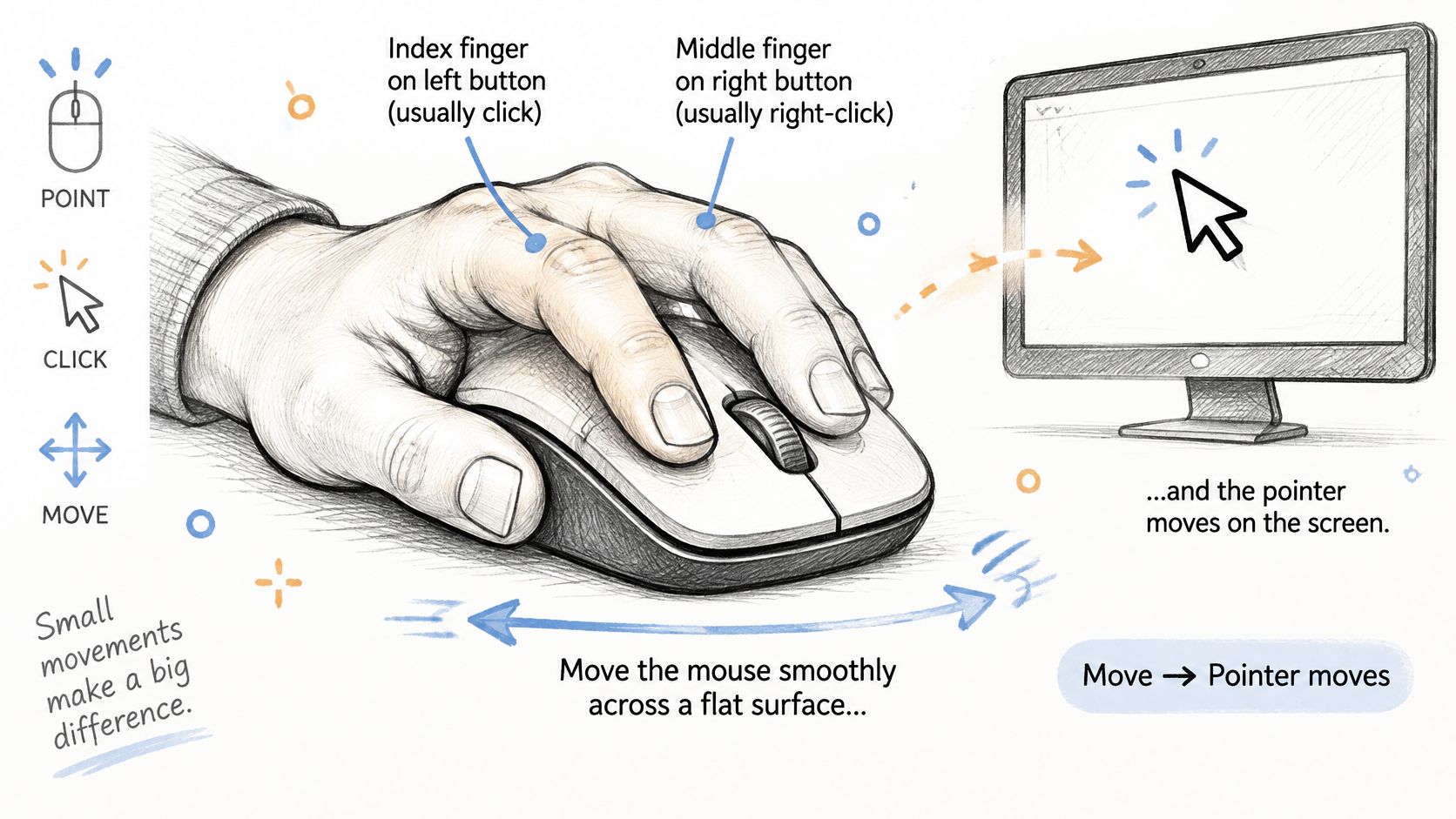
Try these three slow moves, watching the screen rather than your hand:
- Slide left and right: Move the mouse gently left, then right, then up and down.
- Visit a corner: Push the pointer towards one corner of the screen.
- Return to the centre: Bring the pointer back to the middle and stop it there.
When you run out of space
Sooner or later the mouse reaches the edge of the mat while the pointer still needs to travel further. Lift the mouse off the surface, place it nearer the middle of the mat, and keep going. Lifting never moves the pointer, so nothing is lost while the mouse is in the air.
A relaxed hand works best: Gripping tightly makes your wrist ache and the pointer move in jerks. Shake your hand out, then rest it down again lightly.
On a laptop touchpad, slide one fingertip across the pad instead, with your other hand resting beside it. When you can move the pointer to a corner you've chosen, without losing sight of it on the way, you're ready to keep going.
What the Pointer Shapes Tell You
The pointer changes shape as it moves, and each shape is a quiet message about what will happen if you click. Learning to read those shapes stops most beginner confusion, because the computer is telling you what's possible before you press anything.
The shape that puzzles people most is the pointing hand. It appears over a link, which is a word or picture that takes you somewhere else, or over a button. When you see the hand, one click opens that thing. You don't need to click twice.
| Pointer shape | What it means | Where you see it | What to do |
|---|---|---|---|
| Arrow | Normal pointing and selecting | Most of the screen | Move and click freely |
| Pointing hand | Link or button you can open | Web links and some icons | Single-click to open |
| Text cursor (I-beam) | Text you can edit | Inside documents and boxes | Click to place the blinking line, then type |
| Spinning circle or hourglass | Computer is working | After opening an app or file | Wait; do not click again and again |
| Two-headed arrow | Edge of a window you can resize | Window borders | Press and hold, then drag to resize |
The text cursor looks like a thin upright line with small bars at the top and bottom. Click when you see it and a blinking line appears, showing where your typing will go. The spinning circle means the computer is still working on your last request. Waiting is the right move there.
For a tiny exercise, move the pointer slowly over the pictures on the main screen, over a line of writing in an open document, and along the edge of a window. Say each shape aloud before you click. If the pointer seems to vanish while you're typing, move the mouse or touch the touchpad lightly and it'll reappear.
The Five Basic Actions and a Tiny Exercise for Each
Learn these one at a time, in order. Don't start the next action until the one before it feels easy. Short rounds work better than one long session, which suits shared computers too.
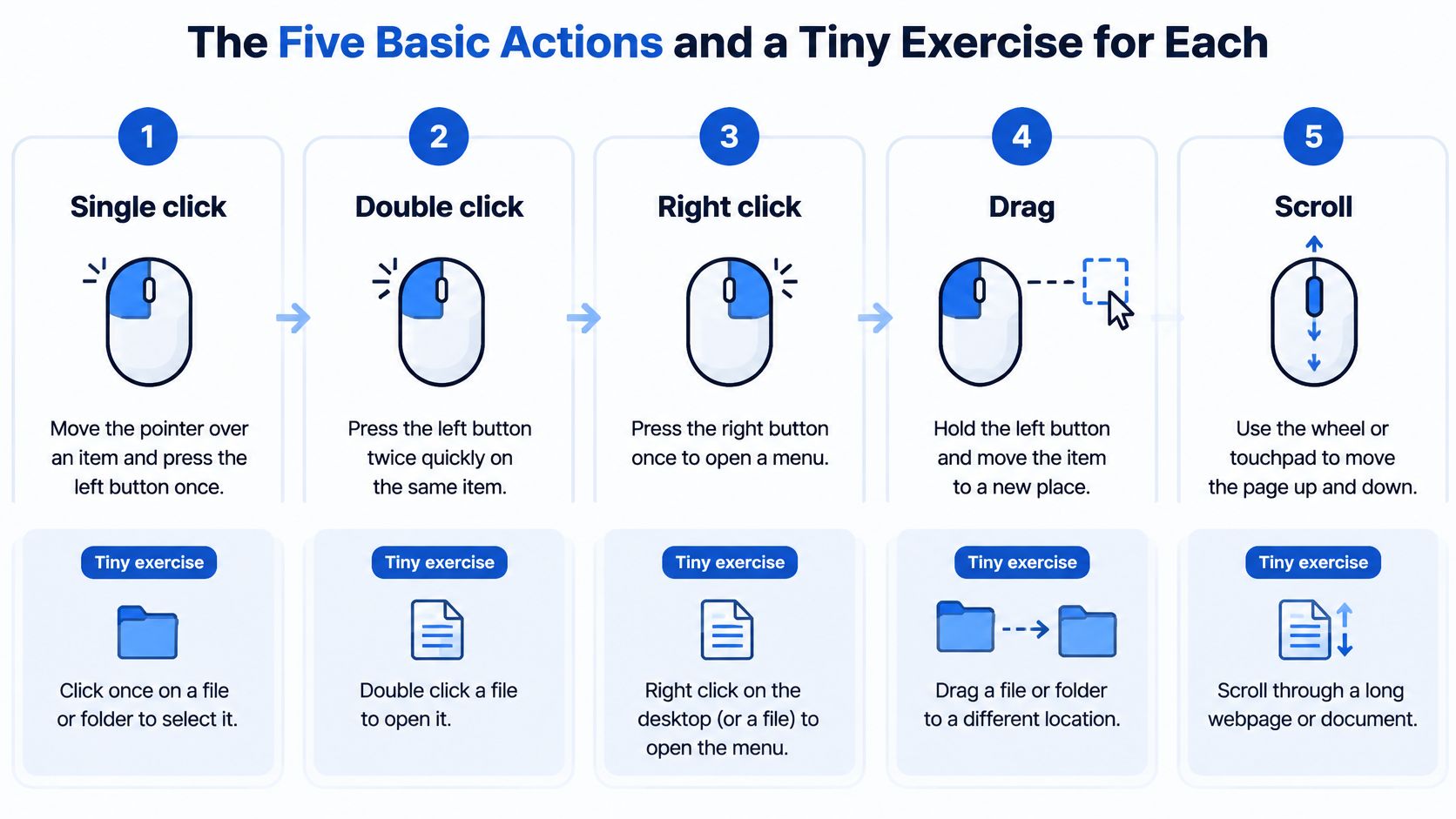
- Single click: Move the pointer over an item and press the left button once, briefly. This selects a file or presses a button. Exercise: click a blank area of the main screen, then click one picture, called an icon, and watch it change colour to show it's selected.
- Double-click: Press the left button twice quickly, with the two presses close together. This opens a file, a folder or an app. Exercise: double-click a folder to open it, then close it again using the small cross in its corner.
- Right-click: Press the right button once to open a list of more options, called a menu. Nothing is final until you choose from that list. Exercise: right-click the main screen, look at the list, then press the Escape key to close it safely.
- Click and drag: Hold the left button down, move the pointer to a new place, then let go. This moves a file or highlights writing. Exercise: drag slowly across one line of text and watch it become highlighted.
- Scroll: Roll the small wheel between the mouse buttons. Roll it away from you to see lower down a page, and towards you to go back up. Exercise: open a long page, scroll to the bottom, then return to the top.
Aim for 8 correct tries out of 10 for each action, with no more than two accidental double-clicks, before moving on.
Working this way, in rounds of 3 to 5 minutes, fits real Kenyan classrooms. A KNBS-reported survey covered by The Eastleigh Voice found that an average of 52 learners shared one computer nationally. When you share, take turns in three roles: one person operates, one watches the pointer, and one names the target aloud.
Touchpad Equivalents on a Laptop
Laptops differ slightly. Some touchpads have two real buttons below the pad. Others have no buttons at all and respond to taps and presses on the pad itself. Look at yours first, then use the table to match each mouse action to its touchpad version.
| Action | Mouse | Touchpad |
|---|---|---|
| Move pointer | Slide the mouse on a flat surface | Slide one fingertip across the pad |
| Single click | Press the left button once | Tap or press the pad (laptops differ) |
| Right-click | Press the right button once | Two-finger tap, or press the lower-right corner |
| Scroll | Roll the wheel | Slide two fingers up or down |
| Click and drag | Hold the left button and move | Hold one finger down and slide, or tap and hold then slide (laptops differ) |
For scrolling, place two fingers side by side on the pad and slide them together. Sliding down moves you through the page, just as the wheel does. For a right-click, tap with two fingers at the same moment. If that doesn't work on your laptop, press the lower-right corner of the pad instead.
Dragging is the trickiest touchpad skill, so go slowly. Press and hold one finger on the pad, then slide that finger while keeping it pressed down. Some laptops prefer a quick tap, then a hold, then a slide. Try one method calmly, and if it fails, try the other one listed in the table before deciding anything is broken.
If taps keep happening by accident while you type, you can turn off touchpad taps in the mouse or touchpad settings. For practice, tap once to select an icon, scroll a page with two fingers, then open the right-click menu with a two-finger tap.
Fixing Double-Clicks, Jumping Pointers and Dragging Slips
A pointer that jumps or a click that does not open an item can often be fixed with one small change. Try one adjustment at a time, then repeat the action to see whether it helped.
| Symptom | Likely cause | Fix |
|---|---|---|
| Double-click does not open the item | Clicks too slow or too far apart | Click twice quickly and close together, or slow the double-click speed in mouse settings |
| Pointer jumps around | Palm or finger brushing the touchpad, or a dirty surface | Keep your other hand clear, wipe the surface, or turn off touchpad taps while typing |
| Drag lets go too early | Button released while moving | Hold the button steady and move slowly; on a touchpad, try tap-and-hold |
| Pointer reaches the edge of the mouse mat | Mat too small for the movement | Lift the mouse, place it nearer the centre, and keep going |
| Pointer does not move at all | Cable loose, battery flat or wrong USB port | Reconnect the cable, change the battery, or try another port |
A double-click means pressing the same mouse button twice quickly. If the computer treats your presses as two separate clicks, try bringing them closer together in time. You can also slow the double-click speed in mouse settings, giving yourself more time between presses. Practise this in a short session, then adjust the setting again only if needed.
If the pointer jumps while you type, keep your hand from brushing the touchpad or turn off touchpad taps while typing. If the pointer does not move, check that the cable is connected, replace the wireless mouse battery if needed, or try another USB port, the small socket where the cable plugs in. On a shared school device, ask a teacher before changing settings. If the problem continues, restart the computer or ask a helper to check the connection.
When a Standard Click Is Hard
Some learners can't comfortably press a standard button or make a two-finger movement. That isn't a failure. Computers offer other ways to do the same actions, and using them is a normal, sensible choice.
Gentler ways to click
- Two-finger tap feels hard: Use a single-finger tap for clicking, and press the lower-right corner of the touchpad when you need a right-click.
- Pressing tires your hand: Rest your whole hand on the mouse so the weight does some of the work, and try a larger mouse if one is available.
- Clicks feel hard to control: Look in Ease of Access settings for mouse keys, which let the keyboard move the pointer and click for you.
Making the pointer easier to see
In the same settings you can make the pointer larger and raise the contrast, which means making light and dark parts of the screen stand out more strongly from each other. A teacher can also show each step on a large screen first, so you can watch before you try. These choices sit alongside the wider digital literacy skills that help every learner take part fully.
Test each option for a few minutes before deciding which one suits you. Keep practice short and stop when your hand or eyes tire. On a shared device, write down any setting you change so you can restore it afterwards, and ask the teacher first. A helper should guide with words and let your hand stay in control.
Practise the Mouse with Tcha on Keybaki Labs
Reading helps, but your hand learns by doing. The Computer Foundations area in Keybaki Labs has three short lessons: Meet your pointer; Double-click, right-click and drag; and Find more on a page.
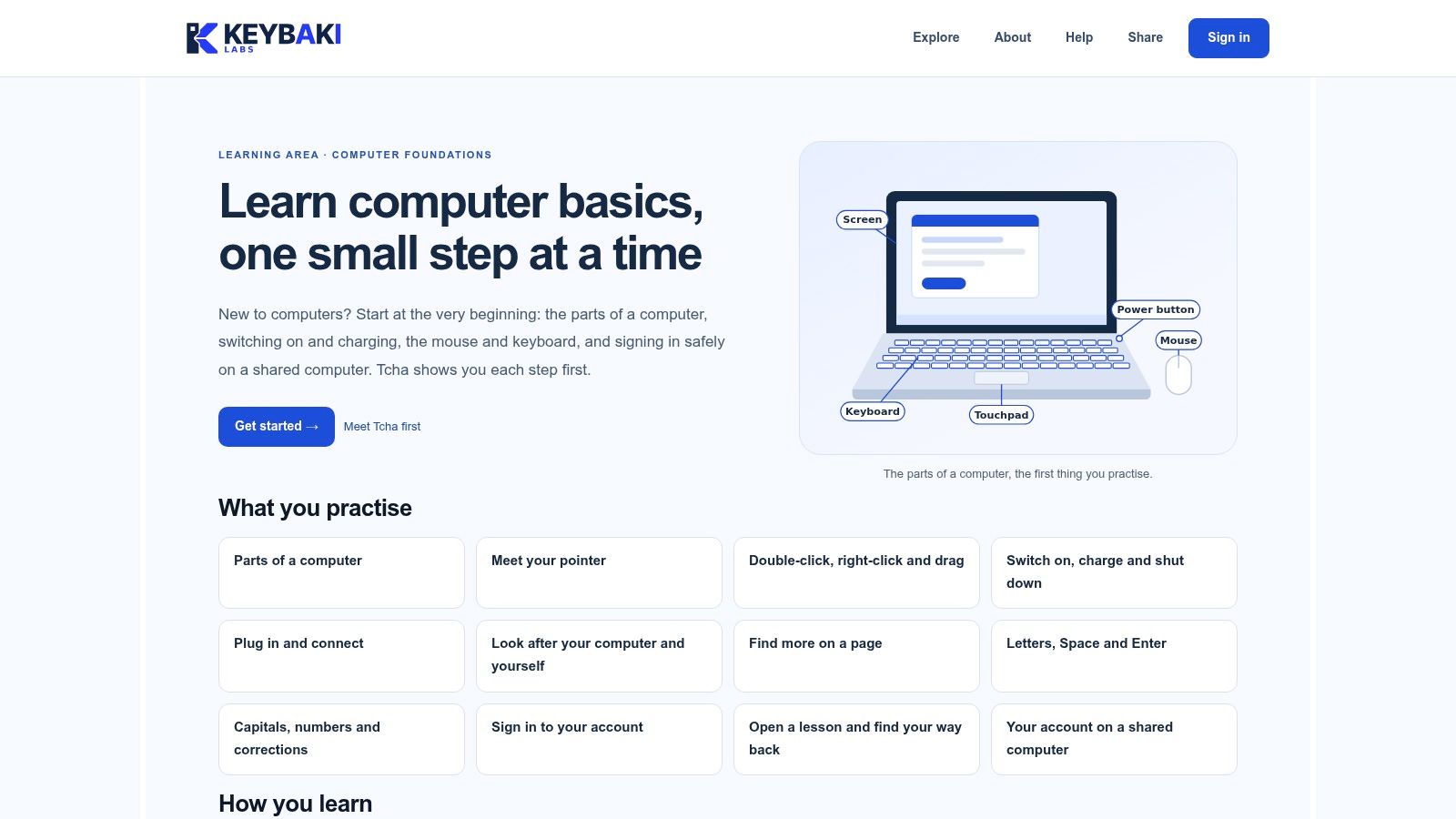
Each lesson is guided by Tcha, your on-screen guide, in three calm steps. In Show me, Tcha demonstrates the step first. In Guide me, Tcha talks you through it while you do it. In Let me try, you practise on your own. There's no timer, so take as long as you need, and repeat any step as often as you like.
Short turns matter where devices are shared. A 2025 report covered by Business Daily found only 40% of secondary schools had operational computer laboratories. So practise for a few minutes, then let the next person have a turn. Log out when you finish, don't change another learner's settings, and wipe the mouse clean before use. If connectivity is weak, repeat the offline exercises from the five actions on any device that's already switched on.
A parent or teacher can sit beside you and watch the pointer with you, naming each target aloud. Keybaki uses phone-number sign-in, and users can be in the app in under a minute, so getting started is quick. Open the lessons and begin with Meet your pointer today: Practise the mouse with Tcha on Keybaki Labs.
Learning to use a mouse or touchpad for the first time is the doorway to every other computer skill, and Keybaki supports Kenyan families, teachers and learners through that doorway with patient, step by step practice. Visit Keybaki to explore lessons and practice activities that build confidence one small action at a time.
Comments
Loading…