
· parent portal login
How to Log Into Parent Portal as a Student: A 2026 Guide
12 min read
Your child's homework is open on the kitchen table, and the only screen in the house is the phone in your hand. The teacher has posted a weekly report. Your daughter knows her PIN but not where to type it. Your son's one-time code expired twice. And nobody is sure whether you should sign in as the parent or hand the phone over and let the student do it.
That's the everyday version of how to log into a parent portal as a student. It isn't really a password problem. It's a question of who holds the login, which phone receives the code, and who at the school can fix things when the details on the screen don't match the child sitting next to you. Sort those three out and the sign-in itself takes seconds.
Table of Contents
- Who Issues Your Login and What You Need
- How to Sign In as a Student and Confirm the Right Profile
- Signing In on a Shared Family Phone
- Fixing Sign-In Errors and Locked Accounts
- Protecting Your Child's Data When Signing In
Who Issues Your Login and What You Need
Three things decide whether a sign-in works before anyone types a character: which account type you hold, which identifier you enter, and which credential goes with it. Kenyan learner platforms split all three by role, and mixing them up is the most common reason a family gets stuck.
| Role | Identifier | Credential |
|---|---|---|
| Student in Grades 7 to 12 | Learner ID issued by the school, or registered phone number | PIN or one-time code |
| Parent or guardian | Phone number or email on the account | Password or one-time code |
| Parent with several children | Same parent login, then the child's profile | Each child's own PIN |
Read the table by asking who set the account up. A school-issued learner ID goes back to the school office when it fails. A profile a parent created sits inside that parent's account, so the adult who set it up controls the PIN. On Keybaki, one parent account can carry up to three child profiles, each with their own PIN, and no email or exposed parent login is required.
Two confusions cause almost every wrong login. The first is a student or parent trying to create an account from scratch. The NEMIS login page run by the Ministry of Education is blunt about this: school managers and heads of institution must get access rights from the County or Sub-County Director of Education, parents should check with the school when a child's information changes, and users are warned not to register directly. Student access is granted by the school; it cannot be self-created. The child's record lives with the school, so the school controls what the login opens.
The second confusion is assuming the school must already be on the platform. Most accounts on Keybaki today belong to individual teachers and parents rather than whole schools, so a family can hold a working account before the school has signed up. If the school adopts Keybaki later, that existing individual account links in automatically.
Have these three ready before you start: the phone that receives the code, the learner ID exactly as it was issued, and the name and number of the school contact who can reset access.
How to Sign In as a Student and Confirm the Right Profile
The sequence below works on a phone, in order, without guesswork. Read it once, then follow it line by line with the child beside you.
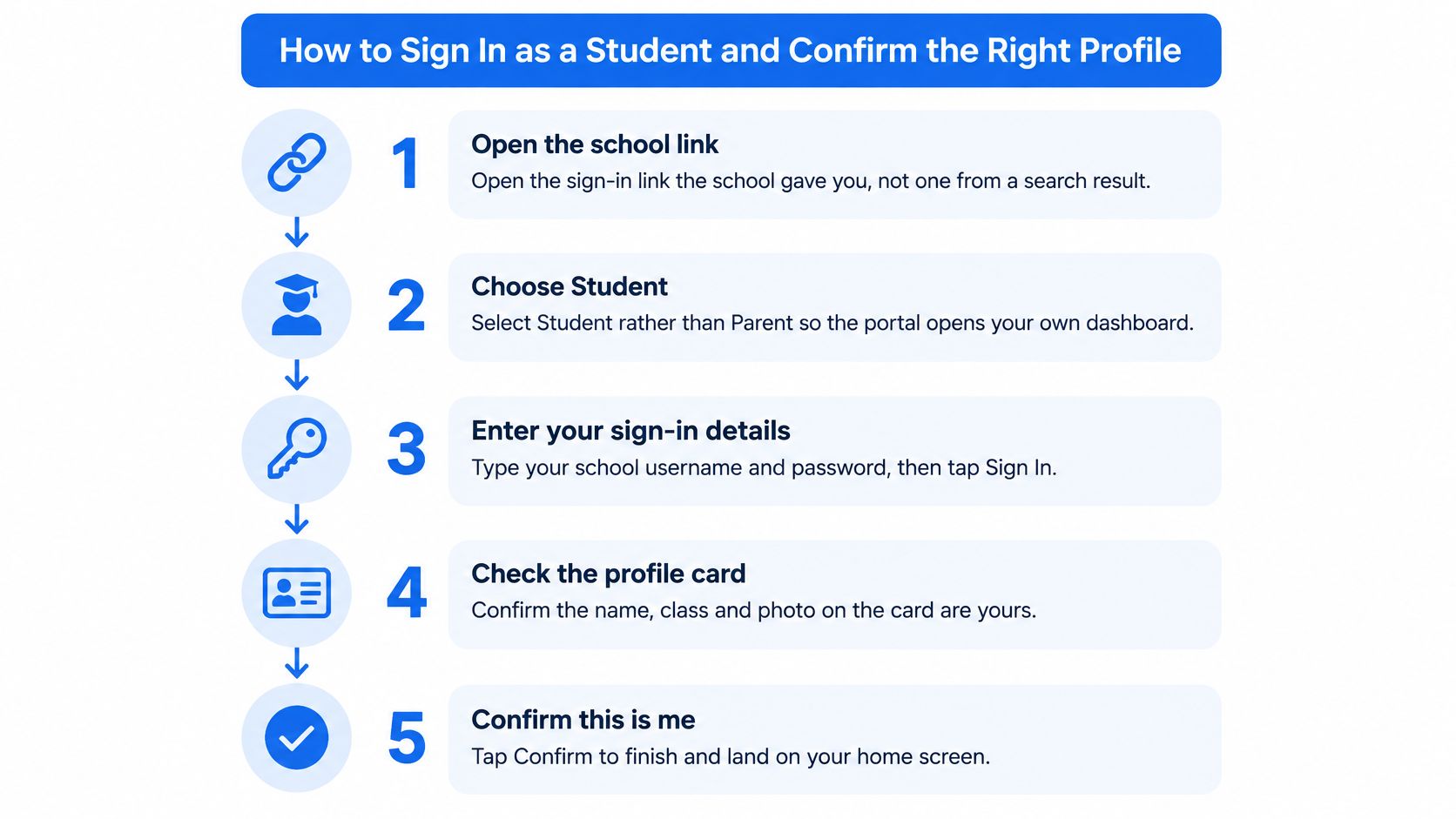
The seven steps in order
- Open the link the school sent you. Use the message from the class teacher or the school office, not a link from a search result. A typed address takes a few seconds and keeps you away from lookalike pages that sit at the top of results.
- Choose Student, not Parent. The two roles open different data. Kenya's Data Protection Act, 2019 requires parental or guardian consent before a child's personal data is processed, so a well-built portal keeps the learner view and the guardian view apart on purpose. Tapping Parent lands you on a login you don't have.
- Enter the identifier in full. Type the learner ID exactly as issued, or the registered phone number as +2547XXXXXXXX, with no spaces and no leading zero. Keybaki uses phone-number sign-in, and a student can be inside the app in under a minute once the number is right.
- Request one code, then wait. Press send once. An SMS can take a minute on a busy network, and a second request only muddies which code is live.
- Enter the PIN and read the profile card. Check four lines: name, grade, school, linked guardian. All four must match before you open anything.
- Open one real item. A weekly report or a continuous evaluation assessment (CEA). Opening something proves the account is live, not just that the password was accepted.
- Sign out fully. Not the back button. On a shared phone, closing the tab isn't the same as ending the session.
What a successful sign-in looks like
Treat the profile card as the test, not the welcome message. If the name, grade, school and linked guardian all match, and one report or assessment opens, the account works. If any single line is wrong, stop and contact the school first. It holds the learner record and can correct the grade, the spelling or the guardian number faster than anyone else.
A sibling's name on the screen is a failed sign-in, even though the password worked. That's a shared-device or role-mapping problem, and it means the previous session never closed.
The slips that block a clean sign-in
- A number starting with 07. Local format fails where the field expects the country code. Retype the whole number starting with +254.
- Caps lock or a switched keyboard language. A PIN of digits can become symbols on a keyboard set to the wrong layout. Check the language bar before assuming the PIN is wrong.
- A code entered after it expired. One fresh request fixes it. Three hurried requests usually make it worse.
If your child is still learning their way around a browser, the step-by-step computer basics guide covers typing, tabs and finding the address bar, which is where most of these slips begin.
Signing In on a Shared Family Phone
Three children, one phone, one charger, and a queue at the kitchen table. The first child finishes a CEA, the second needs the weekly report, and the third is asking for the PIN. This is normal in most Kenyan homes, and it's the situation that breaks sloppy login habits fastest.
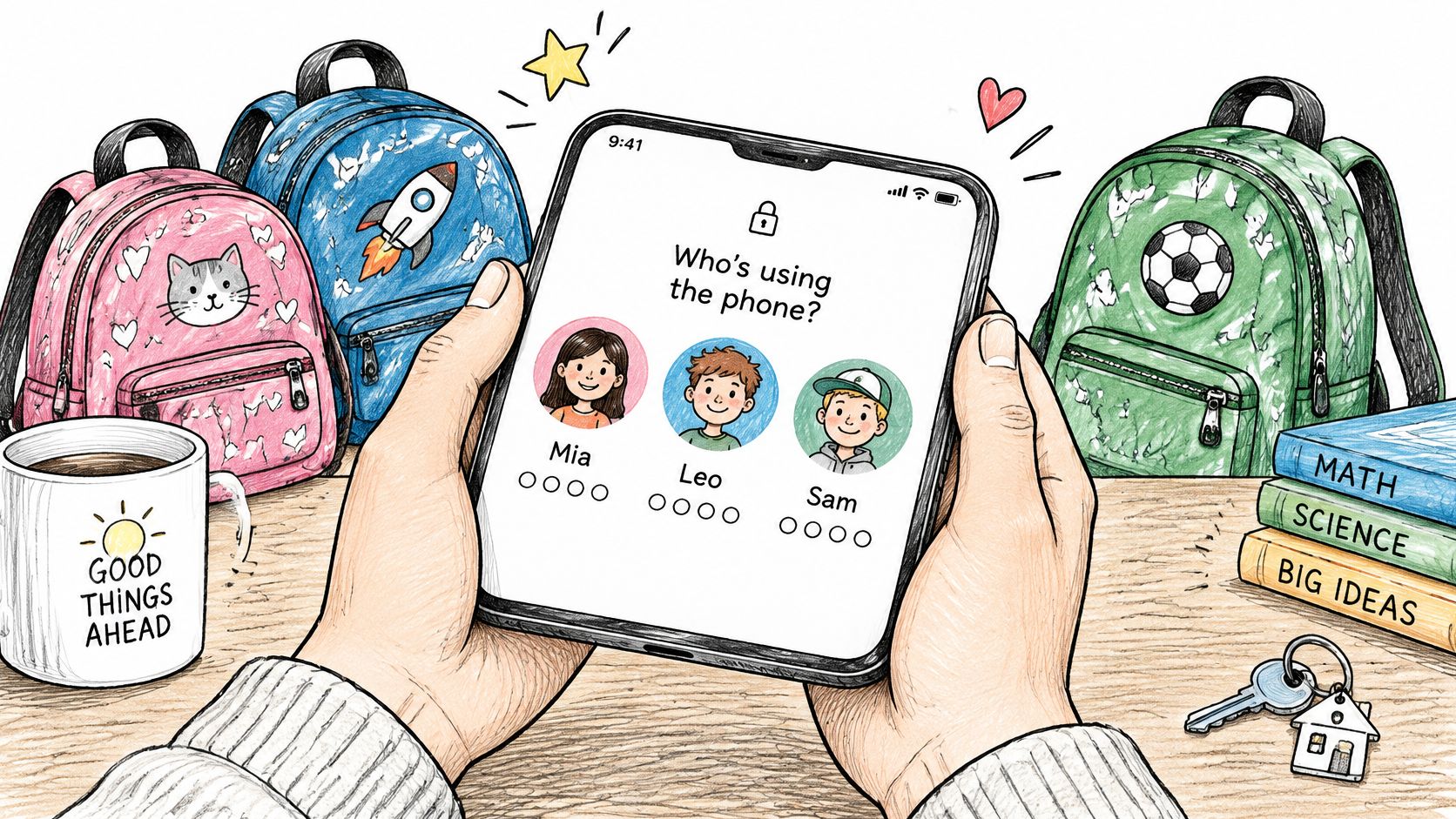
The good news is you don't need a second phone. One parent account can carry up to three children, each with their own PIN, and no email or exposed parent login is required. Each child signs in as themselves; the parent login stays with the adult.
The sibling switch, in plain steps
- Close the first child's session. Sign out from the menu, don't just swipe away from the app.
- Close the browser tab, then open a fresh one. Some pages hold the last session in memory.
- Sign the second child in with their own PIN, and read the name on screen before opening anything.
- Never save the credential when the phone offers to remember it. The next person to pick up the phone would land in the previous child's profile.
One-time codes deserve the same care. Don't post a code in a class WhatsApp group and don't read it aloud across a crowded room. If the SMS lands after its validity window, request one new code rather than tapping repeatedly. A child who has forgotten a PIN should ask the school or the parent account holder for a reset, not guess until the account locks.
Connectivity is the other half of this. A European Union-supported update reported that 363 Kenyan schools had been connected by December 2025, benefiting more than 277,000 learners, while only an estimated 30% of the country's 23,400 public primary schools were online, according to the EU delegation's connectivity report. Assume the network will drop mid-task, and plan the sign-in around that.
The habit that saves the most evenings is dull: keep the learner ID and the school contact written on paper near the phone. A locked profile shouldn't be the reason homework doesn't get done. If your family shares more than a phone, the guide to using a shared computer safely covers the same sign-out discipline for a laptop or school desktop.
Fixing Sign-In Errors and Locked Accounts
Most failed sign-ins trace back to a short list of causes, and each cause belongs to one person who can fix it. Match the symptom first, then go to the right fix.
| Symptom | Likely Cause | Fix |
|---|---|---|
| Phone number rejected | Number typed with a leading 07 instead of +254 | Retype in full international format with no spaces |
| One-time code never arrives | Weak signal or wrong number on the account | Switch between Wi-Fi and mobile data, then ask the school to check the number |
| Code expired | Code entered after its validity window | Request one new code; don't resubmit the form repeatedly |
| PIN or password rejected | Wrong digits, caps lock on or keyboard language switched | Check caps lock and the keyboard language, then ask the school or parent account holder for a reset |
| Page stalls or times out | Slow or unstable network | Reload once, switch networks and close background apps using data |
| Account not found | Student not yet activated by the school | Ask the school to activate the account and confirm the learner ID |
| Another child's profile appears | Shared session left open or wrong profile selected | Sign out fully, sign in with the child's own PIN and check the name on screen |
| Account locked after several tries | Rate limiting or lockout | Stop retrying, then contact the school and platform support with the error text and time |
Notice who holds each fix. Some rows are yours to solve at the phone, some belong to the school office, and every reset has to pass through a verified adult record.
The one reload rule
A stalled page gets one reload. Switch between Wi-Fi and mobile data, close the apps still using data in the background, reload once and wait for the next code window before trying again. Repeated submissions and repeated PIN guesses are what turn a fixable error into a lockout.
Treat a stall as a network problem before you treat it as a password problem. Many public secondary schools still run on thin, unreliable connections, and home signal varies just as widely between counties, most sharply in arid and semi-arid areas. Move closer to the router, step outside for a stronger signal or try again at a quieter hour.
A first sign-in goes more smoothly with a teacher or the parent account holder beside the child, especially on a shared phone where a sibling's session may still be open.
Recovering a locked account
Write down the exact error text and the time it appeared. "Invalid password", "network timeout" and "account not found" route to three different people, and a vague report costs days.
Then follow the order. The school confirms the learner ID and the guardian number on record. Platform support comes second, with the error text and time in front of you. A reset is granted only after the guardian or school record is checked, never on the strength of a caller's name.
For a child on a Keybaki parent account, the parent holds the recovery path. One account can carry up to three children, each with their own PIN, so the child gets a reset without ever needing the parent's credentials.
Protecting Your Child's Data When Signing In
Login is a child-data decision, not a password chore. Under Kenya's Data Protection Act, 2019, Section 33 requires parental or guardian consent when a child's personal data is processed, and the Office of the Data Protection Commissioner's education guidance asks schools to explain why that data is collected, who can access it, and how consent is obtained. Parents also hold rights of access, correction, deletion in appropriate circumstances, and portability under Section 38.
Turn that into four habits:
- Use the learner's own account. Not a sibling's, not yours.
- Never share a PIN or a one-time code, including with a relative helping with homework.
- Verify the parent relationship before linking a profile, because a linked profile is a key to a child's record.
- Don't create duplicate accounts. Duplicates are how records drift out of sync.
Say a number is still registered to a former guardian. Ask the school to correct the contact record. Don't open a second profile, which leaves the child attached to two identities and confuses every future report. If someone else has seen the PIN, ask the school or platform to reset it, then tell the school so the record is updated. For a workable passphrase and second step, the guide to strong passwords and 2-step verification is the companion piece. And if a code ever reaches the wrong hands, the account takeover detection playbook sets out what to check in the first hour.
Keybaki signs students in with a phone number and a personal PIN, and one parent account can carry up to three child profiles, each with its own PIN, on the same family phone. Grades 7 to 12 get the CBE-mapped library, weekly weak-strand briefings and CEAs in the same place a parent can see the term report. Visit Keybaki with your child's learner details ready, and get the first sign-in done together.
Comments
Loading…