
· Kenya CV tips
How to Format a Clear Document: Your First CV Step by Step
10 min read
You've finished school, you have an internship or a part time job in mind, and you're staring at a blank page wondering where your name should even go. You're not alone, and you don't need a fancy design. Learning how to format a clear document, your first CV step by step, teaches you headings, bold and lists you'll reuse for school projects, application letters and every document after this one.
Table of Contents
- Set Up and Save Your CV Document in Five Steps
- Spacing, Length and Layout Settings to Set Once
- The One-Page CV Layout, Section by Section
- Headings, Bold and Bullets That Keep It Scannable
- Final Checks Before You Share Your CV
- Practise Formatting Your CV Before You Send It
Set Up and Save Your CV Document in Five Steps
A recruiter often scans a CV in seconds, so the reader has to find your name, education and skills without hunting. That starts before you write a single sentence about yourself. Set the file up properly once, and you won't be fighting the page later.
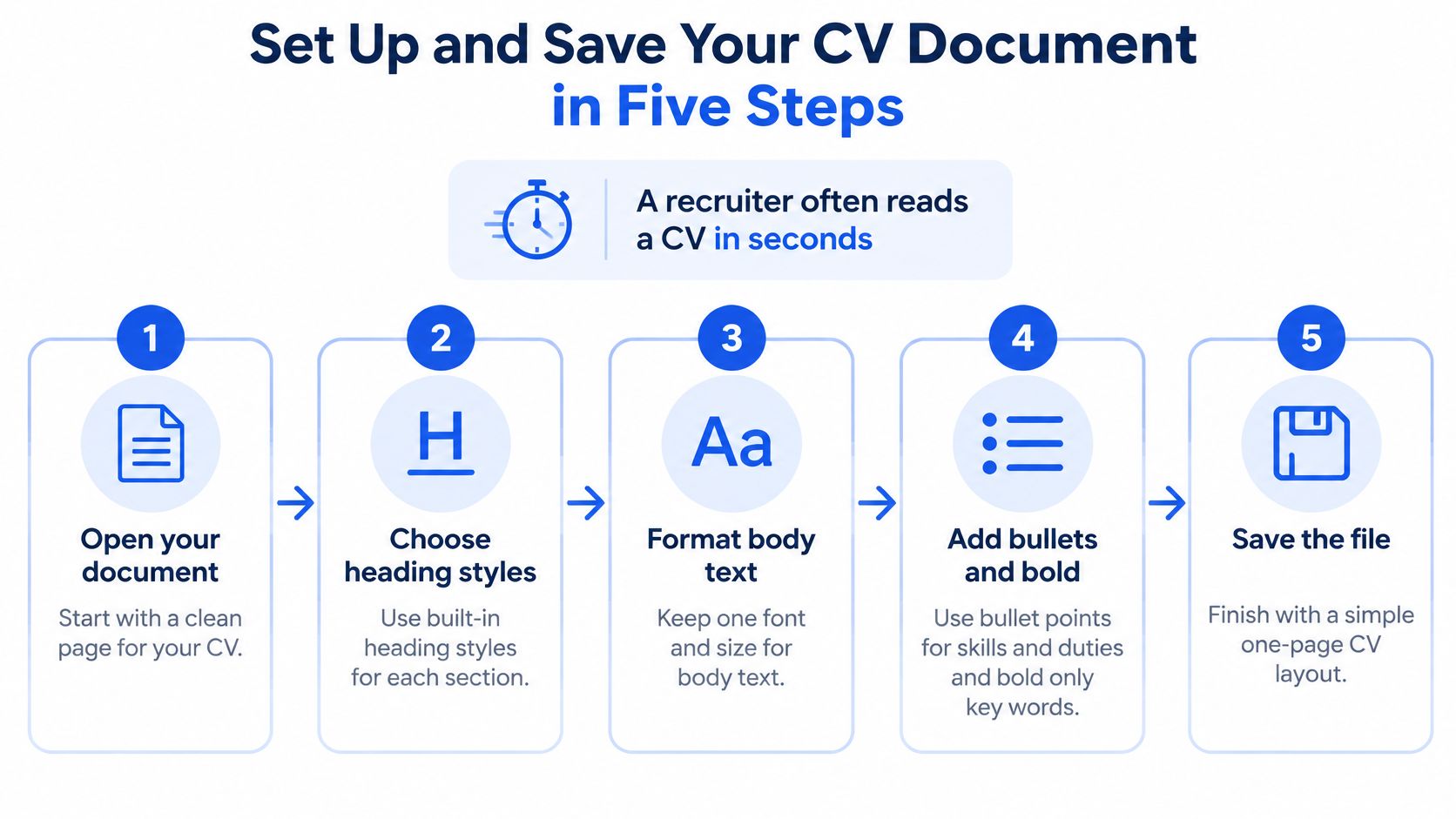
The five setup steps
- Open a blank document: Start a new file in Microsoft Word, Google Docs or LibreOffice Writer. Menu names differ slightly, but the steps work the same way in each one.
- Save it straight away: Save as Firstname-Lastname-CV inside a folder you'll find again, such as a CV folder in Documents. Kenyan employment guidance on writing a professional CV in Kenya gives Amina_Otieno_CV_Accounts_Assistant.pdf as a clear filename and warns against vague names such as final_final_new.
- Set the page: Choose A4 with margins of about 2 cm on each side. Your CV will then print the same way on a school, cyber café or home printer.
- Pick one font: Use one readable font, such as Arial or Calibri, for the whole document. Changing font halfway through makes a page look patched together.
- Add your top line and save again: Type your name and phone number at the top, then save. Saving only at the end means a crash or power cut can erase everything.
If you're still getting comfortable with opening and saving files, this step by step guide to computer basics for beginners covers those foundations first. Some people prefer to build drafts with a tool instead, and if you want to compare options you can find a resume builder for tech jobs. Either way, you now have a named, saved file with the page ready for content.
Spacing, Length and Layout Settings to Set Once
A recruiter opens your CV and needs to find the key details quickly. Aim to fit your first CV on one page, then give each section enough space to scan easily. If your draft spills onto a second page, remove the least relevant or oldest entry before reducing the font size.
Settings to apply now
- Set line spacing to single: This keeps the lines of each entry close together, like words grouped into a clear paragraph.
- Leave space before headings: Add about 12 pt before each section heading. This creates a visible pause between topics without relying on extra blank lines.
- Align text left: Left-aligned text gives the reader a steady starting point on every line. Justified text can stretch spaces between words unevenly.
- Remove decoration: Delete pictures, borders, text boxes and decorative lines that add no information. They use space and may shift when the file opens on another computer.
- Check the page: Zoom out and see whether the page looks balanced, with readable text and clear gaps between sections.
A calm layout helps the reader follow the page without hunting for each new section. These same spacing habits also make school projects and other applications easier to read.
If a job advert requests a photograph or a particular format, follow its instructions. The same goes for an application portal that specifies a Word file instead of a PDF.
The One-Page CV Layout, Section by Section
Put sections in the order a reader expects, so the basics appear first and the strongest evidence sits in the top half of page one. That sequence matches official forms too. The Public Service Commission PSC.2 form, revised in 2016, asks for personal information and academic qualifications beginning with the highest qualification, with the year, institution and award, and it states that including incorrect information in an application is an offence. Accuracy matters as much as neatness.
| Section | What to include | Example line |
|---|---|---|
| Contacts | Full name, phone number, professional email, town or county | Amina Otieno, 0712 000 000, amina.otieno@email.com, Nakuru |
| Profile | Two or three lines tailored to the job | Form Four leaver with strong Maths and English, keen to learn office administration |
| Education | Most recent or highest first, school, year, grade | Example Secondary School, 2026, Maths and English grade B |
| Skills | Short list of job relevant tools and languages | Microsoft Word, basic Excel, clear English and Kiswahili writing |
| Experience or projects | Role, place, dates and two or three results | Class treasurer, Example Secondary School, 2025 to 2026, tracked KSh 40,000 of class funds |
| References | Only if the advert asks for them | Available on request |
Writing each section well
- Profile: Write two or three lines for the specific job you're applying for, not a general statement about yourself.
- Education: List the most recent or highest qualification first, with year, school and grade, exactly as your certificate shows.
- Skills: Name skills you can prove, such as typing a document in Word, not every app you've opened once.
- Experience or projects: School leadership, class projects, volunteering, attachments and casual work all count on a first CV. Give the role, place, dates and what you did.
Scroll through once and check the order. Every section needs a clear heading you can spot at a glance.
Headings, Bold and Bullets That Keep It Scannable
Here's a quick look at how structured headings guide a reader through the page.
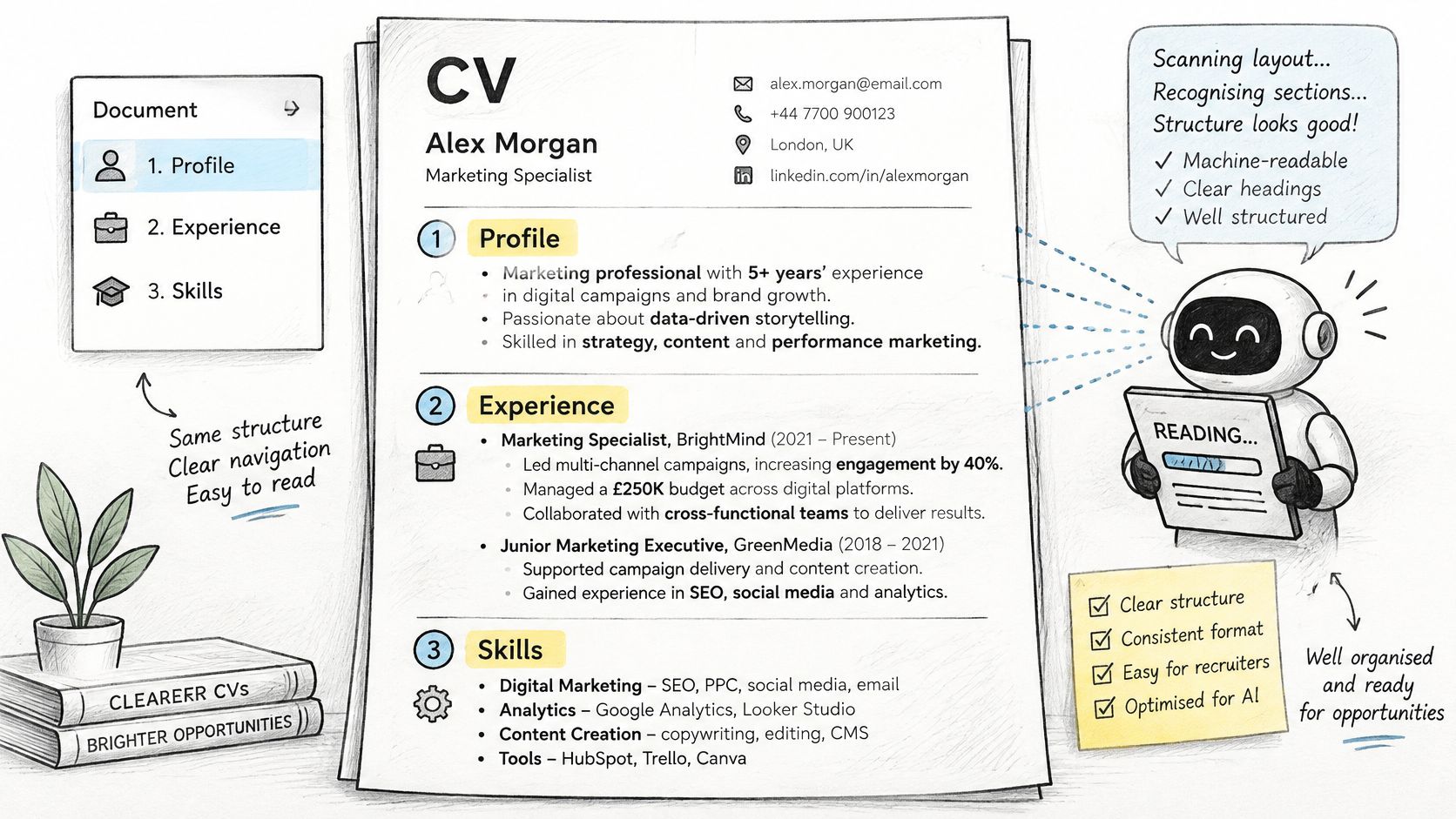
Use the built in heading styles instead of only making text bigger. This is the step beginners skip most. A real Heading style keeps every section name consistent, shows your sections in the navigation pane, and lets screen readers and recruitment systems recognise the structure. Big text typed by hand looks similar on screen but tells the computer nothing.
Apply the same Heading style to Profile, Education, Skills, Experience and Contacts. Use the Title style, or your largest heading, for your name at the top. If one heading looks different later, you can update the style once and every heading follows.
| CV element | Formatting to use | Where it goes |
|---|---|---|
| Your name | Title style or largest heading, one line | Top of page one |
| Section names | Built in Heading style, same for every section | Profile, Education, Skills, Experience, Contacts |
| Key words | Bold, sparingly | Job titles, school names, qualifications |
| Duties and achievements | Bulleted list, three to five per role | Under Experience or Projects |
| Body text | Normal style, one font throughout | Profile sentences and short notes |
Bold and bullets without the clutter
Bold only key words, such as a job title, school name or qualification. If every line is bold, nothing stands out. Compare these two lines.
- Weak: Responsible for stock records at the school shop
- Stronger: Kept stock records for 120 items, cutting count errors each month
The second version starts with an action verb and gives a result, so a reader grasps it in one pass. Keep three to five bullets per role, all in the same bullet style. Don't type dashes or stars by hand, because they line up unevenly and break when you edit.
This short video walks through applying heading styles and lists on screen.
Finish with a scroll test. Section names should jump out, and your skills should be readable in a few seconds.
Final Checks Before You Share Your CV
Checking isn't a quick glance before you press send. Some adverts ask for more than the CV itself. A Kenya School of Government employment notice requires applicants to upload an application letter, curriculum vitae, certificates and testimonials in designated portal sections, so missing one file can end an application early.
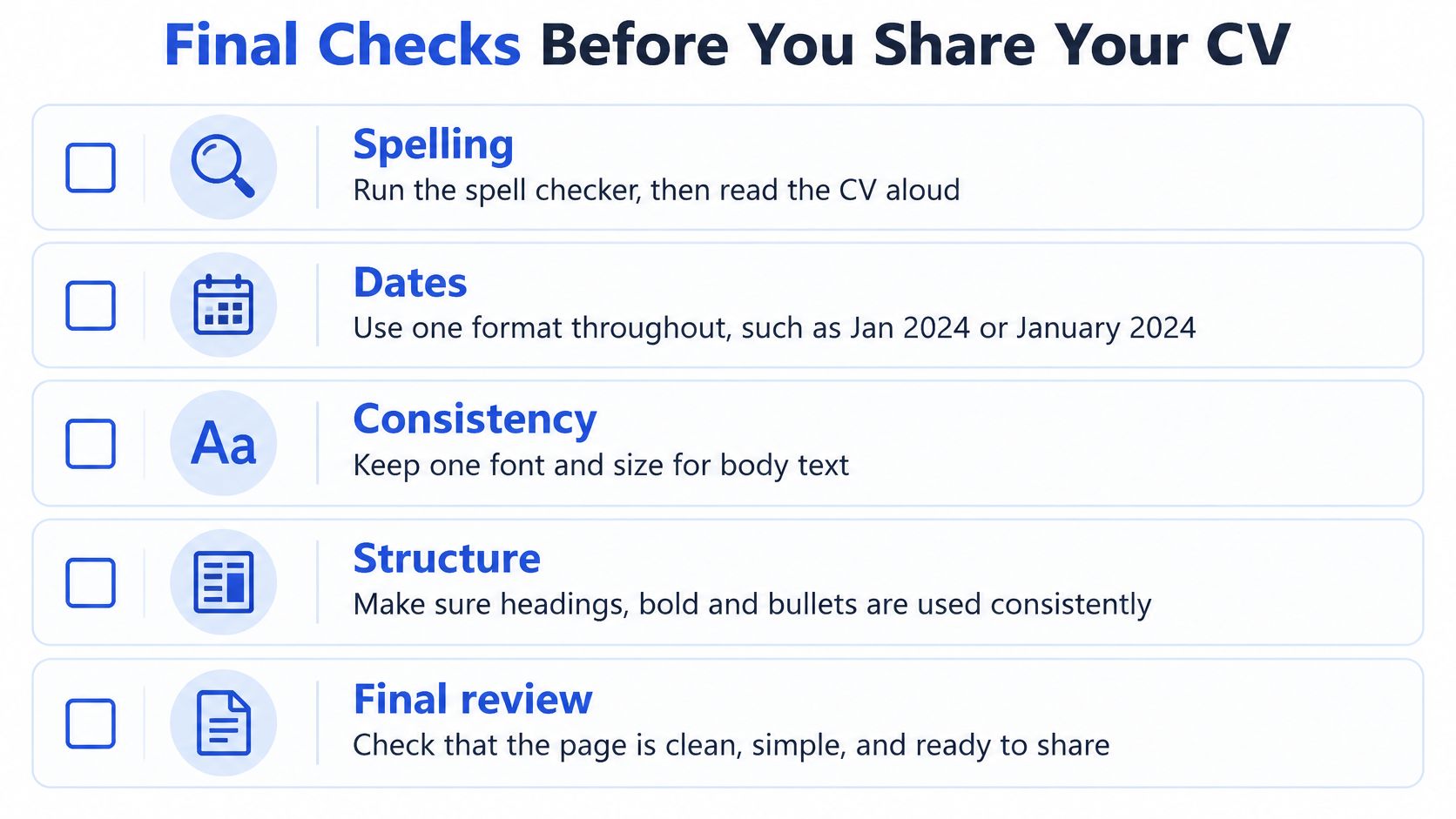
Your final checklist
- Spelling: Run the spell checker, then read the CV aloud. The checker misses correctly spelled wrong words, and your ear catches them.
- Dates: Use one format throughout, such as Jan 2025 to Dec 2025, and confirm the years run in the right order.
- Contact details: Call your own phone number and send a test email to your address. One wrong digit can lose an employer.
- Education details: Compare dates, school names and grades against your certificates, because shortlisted candidates may be asked to show originals.
- Attachments: Tick off every file the advert requests, and use the file type the portal accepts.
Simple, consistent structure also helps when software reads your file before a person does, and Hirespot's guide to AI screening explains how that filtering works. Export a PDF copy to send, check that you can select the text in it, and open it on your phone to see how it looks on a small screen. Keep the editable Word, Google Docs or LibreOffice file for later changes.
If you're working on a school or cyber café computer, follow the habits in this guide to using a shared computer safely and leaving nothing behind before you walk away. You should end with a PDF that opens cleanly and a checklist you can reuse every time.
Practise Formatting Your CV Before You Send It
A short practice document lets you try formatting without risking the CV you plan to send. Add a heading, bold one important word, then make a bulleted list. These same choices help readers find information quickly in a CV, school assignment or later work document.
Typing practice can make editing feel easier. Follow this guide to touch typing for beginners starting with the home row if you want to build that skill. Once your draft looks tidy, shape your resume before interview practice so your document and spoken answers tell the same story.
Your next step: Open a practice document and add one styled heading, one bold word and one bulleted list. Then return to your saved CV and apply those formatting choices where they help a recruiter scan your information.
You can explore lessons and practice activities for Grades 7 to 12 on Keybaki. Its Learn, Do, Prove and Adapt workflow connects theory, practice, competency assessment and recommendations. The formatting habits you practise here can also help with school projects, applications and work documents.
Comments
Loading…