
· Student Portal Tips
Before You Apply Online: Digital Skills for KUCCPS and HELB Portals
13 min read
You're holding a parent's phone, your certificates are beside you, and someone has sent a message saying applications are open. You have the grades, but you're not sure which password to use or where a downloaded confirmation will go.
Applications for placement, loans and many other services now happen online. Many avoidable problems start with basic digital mistakes rather than the forms themselves: a mistyped number, an inaccessible email or a payment made without saving proof. Before you apply online, digital skills for KUCCPS and HELB portals help you stay in control.
Table of Contents
- Why Digital Basics Decide Your Application
- Seven Digital Skills You Need at a Glance
- Set Up an Email You Control
- Guard Your Login Details and Refuse Paid Help
- Read Every Field Before You Submit
- Pay Only Where the Portal Shows and Keep Proof
- Stay on Official Channels and Protect Shared Devices
- Practise These Skills Before You Apply
Why Digital Basics Decide Your Application
A learner can prepare course choices carefully, then enter the wrong index number. Another may finish filling a form but close the browser without checking whether it was submitted. Being able to open a website isn't the same as being ready to complete an application.
Many applicants work on a shared phone with limited internet and little or no computer access. That shapes every step: a borrowed device can be taken back mid-form, mobile data can run out before a confirmation loads, and a downloaded slip may sit in a folder you have never opened.
Treat the device like an examination desk. You would not sit a paper without a pen that works, so do not start an application on a phone you have never used. Practise on the device you'll use. Learn how to switch between your browser and email, find a downloaded document and return to a form without accidentally closing it.
Practical rule: Prepare your information offline before you spend data entering it online.
Keep your identification details, examination information and contact details beside you, written on paper if needed. Charge the phone and check that you can receive messages on the number you intend to use. Set aside an hour before the application window opens to test your phone and email, rather than discovering a problem on closing day.
Seven Digital Skills You Need at a Glance
Most failed applications trace back to a small set of habits, not to difficult technology. These seven skills cover the ones that matter most on a shared phone.
| Digital skill | Why it matters | Practice route |
|---|---|---|
| Email you control | Portal alerts and password recovery may go to this address | Send yourself a test message from your own account and reply to it |
| Strong passwords and private login details | Protects your index number, password and placement record | Change the password and sign in again to confirm it works |
| Careful typing | Names, ID and index numbers must match your certificates | Retype a mock form and compare each entry with your certificate |
| Reading every field before submitting | Wrong choices can be difficult to undo after submission | Pre-submit check in this guide |
| Saving proof | Confirmations support corrections and help resolve disputes | Save a named screenshot and open it to check it is readable |
| Paying as the portal shows | A mismatched reference may not link to your application | Official payment screen only |
| Official sites only | Fake agents and copied links can expose your money and personal details | Verify the official address before entering data |
Mark any skill you can't yet do independently, then practise it before using a live application.
Notice the pattern in the right-hand column. Shared devices create password problems, typing slips create mismatched records, and missing proof leaves you with nothing to show when a payment or submission is questioned. The practice routes are deliberately small, because a habit that takes two minutes to test is a habit you will test.
A useful self-check is to explain the task aloud. Can you describe where your downloads are stored? Can you distinguish your email password from your portal password? If someone takes the phone away after helping, can you continue without them?
Digital readiness and course selection are different tasks. If you're still exploring your strengths, Edvdo's skill testing for stream selection offers a separate resource for that reflection. Your application details should still come from official programme information.
Parents can use the table as a conversation starter, not a test to catch a learner out. Ask the applicant to demonstrate a task using harmless practice information, then help with the part they find confusing.
Set Up an Email You Control
Your application email should belong to you, not a friend, sibling or cybercafé attendant. Updates, confirmations and password-reset messages may arrive there, so access must continue after application day.
Preparing an email account early gives you room to practise without rushing.
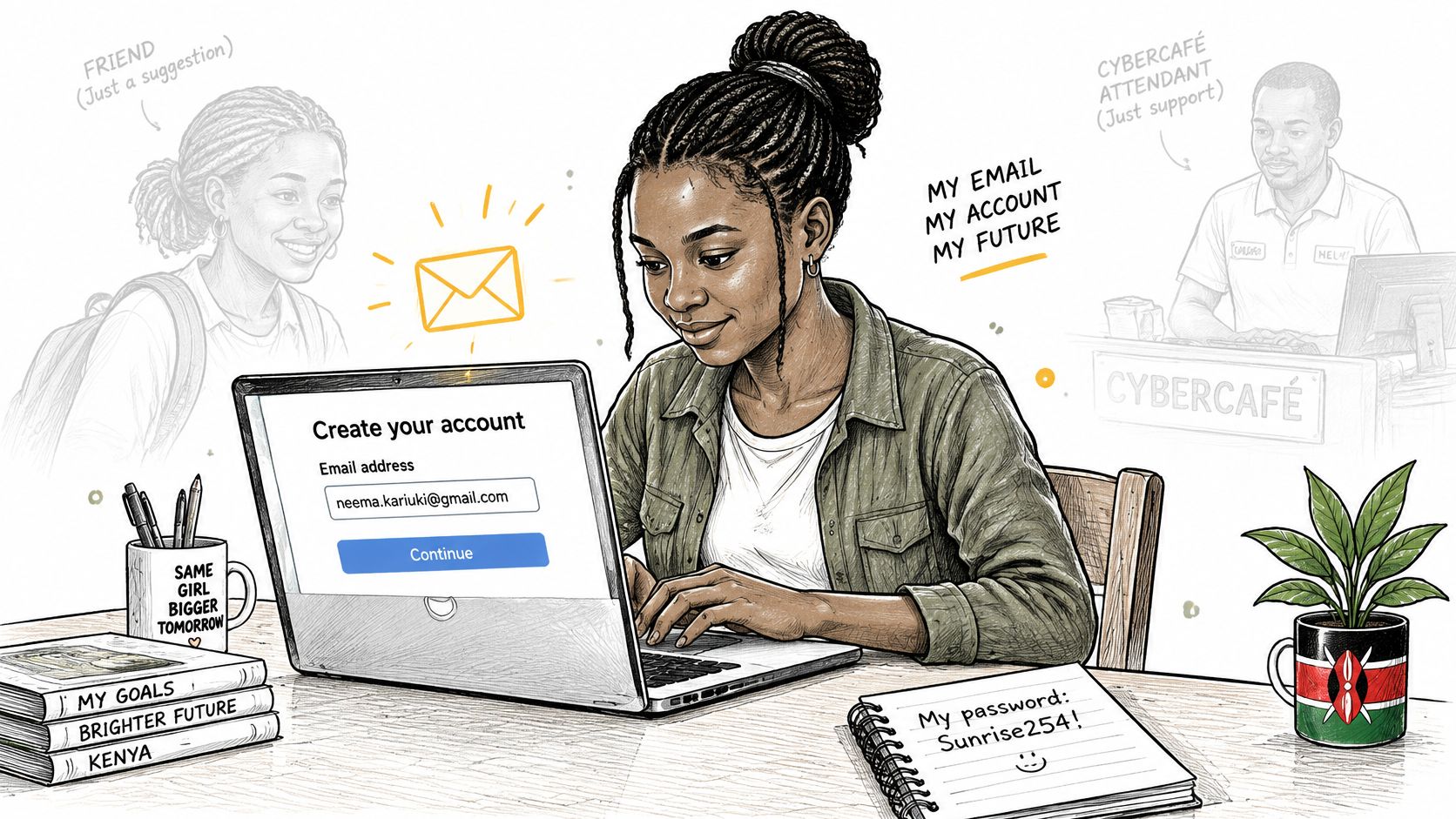
- Create the account early. Allow time before applications open to learn how to sign in, read messages and recover access.
- Choose an address you can say aloud clearly, such as your first and last name with digits. Avoid nicknames that could confuse someone recording your contact details.
- Keep the password safely. Write it on paper stored securely at home, rather than in an unprotected note on a shared phone.
- Add recovery options, including another email you control and a phone number you expect to keep. Recovery details are useful only if you can still access them.
- Turn on notifications. Check the inbox and spam folder yourself too, because an alert alone doesn't show every message.
- Sign out when you finish on a borrowed device. Closing the email tab doesn't necessarily end the session.
Test access before you need it
Say a learner uses a sibling's email because it's already open on the family phone. When the sibling changes the password, the learner can no longer retrieve application messages.
Avoid that dependency. Send yourself a test message, open it on your phone and reply with a short sentence. Then sign out and back in, using your own details rather than relying on an account that was already open.
Guard Your Login Details and Refuse Paid Help
Don't give your portal login, index number or verification codes to anyone offering help for a fee. Someone who controls your account may be able to view personal information or change what you entered.
The KUCCPS placement instructions identify the login details as the candidate's KCSE index number, examination year and password. The official KUCCPS FAQ says the portal password can be the KCPE index number or birth-certificate number, so treat both identifiers as sensitive.
Don't send these details through WhatsApp, store them in an unprotected notes app or enter them into a link supplied by an unofficial agent. Refuse offers promising guaranteed placement, loan approval or faster results for payment.
Help without handing over control
- Keep passwords private. An official helper can explain a field without needing you to disclose your password.
- Verify the helper. Use contact details published through official channels, not a number supplied by the person making the offer.
- Enter codes yourself. A one-time password authorises access or an action. Don't read it out to someone else.
- Recover access officially. If you forget a credential, use the institution's recovery route rather than paying someone to retrieve it.
Choose a long, unique password where the service allows you to set one. For practical guidance, use Keybaki's strong passwords and two-step verification guide. If you also use a pattern lock on your phone, Vault9's explanation of pattern shapes attackers guess first helps you recognise predictable choices.
A helper should explain the task while you remain in control of the account.
Suppose a classmate shares a login with an agent, then discovers changed application choices. That's a reason to act, not to pay the agent again: change the password through official channels, review the record and report the unauthorised change to the relevant office.
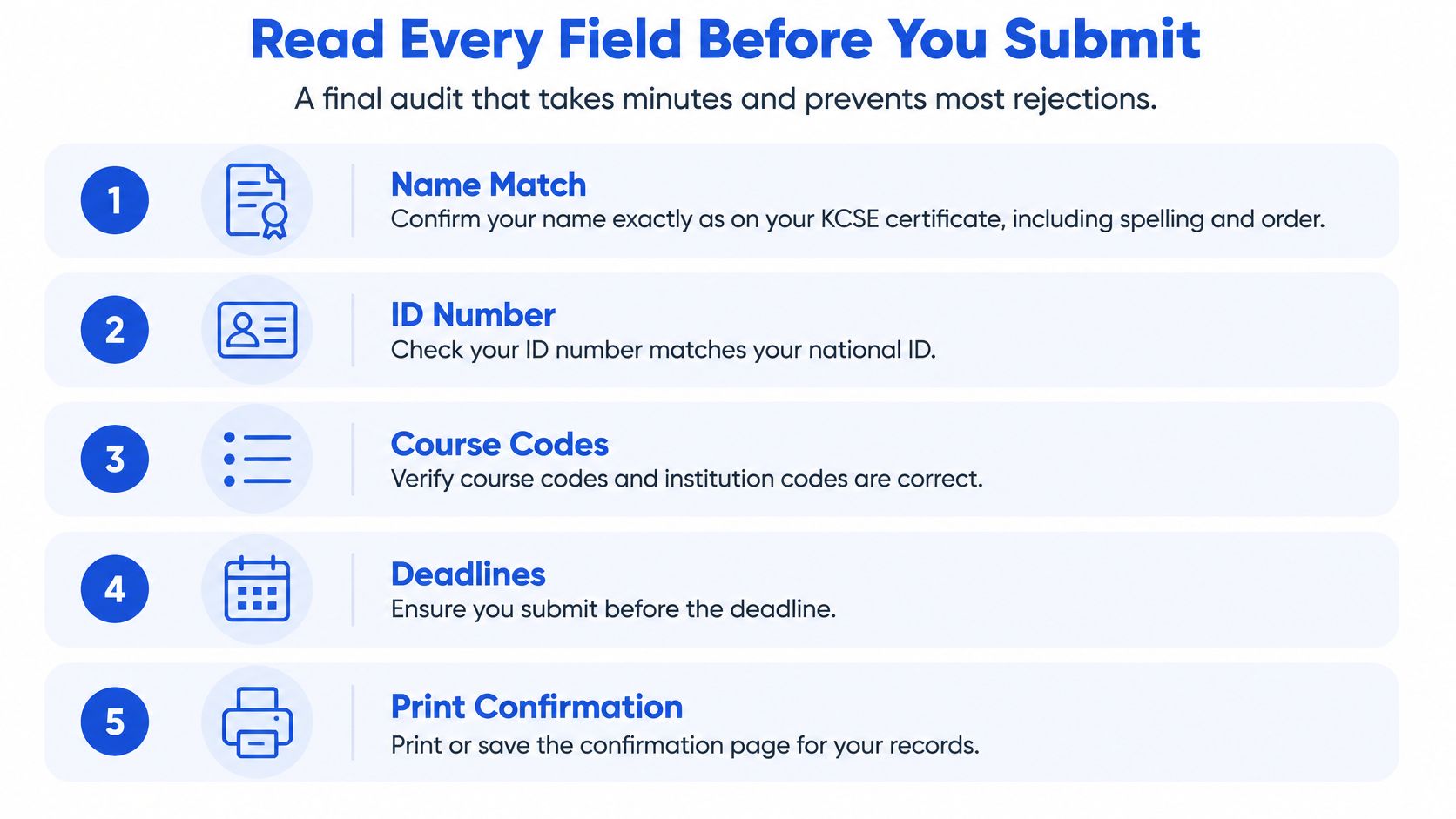
Read Every Field Before You Submit
A final audit catches typing slips while you can still correct them. Write a worksheet before logging in, with your identity details, contact information and intended programme choices, so you aren't switching between scattered messages.
Keep original documents beside the phone. Compare what the screen shows, not what you remember typing.
- Match your name. Check the spelling and order against your KCSE certificate. If your official documents differ, seek official guidance rather than inventing a compromise.
- Compare your ID or birth-certificate number digit by digit with the original document. Reading it in small groups makes omissions easier to notice.
- Check your index number and examination year. Re-enter them if necessary, then compare the displayed values with your examination record.
- Verify your phone number and email address. A correct application with the wrong contact details can leave you unable to receive important messages.
- Review programme names and codes. Compare each entry with your prepared list and confirm the ranking reflects your preferences.
- Read every yes-or-no prompt before answering, including any question about accepting another programme. Don't choose an answer just to move past the screen.
- Inspect the final summary. Submit only when the displayed information matches your documents and intentions.
Use this visual reminder alongside the full field check.
Watch what the keyboard inserts
Browser autofill can insert a previous user's name, email or phone number. A phone keyboard can also replace text unexpectedly, while a typing slip can reverse adjacent digits.
Zoom in if the text is small, and pause before pressing the final button. A parent can read the worksheet aloud while the applicant compares it with the screen, without sharing account credentials.
If one field doesn't match your document, stop and fix it first.
Pay Only Where the Portal Shows and Keep Proof
Pay only through the method and account details displayed on the official portal. Don't copy payment details from a forwarded message or assume a friend's reference will work for your application.
The KUCCPS degree-application instructions specify that, for M-PESA, the requested reference is the eCitizen account number sent by SMS, not the M-PESA transaction code, and that the same reference is needed for later application changes. Follow the live official screen exactly, because a mismatched reference may prevent payment from linking to your record.
Make a proof folder
Screenshot or download confirmation pages, payment confirmations and your application reference. Use a clear folder name such as Application Year Surname Degree Proof, then keep a backup on another trusted device or in secure cloud storage.
Open each saved file to check that it's readable and complete. For HELB, retain legible scanned documents and submission or login confirmations in a separate, clearly labelled folder, together with any relevant payment records. This doesn't mean every financing application requires a payment.
| Situation | Check first | Safe next step |
|---|---|---|
| Payment deducted but application not showing | Payment record and confirmation SMS | Check portal status before paying again |
| Submitted but no confirmation page | Saved screenshot and SMS to your contact number | Log back in to verify status; don't resubmit blindly |
| Wrong detail entered | What the portal allows you to edit | Use the official correction route; ask an official office if unsure |
| Phone number used for verification is lost | Access to the number and your email | Recover through the official channel; never pay an agent to restore access |
| Connection dropped during payment | Transaction status on the official payment screen | Confirm the status before any retry |
Before responding to a demand for money, use Keybaki's guide to checking fake admission and placement messages before paying.
Recovery habit: Check the application status and payment record before trying again.
A saved draft, a completed payment and a submitted application aren't interchangeable. Verify the final status while the official window is still open.
Stay on Official Channels and Protect Shared Devices
A national portal doesn't mean every applicant has equally usable access. Mobile-data dependence and uneven connectivity make preparation important even when a website is available through official KUCCPS channels.
Keep the distinction between official assistance and an unsolicited offer clear.
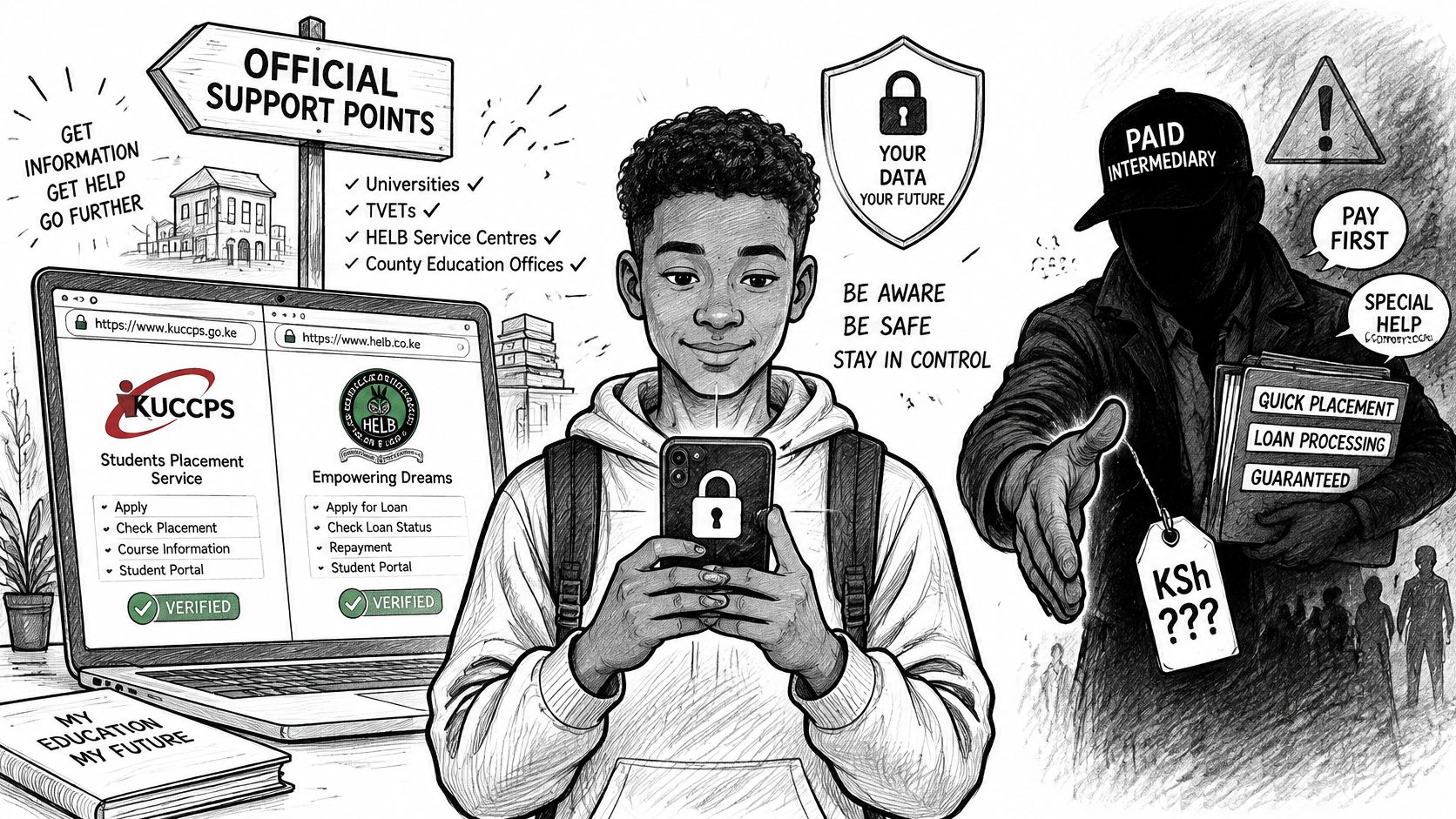
The KUCCPS application FAQ lists assisted support through 63 universities and colleges and 58 Huduma Centres. Verify current support arrangements before travelling, and ignore paid agents or WhatsApp messages offering placement or loan help.
Leave a shared device clean
- Start privately. Use a private browser session, but remember that downloaded files can remain on the device.
- Finish completely. Sign out, remove any saved passwords and close the tabs.
- Take your records. Transfer confirmations securely, then remove copies from the public computer.
- Protect the session. Don't leave the screen unattended while signed in.
Keybaki's shared-computer safety guide provides a practical sign-out routine. Before visiting a centre, write down programme codes, carry identification and index details, and ask for a printed or photographed confirmation.
Poor signal, unreliable electricity and costly data can interrupt work. Prepare offline and choose a stable connection rather than repeatedly submitting during a network failure.
A parent helping on a family phone should hand it over when the learner enters credentials. The applicant needs to understand and take responsibility for the record.
Use the video below as a further learning resource, not as a substitute for current official notices.
Practise These Skills Before You Apply
Check current dates and requirements through the official KUCCPS website and the official HELB website. Application windows change from year to year, so don't rely on an old screenshot or another applicant's timetable.
KUCCPS placement and HELB financing are separate processes. Completing one doesn't establish that you've completed the other. Read the current notice for the service you need.
Practise these skills on Keybaki Labs, using Send a clear message for email, Lock your account for passwords, typing accuracy practice, and organising files with Tcha, the guide. Use the online-safety practice to build safer browsing habits before entering real personal information.
Keybaki is KDPA-compliant under the Kenya Data Protection Act 2019 and child-safety reviewed.
Your preparation plan
- Practise email and passwords this week. Confirm that you can sign in independently and understand your recovery options.
- Complete the field check on a paper mock form. Use invented details for practice rather than putting sensitive information into an unfamiliar website.
- Gather your records before the window opens. Have your index details, identification, contact information and clearly named proof folder ready.
You're ready when every item on the checklist is ticked and you can explain what you've saved, submitted and verified.
Keybaki offers practical digital-skills activities that help learners prepare for email, accurate typing, file organisation and safer online applications. Visit Keybaki with your learner, choose a skill that needs practice and rehearse it before using a live KUCCPS or HELB application.
Comments
Loading…