
· SUM formula
Spreadsheets for Beginners: Make a Budget with the SUM Formula Step by Step
13 min read
You've got KSh 1,250 for a class trip, a list in your exercise book, and one worry. Will the money stretch to bus fare, lunch, entry, snacks and stationery, or will you run short at the last item? That's exactly the kind of question a spreadsheet answers well. In spreadsheets for beginners: make a budget with the SUM formula, you'll build one small trip budget in Kenyan shillings, add it with one formula, and prove the total is live by changing a single amount and watching it move.
Table of Contents
- Rows, Columns and Cell Addresses Explained
- Set Up a Budget Table for a Class Trip
- How to Add Amounts with SUM
- Check Your Total and Fix Common Errors
- Same SUM Steps in Excel, Google Sheets and Calc
- Practise Your Budget on Keybaki Labs
Rows, Columns and Cell Addresses Explained
Say Amina is planning a class trip to Lake Naivasha. She doesn't need fancy charts yet. She needs a tidy list, a correct total, and a quick way to test what happens if lunch costs a little more.
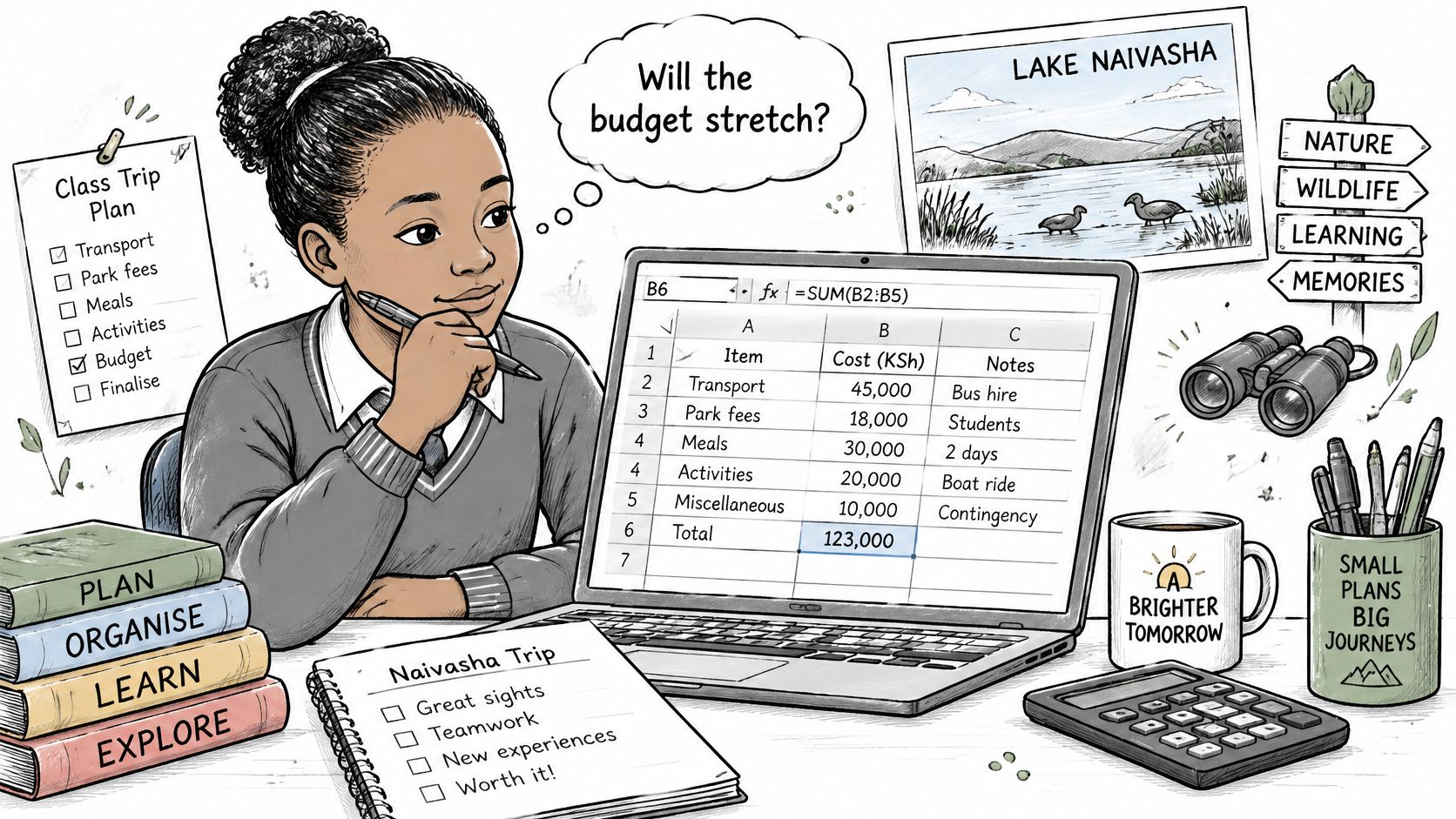
A spreadsheet is a grid of boxes. Look across the top first. You'll see letters, A, B, C and so on. Each letter labels a column, which runs down the page. For Amina's trip, column A will hold item names like Bus fare, and column B will hold the amounts.
Now look down the left side. You'll see numbers, 1, 2, 3 and so on. Each number labels a row, which runs across the page. Row 1 will hold the headings. Rows 2 to 6 will hold five trip items, and row 7 will hold the total.
One Box Is One Cell
Where a column and a row meet, you get one box. That box is a cell. Every cell has an address that joins its column letter to its row number, so B2 means column B, row 2. That's the cell where Amina will type the bus fare amount.
A group of cells in a line is a range. You'll write it with a colon, like this, B2:B6. Read that as every cell from B2 down to B6. The colon includes the cells in between, B3, B4 and B5, even though you don't type them.
Two Places to Check Before You Type
Above the grid sits the formula bar. It shows what's really inside the cell you've clicked. If you click a total cell later, you'll see the formula there, even though the grid shows only the answer.
At the top left sits the Name Box. It shows the address of the selected cell. Typing always starts in that selected cell, so a quick glance there saves you from typing lunch money into the wrong box.
Try it now: click any box, read its address in the Name Box, type your name, and watch the same word appear in the formula bar.
If the grid still feels new, the step by step guide to computer basics for beginners helps you get comfortable with clicking, typing and moving around the screen first. You don't need every term memorised. You need A for items, B for amounts, and B2 to point to the first amount.
Set Up a Budget Table for a Class Trip
A class trip is the friendliest first budget because the list is short and you know every item. The same layout works for school shopping, with books and uniform items in column A, or for a household month, with food, rent, fare and airtime as rows. Build the table before you touch a formula, because SUM can only add what's placed neatly in front of it.
Build the Table in Four Steps
- Type the headings in row 1. Put Item in A1 and Amount (KSh) in B1, so anyone reading the sheet knows which column holds names and which holds shillings.
- Put one item per row. Type Bus fare in A2, Lunch in A3, Entry fee in A4, Snacks in A5 and Stationery in A6, because one row per item keeps each cost easy to change.
- Enter plain numbers in column B. Type 500, not KSh 500 and not 500/-, because the currency label already sits in the heading and the cell must hold a number SUM can add.
- Leave row 7 for the total. Type Total in A7 and leave B7 empty for now, because the formula, not your fingers, will fill that cell.
The amounts here use familiar notes. The Central Bank of Kenya currency services page identifies the current banknote denominations as 50, 100, 200, 500 and 1000 shillings, while coins include 50 cents and 1, 5, 10, 20 and 40 shillings. That's why 500 for transport, 200 for lunch and 100 for stationery feel natural. They're single notes you could hold in your hand, entered as plain numbers.
Currency letters typed into a number cell can make the spreadsheet treat the entry as text. Keep KSh in the heading, and keep only the number in the cell.
Class trip budget with Total row filled by SUM
| Row | Column A (Item) | Column B (Amount KSh) |
|---|---|---|
| 1 | Item | Amount (KSh) |
| 2 | Bus fare | 500 |
| 3 | Lunch | 200 |
| 4 | Entry fee | 300 |
| 5 | Snacks | 150 |
| 6 | Stationery | 100 |
| 7 | Total | 1250 |
That total is the result of =SUM(B2:B6), which you'll type next. For now, check your sheet looks like the table. One heading row, five item rows, a Total row, and nothing else. No commas inside amounts, no extra words in column B.
For a household month, add each cost as its own row. Put an M-Pesa charge on its own line, labelled Transfer fee, rather than hiding it inside food or fare. You can then see the true cost of sending money instead of guessing. If you later move from a trip list to a full month, a step-by-step guide to monthly budgeting from Fintrack can help you choose categories, while your spreadsheet keeps the same two column shape.
How to Add Amounts with SUM
SUM adds every number inside the range you give it. You don't add five cells one by one. You point SUM at the block, and it does the adding.
Type the Formula Step by Step
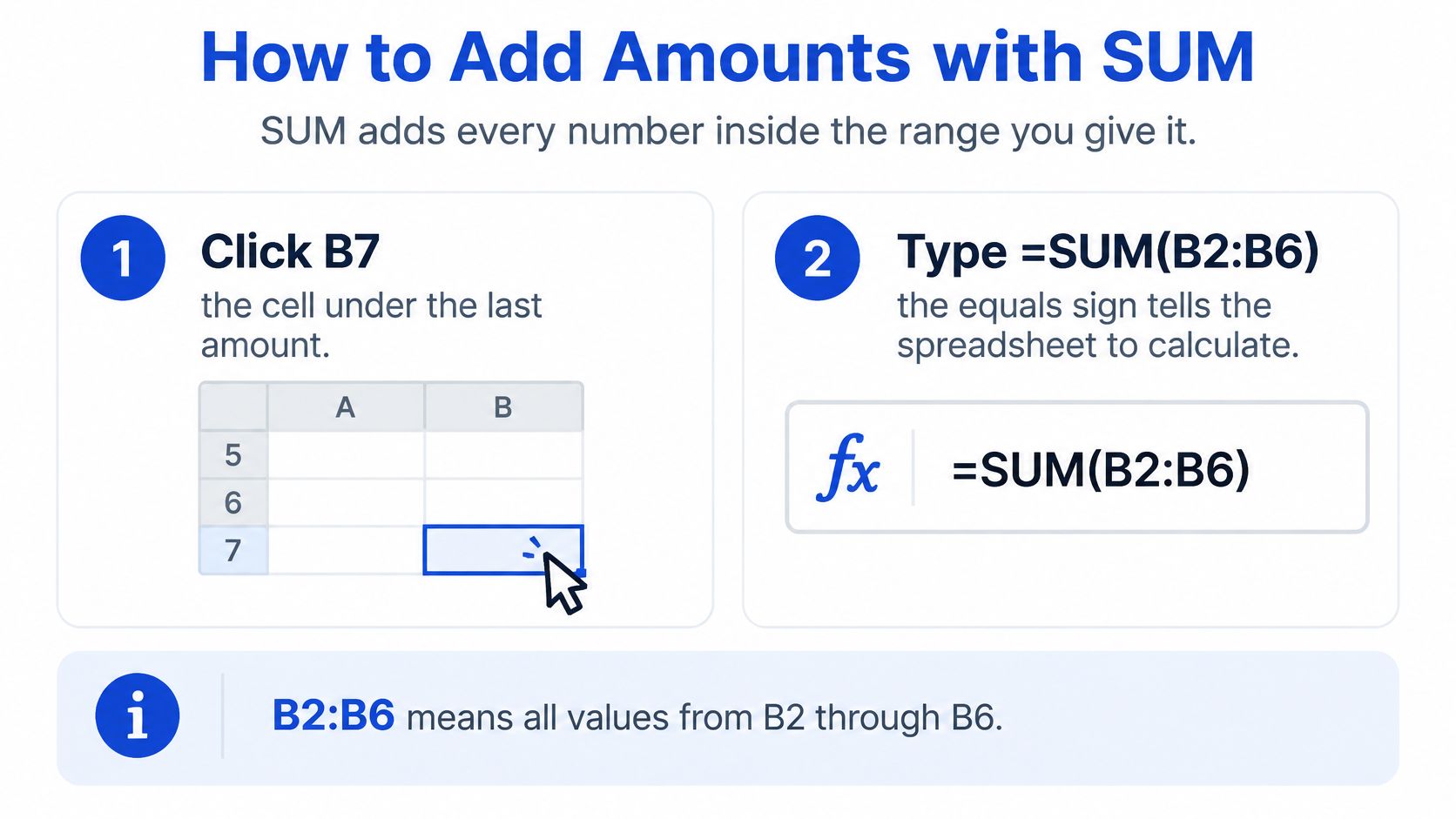
- Click B7. That's the empty cell under the last amount, on the same row as the word Total.
- Type =SUM(B2:B6) exactly. The equals sign comes first, because it tells the spreadsheet a formula is starting. Without it, the sheet treats your typing as plain text and calculates nothing.
- Press Enter. B7 now shows 1250. Click B7 again and look at the formula bar. The grid shows the answer, while the formula bar shows =SUM(B2:B6). That difference matters, because the formula is the cell's content.
Let's read the formula slowly. SUM is the job, add. The brackets hold the range. B2 is the first amount, B6 is the last amount, and the colon means everything from the first to the last, so the sheet adds 500 + 200 + 300 + 150 + 100.
Stop the range at row 6. If the formula in B7 included B7, it would try to use itself inside its own answer. The spreadsheet warns you about that circle instead of giving a total. The rule is simple, the range covers the amounts only, never the total cell.
Use AutoSum as a Shortcut
You can also let the spreadsheet write the formula for you. Click B7, open the Home tab in Excel, and click AutoSum (Σ). The sheet guesses a range and highlights it. Check that the highlight covers B2 to B6, then press Enter.
Don't press Enter blindly. If the highlight stops at B5, the total will miss stationery and look calmly wrong. AutoSum is a helper that writes the range, but you're still the one who checks it. When the highlight is right, the result is the same 1250, because AutoSum has typed the same formula.
This short video shows the click, the formula and the highlighted range together, so you can match it against your own sheet.
Prove the Formula Is Live
Now do the test that makes SUM click for beginners. Change Lunch in B3 from 200 to 250. Don't touch B7. Press Enter and watch. The total moves from 1250 to 1300 on its own.
That movement is the whole point of a spreadsheet. A typed total is a dead number that stays put when prices change. A formula total recalculates every time an amount above it changes, so you can ask quick questions. What if snacks drop to 100? What if the entry fee rises? You change one number and read the new answer.
Change B3 back to 200, then change another amount yourself. Try snacks at 200. You should see the total rise by 50, from 1250 to 1300, without retyping any formula. If it moves by the same amount you changed, your SUM is working and your range includes that cell.
Check Your Total and Fix Common Errors
A wrong total usually looks ordinary. It rarely flashes red. It just sits there, a bit too small, or it refuses to move when you change an amount. Start with the symptom you can see, then fix the cause.
The most common cause is a number typed as text. If B2 holds KSh 500 instead of 500, SUM skips it, because SUM adds numbers and ignores words. The total for the trip would show 750, not 1250, even though five items stare back at you. A stray space typed before or after a number can cause the same quiet problem.
Symptoms, Causes and Fixes for SUM Totals
| Symptom | Likely cause | Fix |
|---|---|---|
| Total ignores one amount | Amount typed as text, such as KSh 500 or 500 with a space | Retype the number as 500 with no letters or spaces |
| Total is too small by one item | Range stops early, such as =SUM(B2:B5) | Change the range to B2:B6 |
| Total does not update | Total typed as a number instead of a formula | Delete the number and enter =SUM(B2:B6) |
| Circular reference warning | Range includes the Total cell itself | Stop the range at row 6 |
| Total differs from your paper sum | Hidden space or wrong amount in column B | Clear the cell, re-enter the amount, and recheck the count |
A range that stops one row early is easy to miss. =SUM(B2:B5) looks almost identical to =SUM(B2:B6), but it leaves out B6, the 100 for stationery. Your total shows 1150 and the trip looks cheaper than it is. Click B7, read the formula bar, and check the last cell in the range matches your last item row.
Typing the total by hand creates the opposite problem. If B7 holds the number 1250 instead of the formula, changing lunch does nothing. The total can't update, because no instruction links it to column B. The fix is to delete that number and type the formula in its place.
Check Your Work in Two Quick Ways
First, add two amounts in your head. 500 plus 200 makes 700. Then keep going roughly, 700 + 300 + 150 + 100 = 1250. You don't need perfect mental maths for a long list later. You need a rough paper total that tells you whether the sheet is in the right area.
Second, count the numerical values. Click a spare cell, perhaps D1, and type =COUNT(B2:B6), then press Enter. For the trip it should return 5, because COUNT counts cells that hold numerical values. If it returns 4 while you have five items, one amount is trapped as text. Retype that amount cleanly and count again.
- One amount per cell: don't squeeze two costs into one box, because SUM can't separate them.
- Delete extra spaces: clear the cell fully, then type the number again on its own.
- Protect the formula: never type a new total over B7, because you'd replace the formula with a dead number.
- Test before you trust: change one amount by 50 and confirm the total moves by 50 before you share the budget.
Same SUM Steps in Excel, Google Sheets and Calc
You don't have to relearn SUM when you change apps. Typing =SUM(B2:B6) works in Excel, Google Sheets and LibreOffice Calc, and the range means the same thing in all three. Only the buttons move, and menu names can differ slightly between versions.
Where to find the sum button in three apps
| Task | Excel | Google Sheets | LibreOffice Calc |
|---|---|---|---|
| Sum button | Home tab, AutoSum (Σ) | Functions menu (Σ) on the toolbar, then SUM | Sum (Σ) button on the Formula Bar |
If you can't find the button, type the formula. Typing works everywhere, on a laptop and on a phone. On a phone, the sum button may hide in a different toolbar, so open the functions menu, search for SUM, select B2:B6 by touch, and check the result against your paper total.
Many Kenyan learners will use a phone or a shared family device, so keep the sheet narrow. One amount column and short names like Fare and Lunch stay readable on a small screen. As your wider digital literacy skills for everyday tasks grow, you'll meet tools such as AI2Fin for Excel from AI2Fin, but the habit to keep is checking the range yourself. Once you've learnt the formula in one app, the same budget moves to another without a new method.
Practise Your Budget on Keybaki Labs
Rebuild the trip budget once with your own amounts. Change lunch, watch the total move, and check it by adding two numbers in your head. Then use our Keybaki Labs practice area to repeat the skill in a guided setting.
In the Build a small budget activity, you'll enter numbers and use a SUM formula with Tcha, the guide, moving through Show me, Guide me and Let me try. It uses the same steps you've just followed, so nothing new is sprung on you. After the activity, take the skill check Calculate a total in a spreadsheet. If your total disagrees with your paper sum, redo the count check before you continue. Our Students Basic plan is free forever at KES 0 per student and includes two subjects with no time limit, English and Social Studies for JSS, and English and ICT for SSS.
Open Practise spreadsheets on Keybaki Labs, start Build a small budget, and enter the five trip items before you take the skill check.
Keybaki gives Kenyan learners, parents and teachers CBE mapped lessons, activities and assessments for Grades 7 to 12, so spreadsheet skills like SUM sit inside the same weekly learning routine as classwork. Visit Keybaki to keep practising ICT with guided activities and skill checks built for Kenyan classrooms and homes.
Comments
Loading…