· CBC assessment
How to Collect Evidence of Digital Literacy Without Extra Marking in CBC
12 min read
The lesson is nearly over. Learners are saving their work, someone can't find their file, and you're helping a group close the browser before the next class arrives. You've just seen useful evidence of digital literacy, but there's still subject work to assess and another lesson to prepare.
CBC asks teachers to gather evidence of competencies over time, and digital literacy is one of the seven core competencies. Collecting that evidence doesn't have to mean more marking. For teachers of Grades 7 to 12, the practical answer to how to collect evidence of digital literacy without extra marking is to keep selected traces of ordinary learning: a dated observation, a saved document or a learner's explanation.
Table of Contents
- Observable Digital Literacy Skills to Look For
- Capture Evidence From Ordinary Lessons
- A Class Record That Shows Skills Over Time
- Using Self-Records and Peer Checks to Save Time
- Talking to Parents About What Their Child Can Do
- Start Your Evidence Record This Week
Observable Digital Literacy Skills to Look For
You don't need a separate digital-literacy worksheet whenever learners use a computer. You need a clear description of the action you're looking for, so you can recognise it while teaching the subject lesson.
Kenya's Basic Education Curriculum Framework describes digital literacy through the knowledge, skills and behaviours needed to use digital content and devices effectively and safely, including computers, tablets, mobile devices and internet applications. It also connects competency-based assessment with applying knowledge and skills to practical tasks in a defined setting.
That means what the learner does matters more than whether a device was available. A polished presentation isn't enough if another learner operated the computer throughout.
Four areas of digital literacy and the evidence to keep
| Area | What the learner shows | Everyday task | Evidence to keep |
|---|---|---|---|
| Using devices | Logs in, opens and closes apps, saves and finds a file | Opening and saving a Computer Studies task | Dated teacher note or saved file in the class folder |
| Finding information | Searches, selects a credible source and checks it | Research task on a Grade 9 Science topic | Learner's list of two sources with a reason for each |
| Creating and communicating | Makes a document, slide or table and shares it | Group presentation or spreadsheet exercise | The saved file and a short note on who it was shared with |
| Staying safe | Keeps a PIN private, spots an unsafe link, acknowledges sources | Deciding whether a message asking for a password is genuine | One-line explanation of the choice in the learner's own words |
Be precise about the behaviour. Uses the internet well is difficult to judge consistently. Checks who published information before using it gives you something observable.
For a broader classroom vocabulary, the guide to digital literacy skills can help you describe the actions learners practise. When discussing questionable online pictures, AI Image Detector's resource on digital literacy with AI Image Detector offers a starting point for discussing verification. Don't treat a detector's result as proof that an image is genuine or false.
Choose four to six observable skills for the term, with at least one from each area. Write each as a single line you can check during a lesson, such as saves work in the intended folder without prompting. Keep the list narrow enough that you can use it while moving around the room.
Capture Evidence From Ordinary Lessons
Start with the evidence that's easiest to capture while learners work. A note such as Amina, Grade 8 resource navigation, today's date, found the strand resource without help tells you more than a general comment about confidence.
Saved files provide another route. Keep the document learners already created, rather than asking them to reproduce it in an assessment booklet. Use filenames that identify the learner and task, and retain the version that demonstrates the chosen skill.
For information-checking, ask learners to finish their existing task with a brief explanation of their choice. A response might explain who published the page and how its information compared with another source. You're checking the reasoning, not setting another composition exercise.
A routine that fits inside the lesson
- Choose one observable skill. Add it beside the subject objective in your lesson notes.
- Note who demonstrated it, with the date. Record whether they needed help.
- Keep one relevant artefact. This might be the existing file, a photograph of work or a short explanation.
- Ask a learner to explain a choice while you circulate. Rotate whom you ask so the confident volunteers don't supply all the evidence.
- Transfer the tick or note to your class record during your normal review of the lesson.
These capture methods offer alternatives, not a requirement to collect every format.
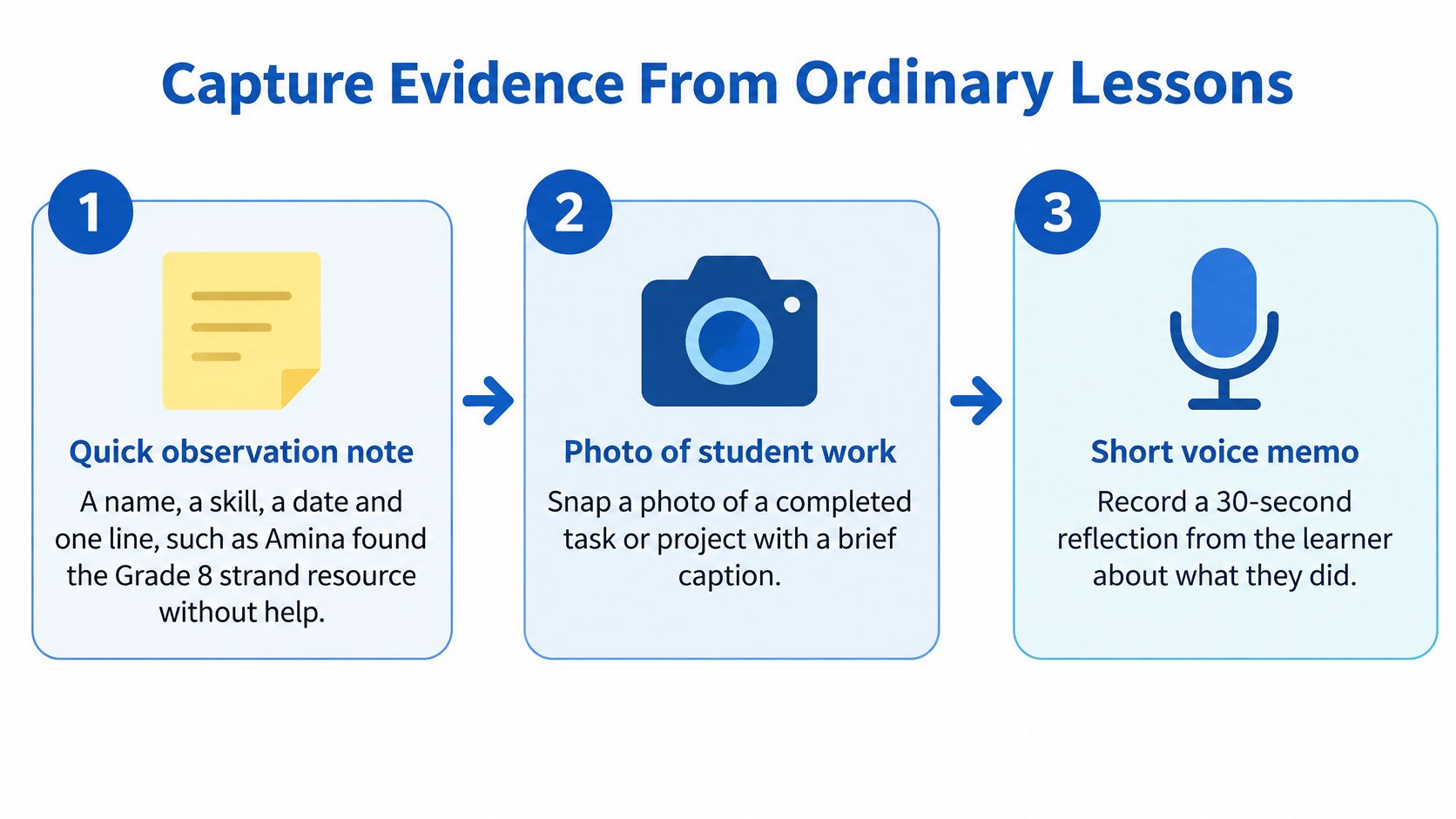
If writing interrupts the practical work, a brief learner voice memo can preserve their explanation. Follow your school's recording and storage procedures, and avoid capturing passwords, PINs or unrelated personal information.
Check before accepting a trace
A Kenyan digital-literacy evaluation study supports combining activity traces with teacher observation and learner explanation, rather than treating automated activity as definitive evidence. Apply that caution to your own classroom records.
An unusually quick finish, identical responses or a classmate's intervention should prompt a check, not an accusation. Ask the learner to repeat the relevant action or explain the decision independently.
Practical rule: Keep evidence that helps you decide what to teach next, not everything a learner clicks.
This is formative assessment within the lesson you already teach. Your professional judgement decides what counts, including when the evidence is too uncertain to use.
A Class Record That Shows Skills Over Time
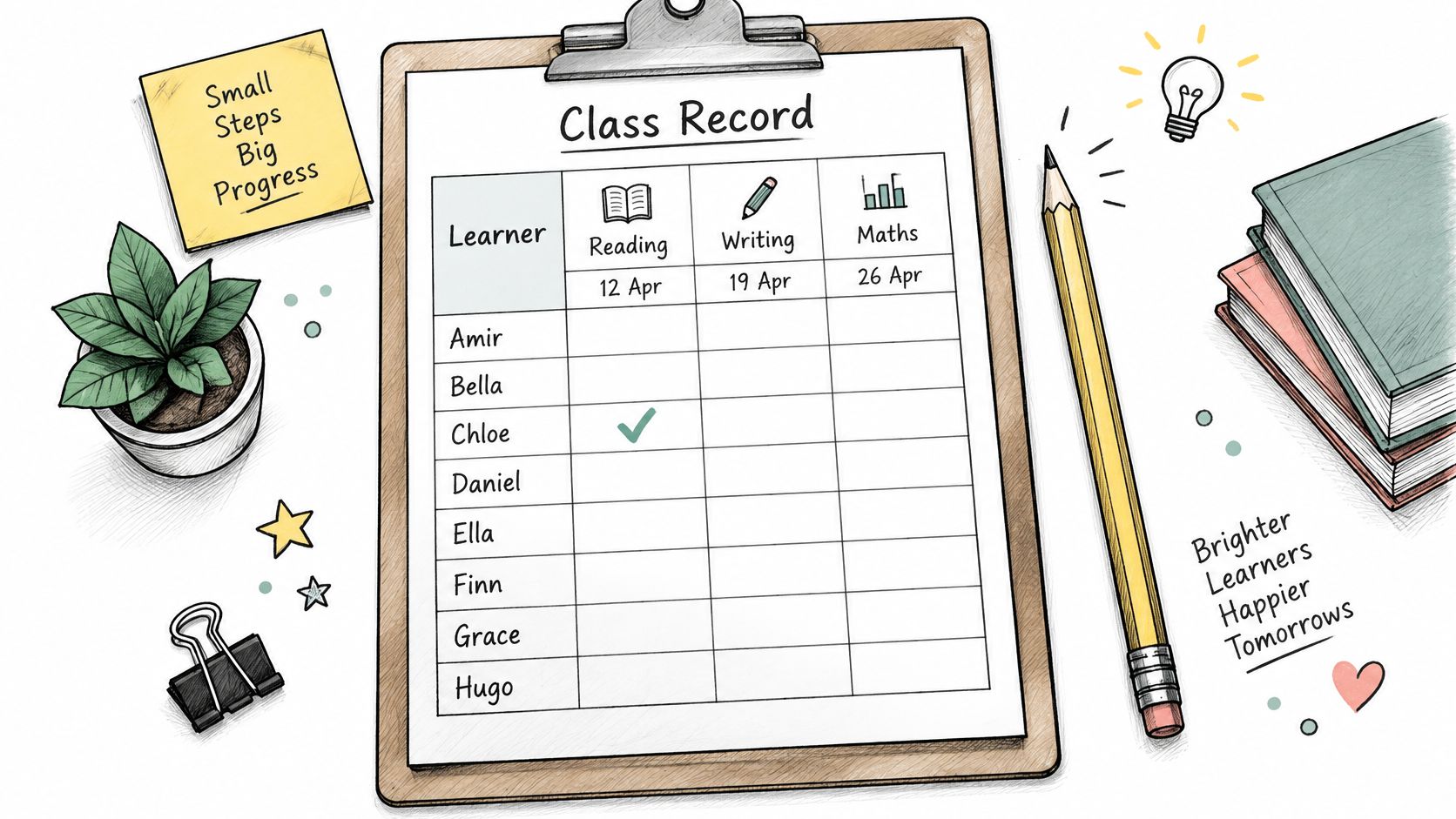
A class list can show whether digital skills are becoming independent and transferring between tasks. Put learners down the side, two to four selected skills across the top, and leave space in each cell for a date and brief task reference.
A paper sheet on a clipboard is enough to start. Keep the layout simple so you can find a learner's row without pausing the lesson.
Tick a new situation, not another repetition
Kenya's curriculum framework calls for evidence gathered across varied contexts and occasions, and recognises observation, formal testing and supplementary testimony. It also expects assessors to review and verify evidence with the learner, so a brief conversation can clarify what a note means.
Use three different situations as a practical working threshold for a secure skill. This is a classroom recording rule, not a threshold set by the framework. For example, a learner might organise files during science research, a spreadsheet exercise and a presentation. Reopening the same document repeatedly does not show the same transfer. Record the task as well as the date.
What each status means in the class record
| Status | Ticks needed | What it means | Next step |
|---|---|---|---|
| Emerging | 1 tick, with help | Skill appears only when prompted | Reteach in the next lesson with a short model |
| Developing | 2 ticks in different tasks | Skill shows in some settings | Set one new task that uses the skill |
| Secure | 3 ticks in different tasks, unprompted | Skill transfers to new situations | Mark secure and move to the next skill |
Label assisted attempts clearly. An emerging tick records progress, but it does not count as independent evidence because the learner later improves.
Keep substantial work selectively using a portfolio assessment approach, rather than storing every draft. A classroom skill record serves a different purpose from administrative tools used to track enrollments and student progress: keep this sheet focused on demonstrated skills and the tasks that provide evidence.
This video provides an additional viewing resource.
Set aside a few minutes each week to reconcile ticks, dates and saved work. If maintaining the sheet takes longer than reviewing the learning, track fewer skills.
Using Self-Records and Peer Checks to Save Time
Give learners a small self-record card, or a reusable space at the end of their exercise book. They complete it when the existing task ends, using concrete actions rather than statements such as I understand computers.
Let learners identify the evidence
Use these prompts:
- What I did: Name the action and identify the work that shows it.
- Help I needed: Say whether a teacher or classmate prompted, demonstrated or completed part of it.
- Where else I could use it: Name another lesson or everyday task.
These responses are leads to check, not marks to accept automatically. If a learner says they saved independently but your note records help choosing the folder, ask them to demonstrate again when a suitable opportunity arises.
For peer checks, partners confirm a visible action, such as opening the intended file, and initial the record. Don't ask them to judge a broad quality such as digital competence. During shared-device work, change the operator so the same learner doesn't complete every practical action.
Sample performance rather than marking everything
Use a rotating task for each learner every half-term, recording independent, prompted or unable against the selected behaviour. This is a short observation decision within existing work, not an additional scored assignment.
The Kenya Journal of Educational Leadership and Management provides relevant context for adapting assessment to unequal access and teacher digital capability. Keep expectations clear, but don't confuse unavailable equipment with inability.
A missing opportunity to demonstrate a skill is not evidence that the learner failed it.
Avoid counting a login as proof of wider competence, completion as understanding, or assisted work as independent performance. Keep the secure decision tied to unprompted demonstrations across different tasks.
When connectivity fails, record not observed, connection unavailable. Offer an oral explanation, a paper storyboard or a printed-screen decision task where appropriate. These can show reasoning and safety judgement, but they don't prove that a learner can operate software; leave that practical skill open until you can observe it on a device.
Talking to Parents About What Their Child Can Do
Your child can now find a Grade 8 science resource and explain why the website is trustworthy. Next, we're practising how to save work in the correct shared folder.
That gives a parent something concrete to understand. It names an achievement, identifies the setting and explains the next teaching step without reducing progress to a score.
Make progress visible through an example
Say a learner previously selected the first search result without checking it. During a later science task, they identified the publisher and compared the explanation with their textbook. Show the parent that short piece of work and describe what changed.
Use a simple pattern:
- Skill shown: Your child can identify who published online information.
- Situation: They used this when selecting material for a science explanation.
- Next step: We're practising how to compare conflicting information before choosing what to use.
Keep the detailed class record in school. Share a clear description and an appropriate sample, without exposing other learners' names, work or login details.
Offer practice that suits the household
Many families share one phone, so don't make home practice depend on a personal device or continuous internet access. A parent and learner could examine an already-received message claiming to come from school and discuss how to confirm it through a known school contact before replying.
The activity can stop at the explanation. Nobody needs to click a suspicious link, reveal credentials or download anything.
For home practice: Ask the child to explain a safe decision, not to prove how quickly they can use the phone.
Prepare a one-page note with two skills, what the learner demonstrated and one manageable activity to practise at home. Use ordinary language, and make clear when the next opportunity for practical work will happen at school.
Start Your Evidence Record This Week
A dated observation beside the work it describes is easier to use at the end of a busy week. On your next teaching day, choose one class and two skills from the opening table. Use lessons already on the timetable, then review your notes at week's end.
Keep the first trial small
- Before the lesson: Write each skill in observable language and prepare the class list.
- During normal work: Note selected demonstrations and identify the relevant files.
- At the weekly review: Mark who needs another opportunity, a prompt or a short model.
The record does not need a status for every learner straight away. First make sure the notes help you decide what practice to offer next.
Use Keybaki as supporting evidence
Keybaki's four-stage learning loop connects theory and worked examples in Learn, practice sets, investigations and practicals in Do, competency assessment in Prove, and recommended learning materials in Adapt. Its Continuous Evaluation Assessments are auto-marked, allow partial credit and report competency level rather than a percentage. Show-your-working items can award partial credit against the strand a learner has partly understood.
The class-level strand dashboard helps teachers identify which strands need attention. Keybaki also maps its features to all seven CBE Core Competencies: Communication and Collaboration, Critical Thinking and Problem Solving, Imagination and Creativity, Citizenship, Digital Literacy, Learning to Learn, and Self-Efficacy.
For a digital literacy record, keep your dated observation in the class record and use assessment evidence to add context where it applies. Visit Keybaki to explore the tools, then choose a skill your class can practise and record what learners demonstrate during an ordinary lesson.
Comments
Loading…