
· Kenya education
Digital Literacy in CBC: What It Means and How Learners Can Build It
14 min read
Your Grade 8 learner borrows your phone in the evening, finds a video in seconds, and sends a message to a class group without looking up. Then school asks her to type a short project, save it with a proper name, check where a fact came from, and present it in slides, and she's stuck. That gap surprises many families.
It doesn't mean she isn't clever with technology. It means quick phone use and digital literacy aren't the same thing. One is familiarity. The other is using digital tools to learn, communicate, create, and solve problems, confidently and safely, in schoolwork and in daily life.
Table of Contents
- Understanding Digital Literacy in Kenya's CBC
- What Digital Literacy Looks Like in Practice
- Digital Literacy from Grade 7 to Grade 12
- Why Building Digital Literacy Is Hard in Many Schools
- Six Practical Steps to Build Digital Literacy
- How Keybaki Labs Supports Digital Literacy
Understanding Digital Literacy in Kenya's CBC
A learner at the kitchen table with a shared family phone might watch lessons, copy notes from a photo, and ask a friend for homework help in a group chat. All three acts look digital, but they test different abilities. Can she find the right material, judge whether it's trustworthy, organise what she saves, and explain her own thinking clearly?
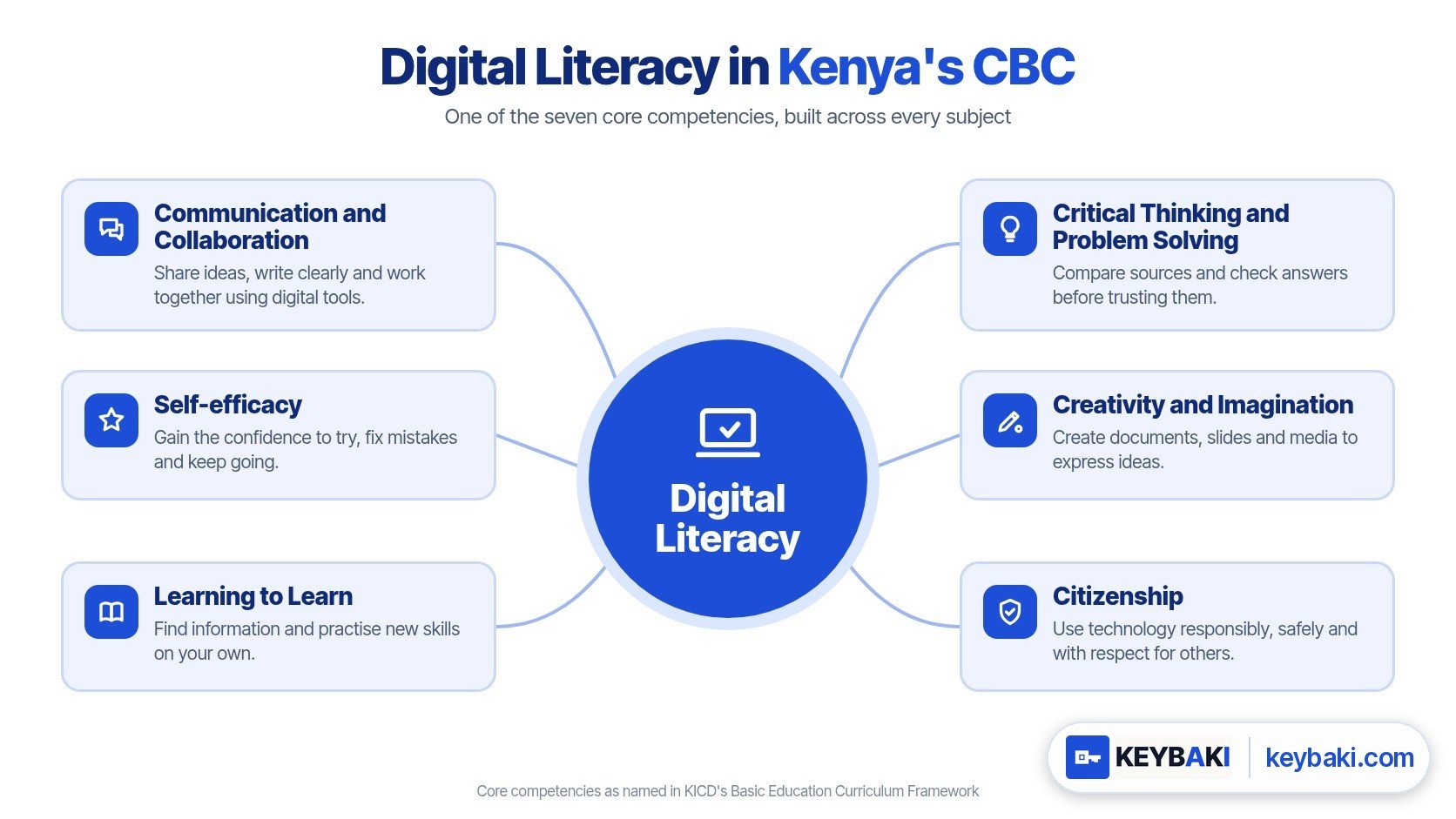
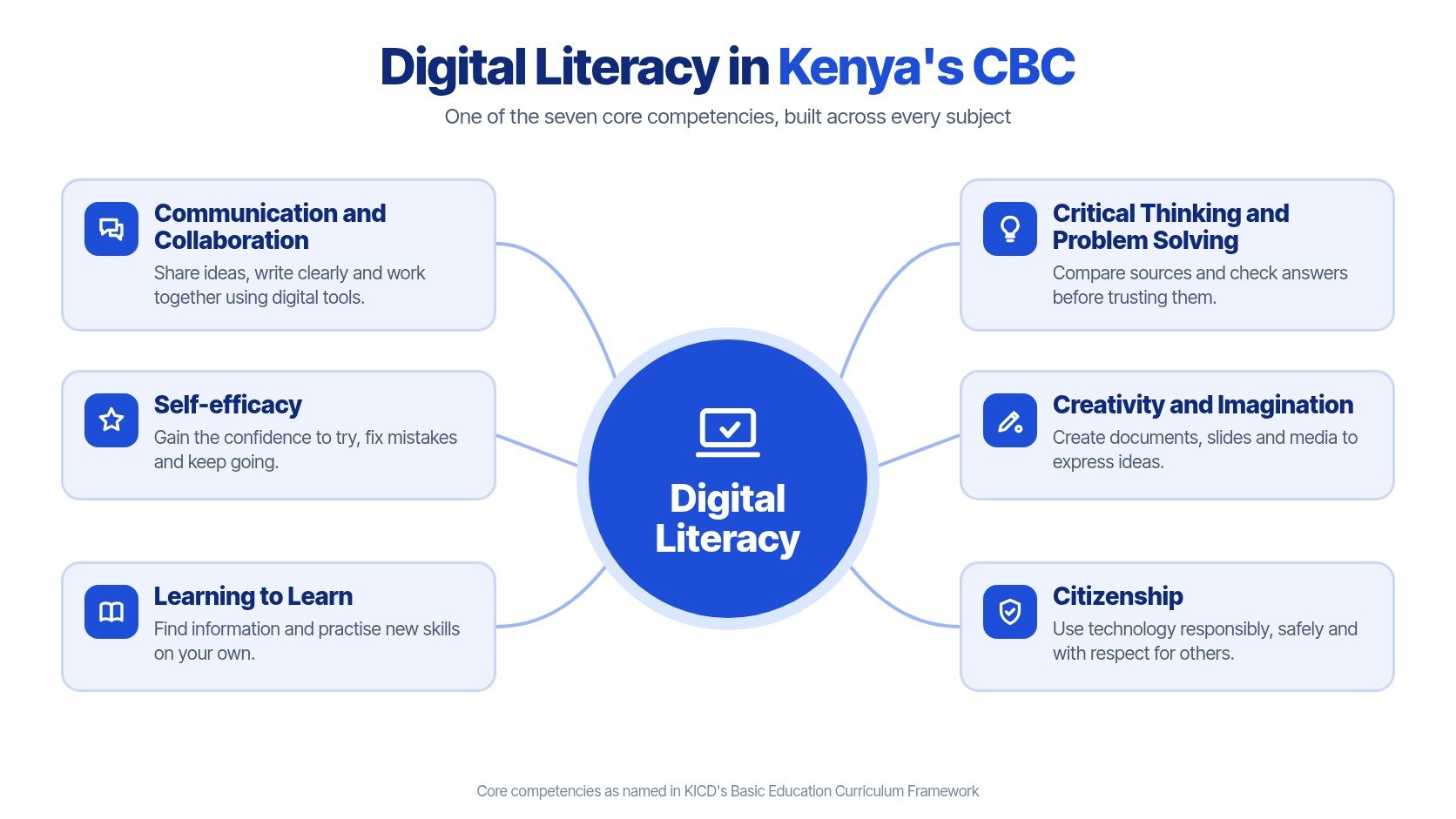
Kenya's CBC develops seven core competencies across subjects, not inside one lesson a week. Kenya's Basic Education Curriculum Framework identifies them as communication and collaboration, self-efficacy, critical thinking and problem solving, creativity and imagination, citizenship, digital literacy, and learning to learn. Digital literacy is therefore a curriculum-wide competency rather than a skill taught only in computer studies. If you want the wider picture first, read Keybaki's guide to the core competencies in CBC alongside this article.
The diagram below shows digital literacy sitting alongside the other competencies, not apart from ordinary learning.
Not Owning a Device, but Using One Well
Owning a smartphone doesn't prove a learner can type accurately, compare two sources, or spot a scam. A learner may scroll confidently yet struggle to sign in safely, name a file so she can find it tomorrow, or write a polite email to a teacher. That's normal, and it's teachable.
Handwriting offers a similar comparison. Holding a pen isn't the same as forming letters, spacing words, and writing a paragraph someone else can read. In the same way, holding a phone isn't the same as researching, creating, communicating, and staying safe with it.
A digitally literate learner doesn't just tap quickly. She can show what she found, explain why she trusts it, and produce work that another person can open, read, and understand.
For Grades 7 to 12, this matters in every subject. A science project needs a searched fact and a cited source. A business task needs a tidy table of figures. A language assignment needs a typed draft that can be edited. Digital literacy supports the other competencies because it gives learners another way to think, work with others, and keep learning when the teacher isn't in the room.
What Digital Literacy Looks Like in Practice
Official language can make this competency sound abstract, so it helps to break it into four kinds of skill you can watch a learner do. This is a practical breakdown for home and classroom use, not official wording. It still reflects the broader view in the KICD framework's account of digital literacy, which expands digital literacy beyond basic device operation to include applying hardware platforms, using software such as web-search applications, communicating through online platforms, following ethical behaviour protocols, and searching, evaluating, and using information obtained through digital platforms.
Using a Device with Confidence
This is the starting point, and many learners need it taught plainly. It includes switching a computer on and off properly, using a mouse and keyboard without hunting for every key, opening and closing apps, adjusting volume, and signing in and out safely. On a shared school computer, signing out protects the next learner and the first learner's work.
You can observe this quickly. Ask your child to open a typing app, sign in, do a short exercise, save, and sign out without help. If she freezes at the password screen or leaves her account open, that's the next lesson, not a reason for shame.
Finding and Judging Information
Searching is easy. Judging is the skill. Learners need to choose clear search words, open more than the first result, compare sources, and decide what to trust before they copy anything into schoolwork.
Who wrote this: A named person or organisation is easier to check than an anonymous page.
When was it written: A date helps a learner notice old or outdated information.
How do they know: Good pages show evidence, examples, or links to where the claim came from.
Examples of the tools schools use for this kind of guided practice appear in these digital learning platform examples, which can help parents picture what structured practice looks like beyond open searching.
Creating and Communicating
Learners also need to make things, not only consume them. That includes typing a document, naming and organising files in folders, building a simple spreadsheet with totals, making clear slides, and writing a polite email or group message. A file called "final final 2" tells its own story. A file called "Grade8 Science Water Project Draft" can be found, shared, and improved.
Staying Safe and Responsible
The fourth area covers passwords, personal information, scams, respectful behaviour, and checking AI answers instead of copying them blindly. A learner should pause before sharing a phone number, location, photo, or verification code. She should also know that an AI answer can sound confident and still be wrong, so names, dates, and calculations need checking against a trusted source.
Digital Literacy from Grade 7 to Grade 12
Expectations should grow with age and independence. In Junior School, an adult often chooses the task, watches the search, and checks the saved work. By Senior School, the learner should plan more of that process herself and explain her choices. That shift fits CBC well, because digital literacy as a cross-cutting competency in Kenya's CBC requires learners to use ICT as a medium for learning and to demonstrate higher-order capabilities: evaluating information, creating digital artefacts, communicating through technology, and applying digital tools to authentic tasks.
Junior School, Guided Practice
For Grades 7 to 9, look for steady basics done with guidance. Learners should type with home-row fingers and focus on accuracy, save work with clear file names in the right folder, and search using words the teacher has helped them choose. They should note where a fact came from, even if it's one line at the bottom of the page.
Safety at this stage is mostly about pausing and asking. A Junior School learner should recognise a suspicious message, avoid clicking strange links, keep passwords private, and tell an adult when something online feels urgent, frightening, or too good to be true. Praise the pause. That pause is the skill.
Senior School, Independent Work
For Grades 10 to 12, learners should produce formatted documents and short presentations for projects without step by step rescue. They should use a spreadsheet to total figures and compare options, for example the cost of materials from two suppliers. Their writing in email should sound professional, with a clear subject, greeting, short paragraphs, and a polite closing.
Judgment deepens too. A Senior School learner should compare sources and explain credibility in her own words, not just paste a link. When she uses AI for ideas or an explanation, she should check facts, dates, spellings of names, and worked examples for errors before she submits anything.
Digital Literacy Expectations by School Level
| Skill Area | Junior School (Grades 7-9) | Senior School (Grades 10-12) |
|---|---|---|
| Device confidence | Signs in and out, opens apps, types with home-row fingers | Works independently, organises folders, solves small problems alone |
| Information | Searches with guidance and notes the source | Compares sources and explains why one is credible |
| Creating | Types short work, saves with clear names, makes simple slides | Formats documents, builds presentations, uses spreadsheet totals and comparisons |
| Communication | Writes short, polite group messages with support | Writes professional email for a real audience |
| Safety and AI | Spots a suspicious message and asks an adult | Protects accounts, checks AI answers for errors before use |
Use the table as a conversation starter, not a label. Many learners are strong in one row and shaky in another, often because of access at school or home. The useful question isn't "Is my child behind?" It's "What's the next observable step we can practise this term?"
Why Building Digital Literacy Is Hard in Many Schools
A teacher may have a full class, a short shared lab session, and learners whose experience ranges from daily laptop use to touching a keyboard for the first time. By the time everyone has signed in, part of the lesson is gone. If work isn't saved under each learner's name, the next session starts again from zero, and confidence drops.
Access gaps make this harder in some counties than others. A KIPPRA repository report on CBC implementation found that nearly 98.67% of schools had implemented Kenya's Digital Literacy Programme nationwide, but digital-literacy levels remained below 50% in Arid and Semi-Arid Land counties, with Samburu recording the lowest reported score at 27.56% while Kiambu was identified as having the highest rate. Those figures describe conditions, not learner ability.
Devices Alone Don't Build the Competency
A locked trolley of tablets doesn't teach file organisation. A smartboard at the front doesn't give every learner typing practice. Learners build this competency when they repeatedly search, verify, create, present, and reflect in normal lessons, with a teacher who can model each step and check understanding.
That's demanding when teachers are stretched. Preparing a digital task, managing shared logins, helping learners who are stuck on passwords, and still covering the strand for the week is a lot for one lesson. Without ongoing training and ready tasks, even a willing teacher may fall back on showing a video while learners watch passively.
Few computers: Learners share, wait, or watch a partner do the typing.
Mixed experience: Confident learners finish early while beginners hide their confusion.
Lost progress: Work saved on one machine can't be found in the next session.
Unreliable connectivity: Searches, uploads, and feedback stop mid-lesson.
Connectivity deserves planning in its own right, and this guide to running a school without reliable internet covers offline tools that keep lessons moving when the network fails.
For school leaders: Judge progress by what learners can repeatedly do in class, such as judging a source or submitting organised work, not only by how many devices the school owns.
None of this means families should lower expectations. It means practice must be small, regular, and portable, so progress survives a change of computer, a missed lab session, or a week with no internet. The next section turns that principle into habits that work with shared devices.
Six Practical Steps to Build Digital Literacy
Start from the evidence that resources alone don't guarantee integration. A 2025 study of junior public schools in Rangwe Sub-County found that ICT-resource availability explained only 20.5% of the variance in effective ICT integration, while limited infrastructure, inconsistent training, and insufficient ongoing support remained major challenges. Routine, guided practice therefore matters as much as equipment.
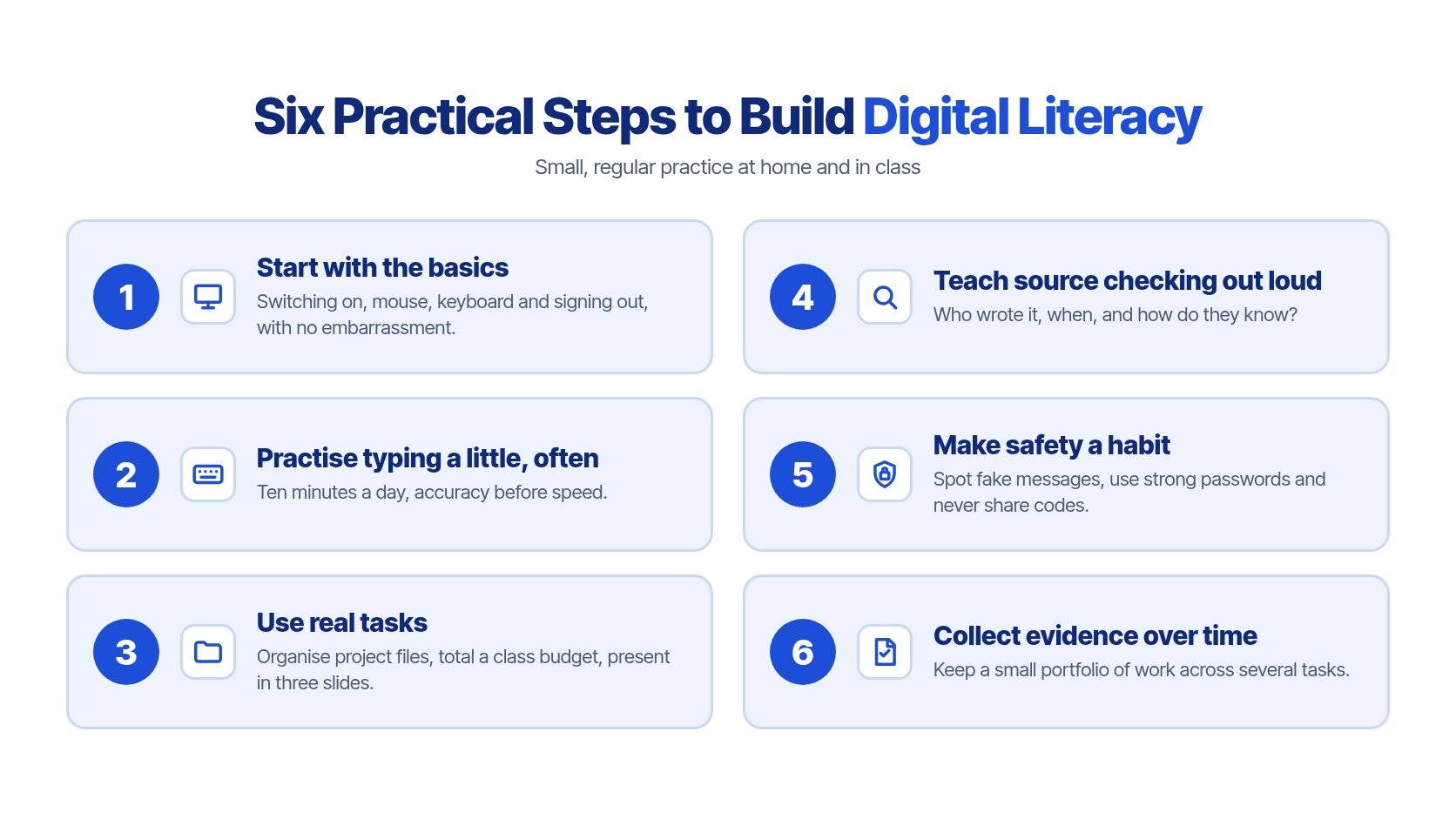
The checklist below summarises the six steps before the detail that follows.
Steps One to Three, Basics and Real Tasks
1. Start with the basics without embarrassment. Teach switching on, mouse control, keyboard layout, opening apps, and signing out as ordinary skills, whatever the learner's age. A Grade 11 learner who missed earlier access still deserves a calm first lesson, not laughter.
2. Practise typing ten minutes a day. Put accuracy before speed, with fingers returning to the home row. Short daily practice beats one long monthly session because hands learn through repetition. Parents choosing extra tools can compare options in this roundup of the best learning apps for students and pick one the learner will open.
3. Use real tasks. Ask learners to organise project files into named folders, total a class budget in a spreadsheet, or present a topic in three slides with one idea per slide. Real work gives typing, saving, and formatting a purpose the learner can feel.
Steps Four to Six, Judgment, Safety, and Evidence
4. Teach source checking out loud. When you read a page together, say your thinking plainly. Who wrote this, when, and how do they know? Open a second source and compare. Learners copy what they hear adults do, so make the checking audible.
5. Make safety a habit. Practise spotting fake M-PESA messages that create urgency or ask for codes. Teach strong, separate passwords, switch on 2-step verification where it's offered, and repeat one rule until it's automatic. Never share codes.
Never share a code sent to your phone. A genuine service does not need you to read that code back to a stranger.
6. Collect evidence over time. Keep a small portfolio across several tasks, as with other competencies. Save a typed draft, a spreadsheet, three slides, and a short source check with dates. Progress becomes visible, and the next teacher can see what the learner has already proved she can do.
How Keybaki Labs Supports Digital Literacy
The hard parts described earlier are short sessions, mixed experience, and progress that disappears between computers. Keybaki Labs is built around those constraints. Learners sign in with their Keybaki account, so progress follows them from the school lab to any computer, and on shared computers they sign out when they finish.
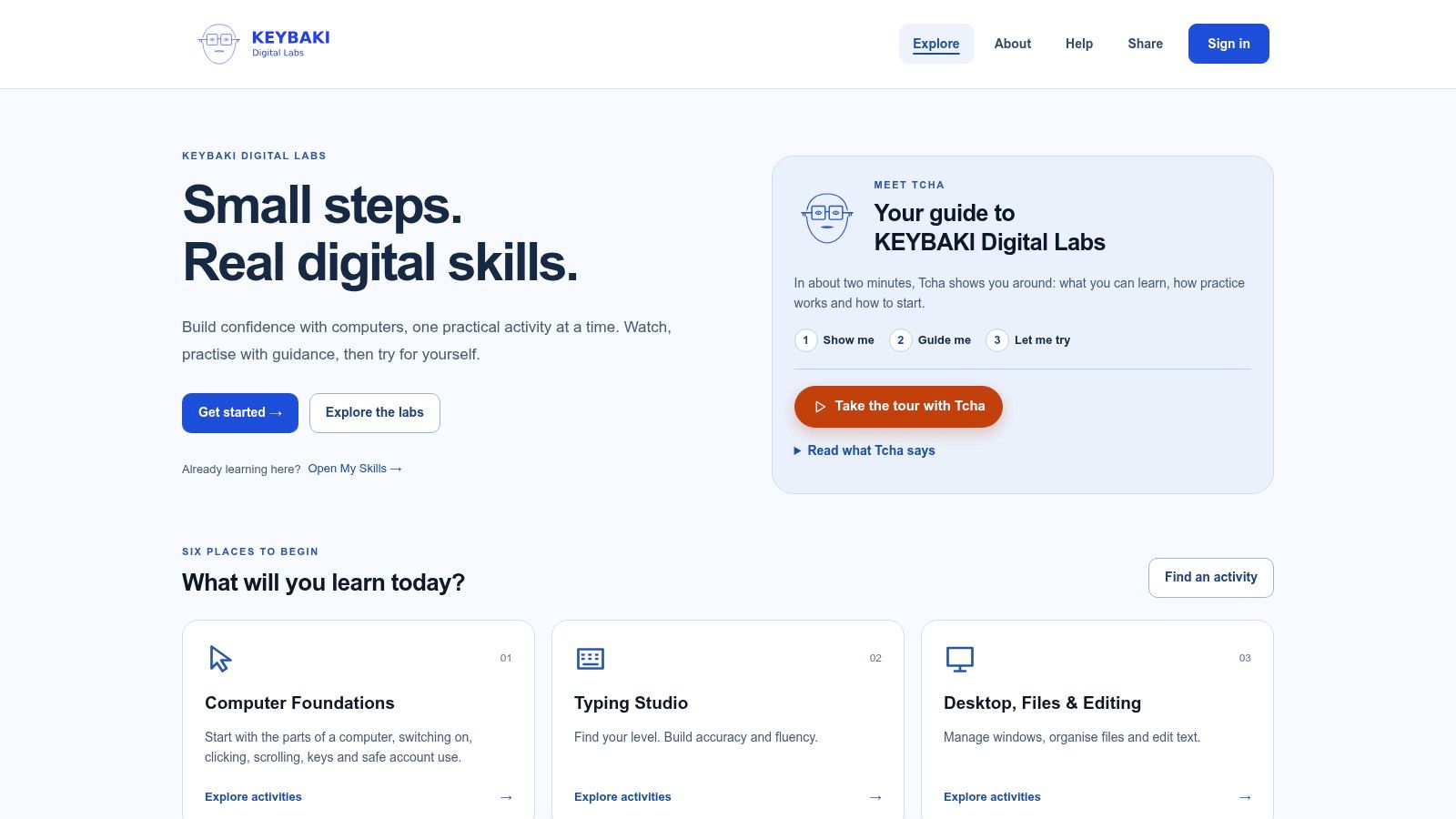
The screenshot below shows the Keybaki Labs home, where the six learning areas are set out for learners to enter at their own level.
Six Learning Areas, One Progression
Each area tackles one part of the practical breakdown, in an order a beginner can follow.
Computer Foundations: First steps with devices, signing in, and basic controls in Computer Foundations.
Typing Studio: Home-row accuracy and steady speed building in Typing Studio.
Desktop, Files and Editing: Naming, saving, folders, and tidy work in Desktop, Files and Editing.
Documents, Sheets and Slides: Typed documents, spreadsheet totals, and clear presentations in Documents, Sheets and Slides.
Internet and Communication: Searching, source checking, email, and group messages in Internet and Communication.
Digital Safety and Responsible AI: Passwords, scams, privacy, and checking AI answers in Digital Safety and Responsible AI.
How Each Activity Works
Every activity follows three modes. In Show me, Tcha, the guide, demonstrates the skill step by step. In Guide me, the learner follows prompts with support. In Let me try, she does it herself. That sequence suits mixed classes because confident learners move ahead while beginners repeat the demonstration without holding up the room.
Everything happens in safe practice versions of each app, so nothing real is sent, changed, or bought. A learner can practise writing an email or responding to a suspicious message without risking a real account or real money. Mistakes become lessons instead of problems at home.
Skill checks then let learners show a skill in three scenarios, with no marks or rankings. Teachers get observable evidence across tasks, the way CBC treats other competencies, and learners get a fair chance to prove the skill in more than one situation. Teachers can start with the Keybaki Labs page for teachers.
Keybaki offers CBE-mapped lessons, planning tools, and continuous assessments for Grades 7 to 12, and Keybaki Labs turns the digital literacy described here into guided, observable practice that follows each learner between computers. If you want that support for your child or your class, visit Keybaki to explore the platform and get started.
Comments
Loading…