· KNEC assessment
KNEC CBA Portal: Complete Guide for Kenyan Schools
14 min read
A teacher has finished marking the projects. The deputy has checked the scores. The headteacher is now at the office computer, moving between learner records while staff wait for confirmation. One missing entry, an incorrectly attached file, or a forgotten password can turn a routine CBA task into a full afternoon of rework.
That pressure exists because the KNEC CBA portal isn't just a website for reading notices. It is the official channel schools use to access and upload school-based assessment tasks for primary, junior, and secondary levels. In practice, it connects classroom evidence with national assessment administration, so schools need a workflow that starts well before the upload window opens.
Table of Contents
- Understanding the KNEC CBA Portal and Who Uses It
- Registering and Logging Into the CBA Portal
- Preparing and Uploading CBA Submissions
- Meeting CBA Deadlines and Compliance Requirements
- Integrating Keybaki with Your CBA Portal Workflow
- Common CBA Portal Errors and How to Fix Them
Understanding the KNEC CBA Portal and Who Uses It
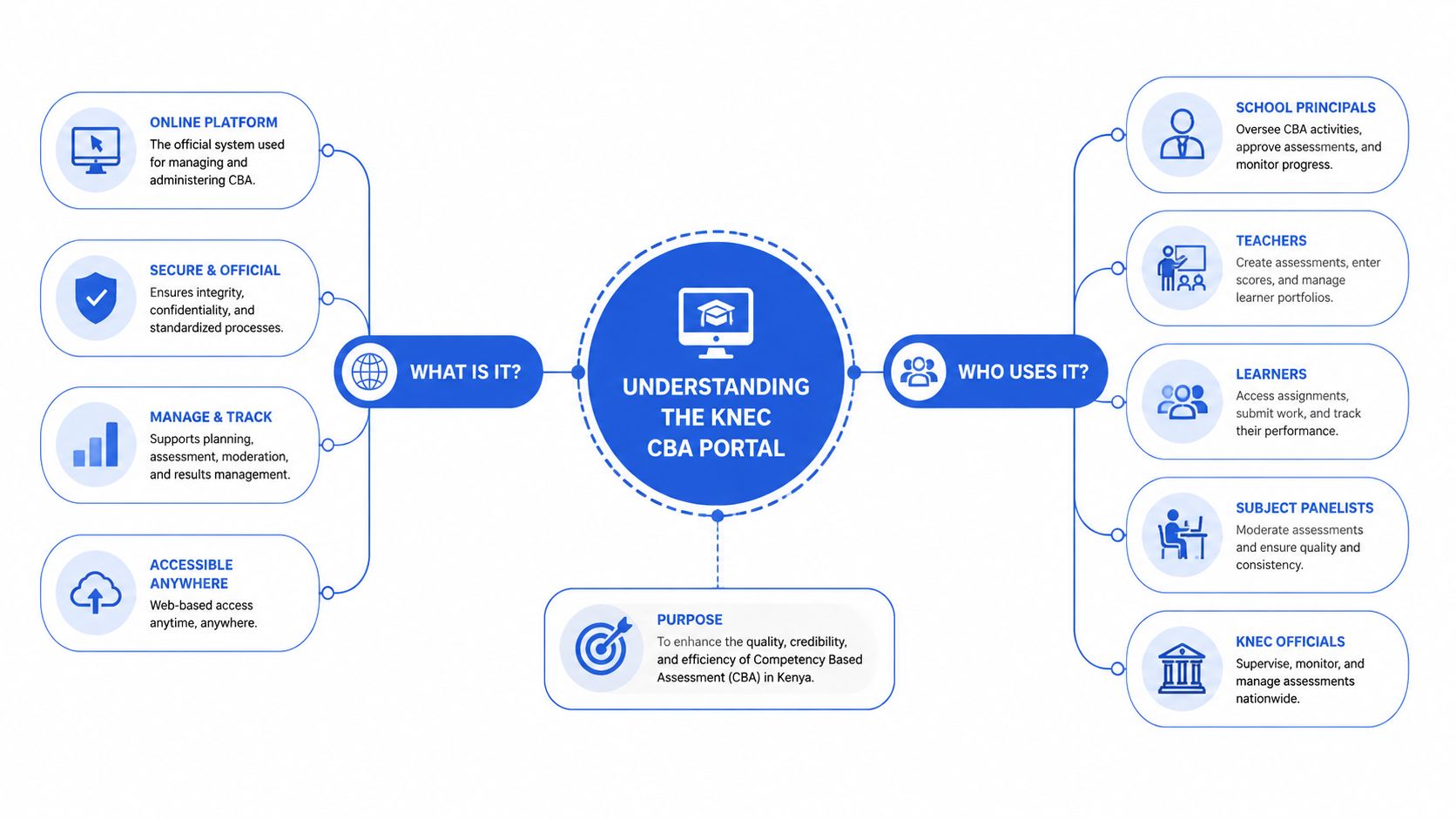
A headteacher usually carries the final responsibility, but the portal depends on work done by many people. Subject teachers assess learners, class teachers organise evidence, department leads check completeness, and the school administrator or headteacher manages the official submission. Confusion starts when all these duties are treated as one login task.
The official KNEC CBA portal is used to access and upload school-based assessment tasks across the education pathway. KNEC used the same portal in 2025 to distribute projects and performance tasks for Grades 3, 7, 8, and stage-based learners, with schools required to upload scores by 31 July 2025 for Grades 3, 7, and 8, and by 30 August 2025 for KJSEA candidates. Those deadlines demonstrate that the portal supports a mandatory workflow, not merely public information.
The portal's place in CBE administration
Competency-Based Education requires schools to observe learning over time. Teachers collect evidence from activities, projects, practical work, and other school-based tasks instead of waiting for one final examination to describe the learner. The portal gives KNEC a coordinated route for receiving the resulting records.
That makes the assessment process more organised nationally, but it doesn't automatically make daily school operations organised. A portal can receive a score, yet it can't decide whether the teacher used the correct rubric, whether the learner's evidence is properly filed, or whether the department has checked the entry. Those controls still belong to the school.
Schools that need a plain explanation of how assessment fits the wider curriculum can use this guide to understand competency-based education.
Who should expect access
Headteachers and principals are the main school-level users identified in official guidance. Teachers may prepare the work and scores, but the headteacher remains central to controlled school submission and verification.
Parents and learners normally shouldn't assume that they need direct CBA portal credentials. They should ask the school for registration or assessment status, while school administrators handle the official account. KNEC maintains different portals for different examinations and services, so a login intended for one process may not provide access to another.
Practical rule: Treat the CBA portal as a controlled school administration system. Give teachers a clear internal submission route instead of passing the master credentials around.
Registering and Logging Into the CBA Portal
Access problems are easiest to solve before assessment evidence is ready. A school should confirm its account, registered contact details, and responsible administrator early in the cycle. Waiting until the upload deadline to discover that nobody knows the current password is an avoidable management failure.
Confirm the correct account
Start with the headteacher or authorised school administrator. Check the official KNEC communication sent to the school, confirm the school identity details, and avoid using a parent or learner account for a school-level function. KNEC's portals information makes an important distinction, each examination has its own portal for registration and related services.
Use the official portal address from KNEC communication, not a copied login page from a social media post. Save the address as a bookmark on the school computer, then check that the browser is current enough to load the dashboard and upload controls properly.
A controlled login routine
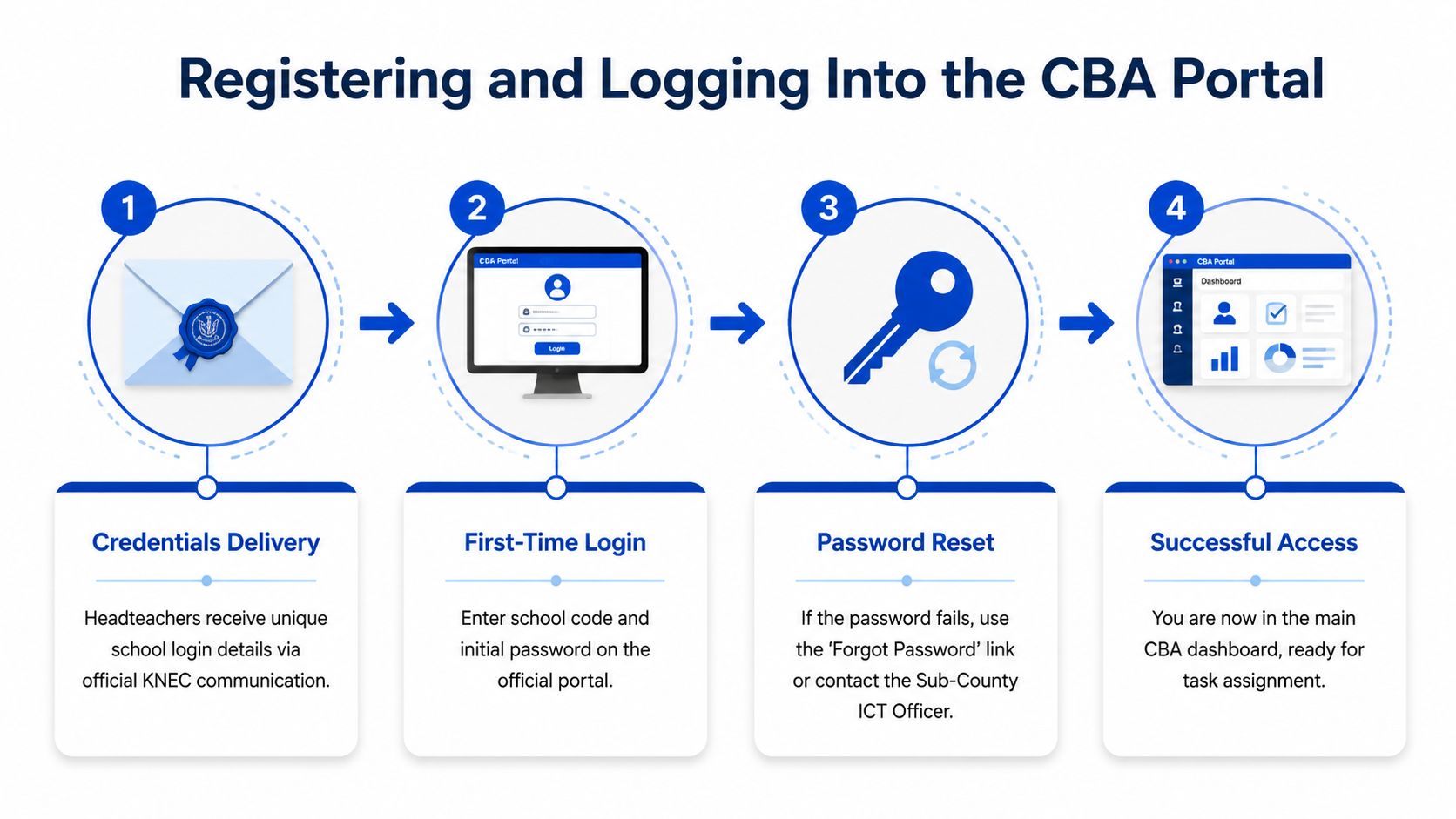
The practical sequence is straightforward:
- Open the official CBA login page: Use the school bookmark and check that you're on the intended KNEC service.
- Enter the school credentials: Type the school identifier and password carefully. Don't share a photograph of the credentials in a staff group.
- Check the dashboard: Confirm that the correct school, grade, term, and assessment options appear before entering data.
- Record access responsibility: Keep a simple internal register showing who prepares entries and who submits or verifies them.
The fourth step matters because a successful login doesn't mean every staff member has the same permissions. A teacher may prepare assessment data while the headteacher controls the final school action. Agree on that division before staff begin.
When the password fails
The common assumption is that every portal provides a quick self-service reset. Official 2026 guidance states that headteachers must log into the CBA portal and that password issues are handled through the Sub-County Directors of Education. Follow the current official route rather than repeatedly guessing passwords and risking further access problems.
Keep the school code, headteacher details, official contact information, and relevant KNEC communication ready when requesting help. The 2026 SBA assessment schedule is useful for confirming the role of the headteacher and the escalation channel.
Use the video below as a visual orientation, but verify any screen labels or procedures against current KNEC instructions before acting.
Preparing and Uploading CBA Submissions
The portal only receives what the school has already prepared. If teachers collect scores in separate notebooks, rename files differently, and use different interpretations of a strand, the headteacher inherits the confusion at upload time. The dependable approach is to build one school workflow for evidence, checking, naming, and submission.
Begin with the assessment requirement
Download or review the task and marking guidance supplied through the portal. Identify the grade, learning area, strand, sub-strand, learner list, score fields, and evidence expected. Don't create a general folder labelled “CBA” and place every document inside it. That structure makes later verification slow.
A practical school folder can separate:
- Grade and class: Keep the cohort identifiable before you open individual learner records.
- Learning area: Store each subject or learning area separately.
- Assessment component: Distinguish projects, practical tasks, performance tasks, and score sheets.
- Learner evidence: Link each item to the learner record and the relevant criterion.
The CBE assessment tools guide can help teachers think about the relationship between curriculum mapping, assessment activities, and evidence. It shouldn't replace the specific KNEC tool or instruction for a live submission.
Prepare files for reliable handling
The exact accepted file requirements can vary with the task, so follow the instructions displayed in the portal. In the school's internal process, use readable formats, keep image files clear but reasonably sized, and retain the original evidence separately from the upload copy.
A useful naming pattern includes the learner identifier, learning area, and assessment component. For example, a school might use a consistent format such as LearnerID_Subject_Project, provided it matches the school's data protection practice and doesn't expose unnecessary personal information. The important point is consistency, not a particular punctuation mark.
Before uploading, the subject teacher should check:
- Learner identity: The name or identifier matches the portal record.
- Curriculum alignment: The evidence belongs to the selected grade, strand, and task.
- Score accuracy: The recorded mark agrees with the completed rubric and teacher record.
- File clarity: The attachment opens, can be read, and shows the intended evidence.
- Approval status: The department or headteacher knows what is ready for submission.
Upload in small verified batches
Select the correct grade, term, learning area, and assessment before attaching files or entering scores. Upload a manageable group, save the record, and review the confirmation before moving on. This is safer than entering everything in one long session, especially when several teachers are using one school connection.
After each batch, compare the portal record with the school's source sheet. A second person should check learner names, missing entries, and unusual scores. If the portal provides a confirmation or verification output, download it and store it with the school's assessment records.
A clean upload starts with a clean handover. Teachers should submit checked, clearly labelled records to the administrator, not loose screenshots and unverified totals.
Meeting CBA Deadlines and Compliance Requirements
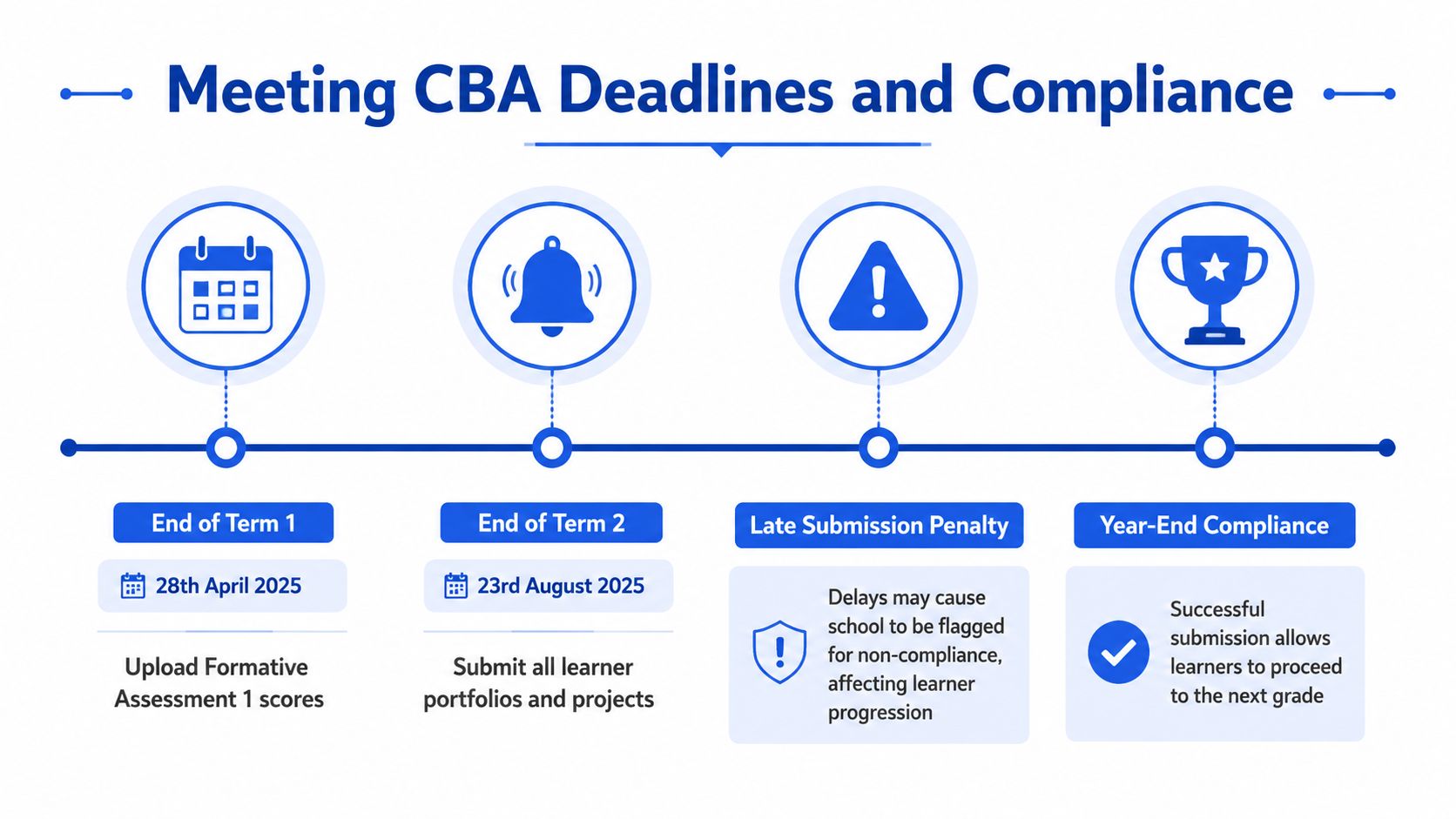
CBA deadlines are operational milestones. They determine when schools must register learners, access tools, complete assessment activities, and upload scores. A school that treats the final date as the start of the task will struggle, because marking, moderation, corrections, and technical delays all need time.
The national calendar shows the scale and timing of the system. In the 2026 cycle, KPSEA, KJSEA, KSSEA, and KPLEA assessments were scheduled for 26 October to 20 November 2026, with a rehearsal on 23 October 2026 and the main assessment start on 26 October 2026. These dates are published in the wider CBE assessment planning context through the 2026 Grade 10 transition coverage.
Read each date as a separate task
For the 2026 Grade 10 process, KNEC published a 2 July 2026 release of project and practical assessment tools on the CBA portal, a 30 July 2026 registration deadline, and a 31 October 2026 score-upload deadline, as recorded in the verified assessment calendar information. Each date requires a different school action.
| Milestone | School action |
|---|---|
| Tool release | Download and review the official project or practical requirements |
| Registration deadline | Confirm that eligible learners and school details are correctly registered |
| Assessment period | Administer tasks, collect evidence, moderate scores, and correct gaps |
| Score-upload deadline | Submit, verify, and retain the school's confirmation records |
The dates aren't interchangeable. A school can download a tool without completing registration, or register a learner without preparing the evidence needed for scoring.
Plan backwards from the final upload
Create a school calendar with an internal completion date earlier than the KNEC deadline. Assign each learning area to a named teacher, set a date for department checking, and reserve time for the headteacher's final review. Keep a second route for technical support because password and account problems may require the Sub-County Director of Education.
The consequences of late or incomplete work can reach beyond an administrator's task list. Since the portal supports scoring and progression across the CBE pathway, missing records can create uncertainty during later administrative processes. Schools should therefore treat the upload confirmation as an essential record, not an optional screenshot.
Calendar discipline saves more time than deadline panic. Put the portal task on the staff timetable, then review progress during ordinary school meetings.
Integrating Keybaki with Your CBA Portal Workflow
The KNEC portal is the submission destination. It isn't the place where a school should first discover which learners were assessed, which strands were taught, or which evidence is missing. That work belongs in the daily teaching and assessment workflow.
One option is to use Keybaki alongside the school's KNEC process. Its CBE-mapped digital library, 5E lesson planner, and Continuous Evaluation Assessments organise learning activities around curriculum strands and sub-strands. Teachers can use that structure to maintain a clearer trail from planned lesson to learner response and later review.
Manual compilation versus continuous preparation
| Manual deadline compilation | Continuous school workflow |
|---|---|
| Teachers keep separate marks and notes until the upload period | Teachers record assessment activity as learning happens |
| The administrator reconciles different spreadsheets and paper files | The department reviews a shared curriculum structure |
| Missing evidence is discovered late | Weak areas and incomplete work can be identified earlier |
| Portal entry becomes a large one-off exercise | Portal preparation becomes a final checking and transfer task |
Neither approach removes the need to follow KNEC's portal instructions. A digital platform can't submit on behalf of a school unless the official process allows it, and it can't excuse an incorrect rubric or learner record. Its value is in reducing the amount of reconstruction required before submission.
Building a portal-ready evidence trail
A teacher can plan a strand through the 5E lesson planner, deliver the activity, and use a Continuous Evaluation Assessment to check learner understanding. The resulting mastery information can guide the next lesson, while the teacher retains the relevant classroom records for school review.
The useful connection is the curriculum reference. When lesson plans, activities, and assessment questions are mapped to the same CBE strand, the teacher can explain what was taught, what was assessed, and why the evidence belongs to that learning area. That is more defensible than a score copied from an unnamed worksheet.
Keybaki's CBE learning and assessment features include strand-organised resources, 5E planning, and continuous assessments with mastery reporting. Schools still need their own approval rules, evidence folders, and KNEC checks, but these tools can support a closed loop between planning, teaching, and evaluation.
A sensible arrangement is to let teachers work in the platform during the term, then let the department lead compare the resulting records with the official KNEC task. The headteacher remains responsible for the controlled portal submission. This division protects both efficiency and accountability.
Common CBA Portal Errors and How to Fix Them
Most portal problems fall into two groups. The first involves school preparation, such as wrong learner details, incomplete scores, or evidence attached to the wrong task. The second involves account access or system behaviour, which may need help beyond the school.
Check the school-controlled issues first
Use this quick diagnostic before escalating:
- Wrong grade or term: Exit the record and select the correct assessment context before re-entering data.
- Missing learner: Compare the portal list with the school's official learner records. Don't invent or alter an identifier to force a match.
- Rejected attachment: Recheck the current KNEC instructions, file readability, size, and naming before trying again.
- Incorrect score: Return to the completed rubric and have the subject teacher confirm the entry.
- Duplicate submission: Stop creating new records. Check the saved status and confirmation history first.
- Session interruption: Save work in smaller batches and log in again if the session expires.
A spreadsheet can help with preparation, but it should not become the final authority if it conflicts with the portal or the approved school record. Keep one controlled source sheet, identify who may edit it, and record corrections.
Escalate access problems properly
Password failures, account activation issues, and permissions that don't match the headteacher's role may require the Sub-County Director of Education. Send a clear request with the school details, responsible administrator, error message, and the assessment deadline. Avoid sending passwords in open staff groups or repeatedly attempting uncertain credentials.
The most reliable schools don't depend on one person remembering everything. They keep a deadline calendar, assign backup staff, review uploads in batches, and store confirmation records where the next authorised administrator can find them.
Keybaki provides CBE-mapped lesson planning, digital learning resources, and Continuous Evaluation Assessments that help schools maintain organised assessment records before portal submission. Visit Keybaki to see how its planning and evaluation tools can fit into your school's KNEC CBA workflow.
Comments
Loading…