· teacher resources
10 Formative Assessment Tools for CBE Classrooms
27 min read
A quick check halfway through a lesson shows the class hasn't grasped a sub-strand the way you expected. That moment matters, but only if the evidence goes somewhere useful. Can you tell which strand is weak, see who needs support, explain it clearly to a parent or head of department, and adjust tomorrow's lesson without creating another hour of admin?
Formative assessment tools help you gather timely evidence while learning is still happening. In a CBE classroom, that evidence has to do more than produce a score. It should connect to strands and sub-strands, work on the devices learners have, support low-bandwidth delivery where needed, and make the next teaching move obvious.
That's the standard I've used for this list. I'm looking at whether a tool supports strand mapping, auto-marking, question flexibility, offline or constrained access, reporting, parent visibility, learner engagement, and the implementation effort on the teacher side.
Kenya's CBE system has already made formative assessment central to school-based assessment. In lower grades, CBC gives formative assessment 60% of the total marks by the end of Grade Six, with summative assessment at 40%, and KNEC uses a portal workflow where schools download, administer, score, and upload standardised assessment tools through a national digital process, as described in the GeSCI Kenya summary on CBC assessment policy.
Some tools below are full platforms. Others are narrower but useful. That matters, because most schools won't solve formative assessment with one app. They'll combine a few tools into a repeatable weekly routine.
Table of Contents
- 1. Keybaki
- 2. Formative
- 3. Socrative
- 4. Quizizz
- 5. Kahoot! for schools
- 6. Google Forms
- 7. Microsoft Forms for Education
- 8. Plickers
- 9. Ziplet
- 10. Edpuzzle
- Top 10 Formative Assessment Tools: Feature Comparison
- Build a Repeatable Assessment Routine
1. Keybaki
Monday afternoon often exposes the weak point in a CBE assessment routine. A teacher has a pile of learner results, a scheme of work to continue, and parents asking what their child is struggling with. If the assessment tool cannot tie evidence back to strands and turn that into the next lesson decision, the admin work starts again.
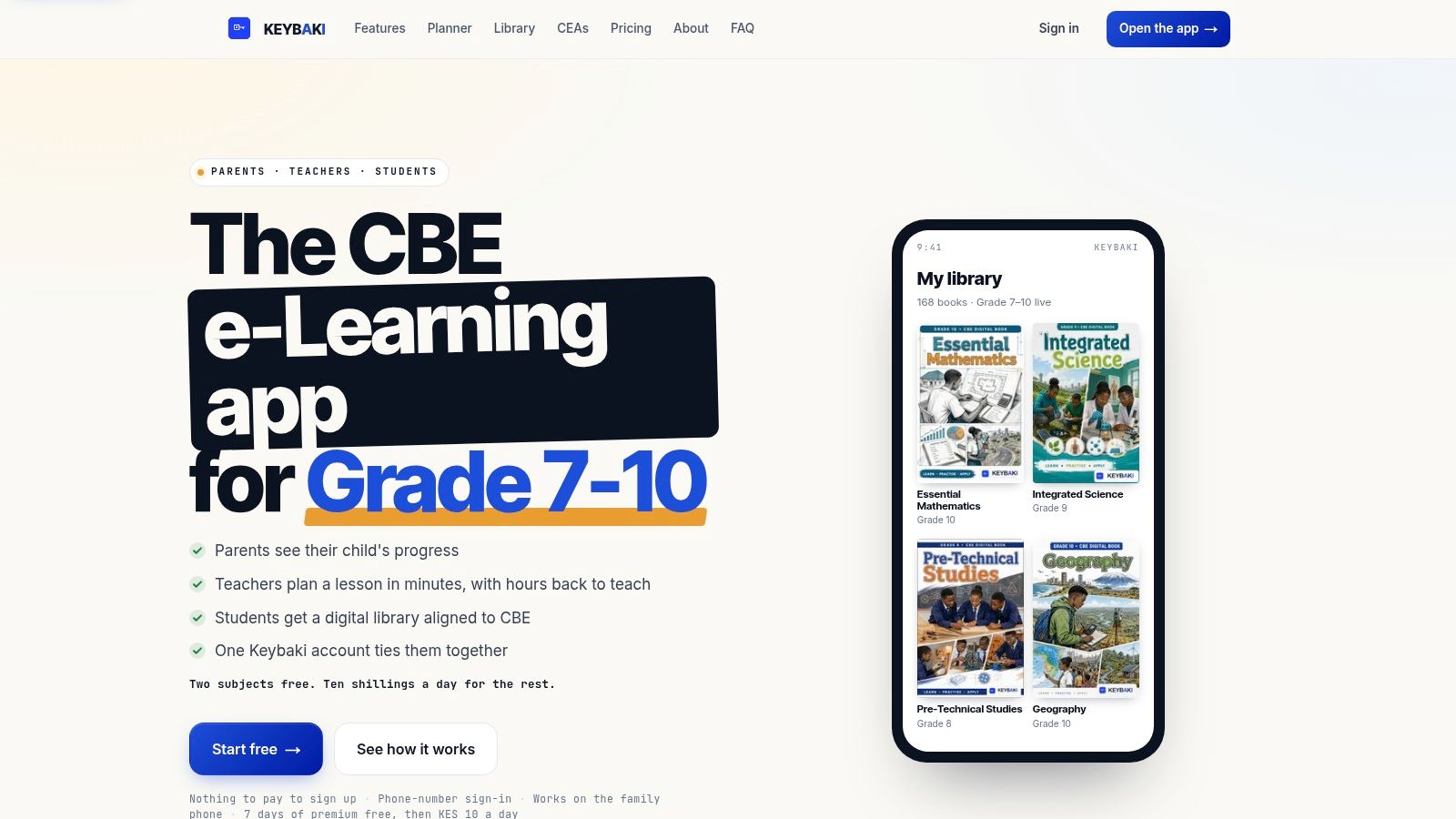
Keybaki is one of the few tools on this list built around that full workflow for Kenyan schools. Instead of treating assessment as a separate quiz activity, it connects strand-based planning, classroom checks, Continuous Evaluation Assessments, and parent visibility in one system. That matters in CBE because the score itself is only part of the job. Teachers still need to map the evidence to the right strand, interpret whether the learner is secure or still developing, and decide what to reteach.
Its clearest strength is strand mapping. Teachers can work from a CBE-aligned library across Grades 7 to 12 subjects, build 5E lesson plans from the same strands, assess against those strands, and use the results to target the next lesson. In practice, that reduces the common problem of running an assessment in one app, recording marks in another place, then manually translating them into support actions.
Where it fits best
Keybaki fits schools that want one routine from planning to reporting. It suits departments trying to standardise how evidence is collected and discussed, especially where heads of department need to see more than raw percentages.
It also fits constrained access better than many global platforms. Phone-number sign-in, PIN child profiles, offline cache, and projector-friendly delivery address common realities in Kenyan homes and classrooms where devices are shared and connectivity is uneven. English and Kiswahili support help too.
The parent view is useful because it can point to a weak strand rather than a general performance label. That makes parent updates more specific. A teacher can say, in effect, the learner is managing one area but still needs support in another, and the parent can follow that without decoding a spreadsheet.
What it does well in a CBE workflow
Keybaki works best where the school wants assessment evidence to feed directly into action.
- Maps evidence to strands: Better suited to CBE reporting than generic quiz tools that leave strand tagging to the teacher.
- Handles connected and constrained settings: Shared phones, offline cache, and projector mode make classroom use more realistic where device access is inconsistent.
- Supports interpretation, not just scoring: Results can be read in relation to specific learning areas, which makes mastery discussions more useful.
- Helps turn results into next steps: Weak areas can feed back into lesson planning and targeted review, including parent follow-up.
Trade-offs to consider
The trade-off is depth of workflow versus breadth of assessment formats. Keybaki is stronger on aligning planning, evidence, and reporting than on offering every advanced item type found in specialist assessment platforms. If a department needs graphing, complex annotation, or highly customised response formats, another tool later in this list may do that better.
Coverage is another practical point. Grades 7 to 10 are available now, while Grades 11 and 12 are still coming soon. That may not matter for a junior secondary rollout, but it does matter for schools that want one platform across all secondary levels.
Cost needs a sober look as well. Free core access lowers the barrier for teachers, and token-based premium days may suit occasional home use. Regular paid use by families can still build up over time, so schools should decide early whether they expect parents to carry that cost or whether the school will keep most assessment activity inside classroom-managed routines.
For schools trying to reduce duplicate entry and make strand-level evidence easier to report, Keybaki addresses a real implementation problem. It is less useful as a pure quiz engine than as a CBE assessment system that links evidence, teaching response, and parent communication.
2. Formative
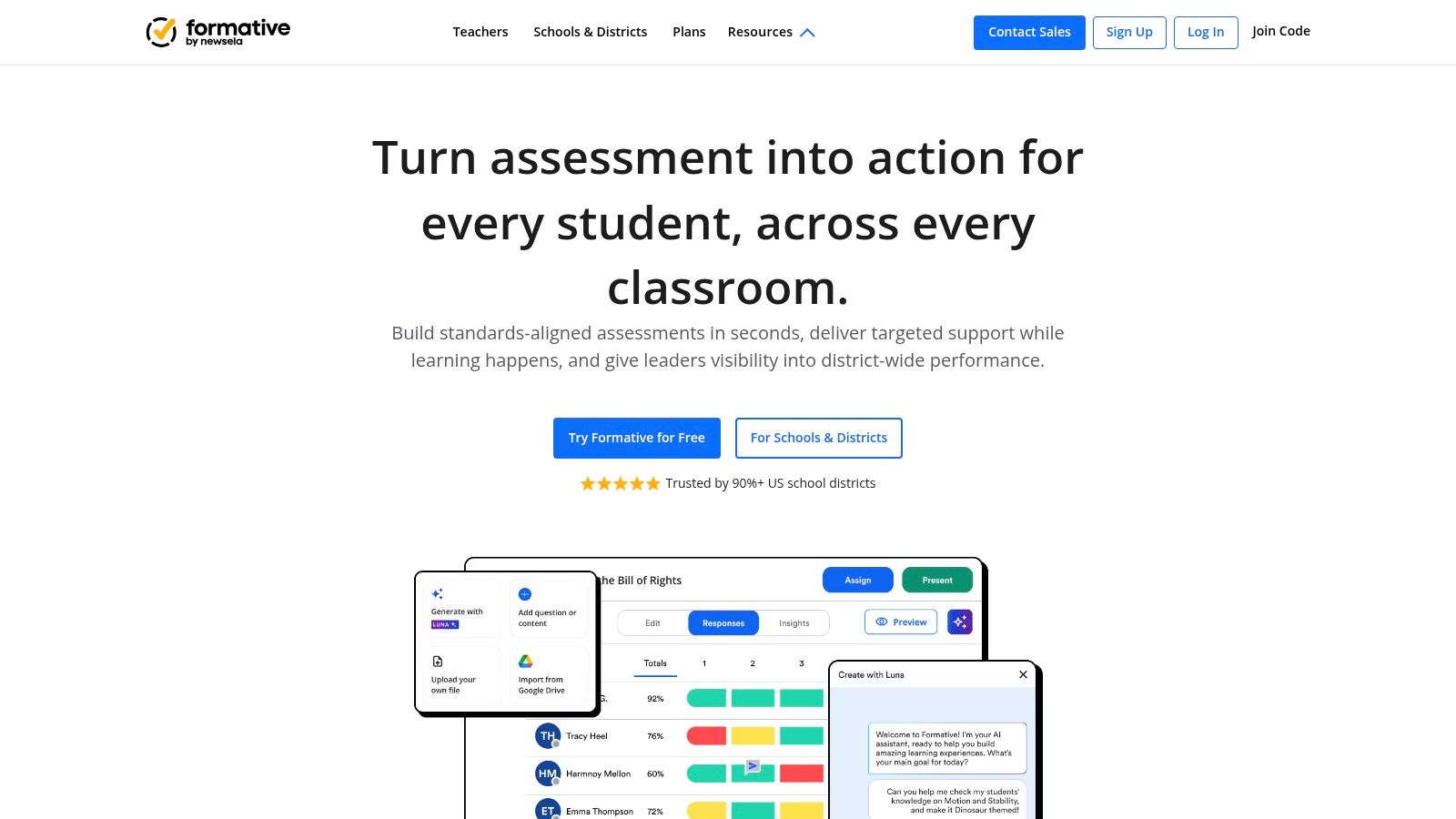
Formative is one of the most capable platforms on this list if you want live response data during instruction. It handles daily checks, richer item formats, and school-wide reporting better than lightweight quiz tools.
Its strength is depth. You can build assessments with drag-and-drop, hotspot, graphing, typed responses, and audio or video responses, then watch answers come in live. For subjects where reasoning matters as much as the final answer, that visibility helps.
What it does well in a CBE workflow
Formative is useful when you already know the strand and want stronger evidence collection around it. It's especially good for checking partial understanding, not just right or wrong responses. Teachers can use that to spot misconceptions before the end of the lesson.
Security controls also make it suitable when a school wants one system for low-stakes checks and more controlled internal assessments. It scales better than many classroom quiz apps if a department wants common tasks and central reporting.
Practical rule: Use Formative when the question type matters to the evidence. If you need learners to graph, annotate, explain, or record, a simple multiple-choice app won't tell you enough.
Where it falls short
Formative doesn't come pre-shaped around Kenya's CBE strand structure. You can organise around your own framework, but that setup work sits with the teacher or school. That's fine for well-supported departments. It's less fine for a busy teacher who wants to open a tool and start from the curriculum map.
It can also feel heavy at first. If your immediate need is a fast exit ticket on a weak network, Formative may be more platform than you need.
- Strongest use case: Rich checks for understanding during instruction.
- Main trade-off: Powerful features bring more setup and a steeper learning curve.
- Best fit: Schools that want detailed response analysis and can support onboarding.
3. Socrative
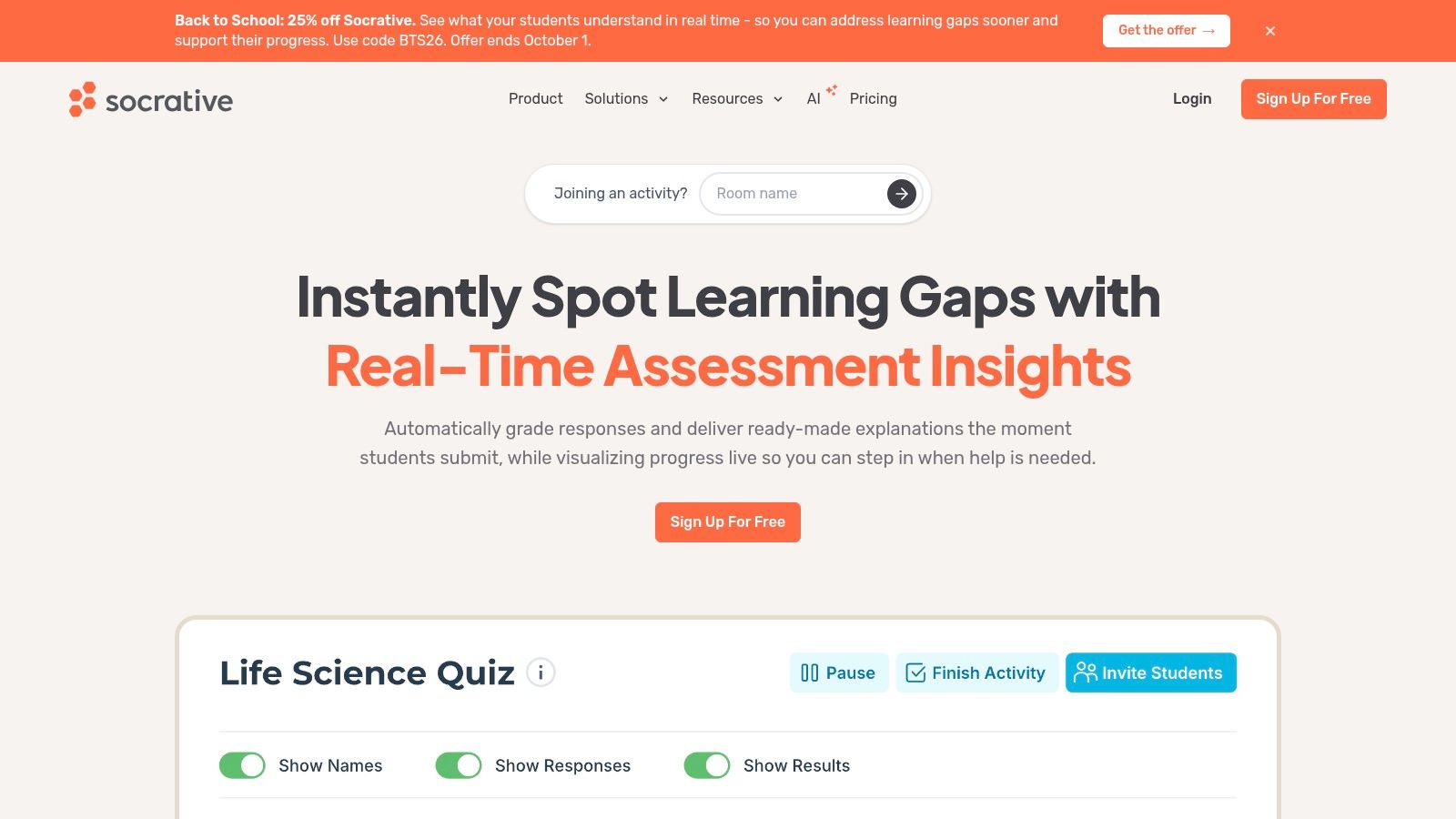
Mid-lesson, a teacher sees the problem straight away. Learners are answering confidently, but the written work suggests they are applying the wrong method. Socrative suits that moment well because you can launch a quick check fast, get responses into one room, and decide whether to reteach, regroup, or continue.
Its strongest place in a CBE workflow is the front end of evidence collection. Socrative helps you confirm whether a strand has landed before you record mastery anywhere more formal. For teacher-paced questions, exit tickets, and short checks after direct instruction, it keeps the class moving and gives a usable snapshot without much setup.
That speed matters in schools where connectivity is uneven. Rooms are simple for learners to join, and the interface does not ask much from them. If your reality is shared devices, patchy internet, or limited lesson time, Socrative is often easier to sustain than a heavier platform with more question types and more teacher setup.
The trade-off shows up later in the workflow. Socrative can tell you who got an item right, who struggled, and where the class split. It does less to help you organise that evidence against Kenya's CBE strands and sub-strands over time. Teachers usually need a separate record, spreadsheet, or school system to map results to competencies, interpret whether the pattern shows secure mastery or a temporary win, and prepare a parent update that says more than "passed the quiz."
I use Socrative as a decision tool, not as the whole assessment record. If the check shows half the class missed one concept, that points to immediate reteaching. If a small group is off track, that supports same-day intervention. If nearly everyone is secure, then the next action is extension work or a more demanding task that produces better evidence than selected response alone.
Socrative stays narrow, and that is both its strength and its limit.
For schools that want multimedia responses, richer annotation, or tighter built-in reporting by strand, it will feel thin. For teachers who need a fast lesson check that works in real classrooms, it still earns its place.
4. Quizizz
A common classroom pattern looks like this. The lesson went well, the exit responses looked acceptable, then homework shows that many learners still cannot apply the idea on their own. Quizizz is useful in that gap because it keeps practice going after class and gives the teacher another layer of evidence.
Quizizz fits the middle of the CBE assessment workflow rather than the end. It helps teachers check whether a strand has moved from guided understanding to independent recall or application. It is less convincing as the final record for competency reporting unless the school already has another system for mapping scores to strands, sub-strands, and parent-facing comments. If you are comparing it with other digital options, this roundup of online assessment tools for schools gives broader context.
Its strongest practical advantage is timing. A teacher can run it live, set it for homework, or use it during a catch-up period for learners who missed the original lesson. That flexibility matters in schools where device access shifts from class to class or where home connectivity is inconsistent. Learners can often complete the same check at different times without the activity losing its structure.
The content library saves planning time, but it also creates extra checking work. A quiz may match the topic title and still miss the exact CBE demand level. Some items check recognition when the strand needs explanation or transfer. Teachers who use Quizizz well usually edit heavily, tag the task to a specific learning intention in their own records, and treat imported quizzes as drafts rather than ready evidence.
One caution matters here. High completion rates and enthusiastic participation do not automatically give clear mastery interpretation.
Quizizz reports are good enough to support action if the teacher asks a narrow question first. Who needs reteaching tomorrow? Which item exposed confusion across the whole class? Which learners are ready for a harder task that produces better evidence, such as written reasoning or a practical activity? For those decisions, the platform works well. For long-term strand tracking, moderation evidence, and formal reporting, it usually needs support from a spreadsheet, LMS, or school assessment system.
Use Quizizz when you need repeated practice with usable follow-up data. Look elsewhere when the school needs tight curriculum mapping and reporting from the same tool.
5. Kahoot! for schools
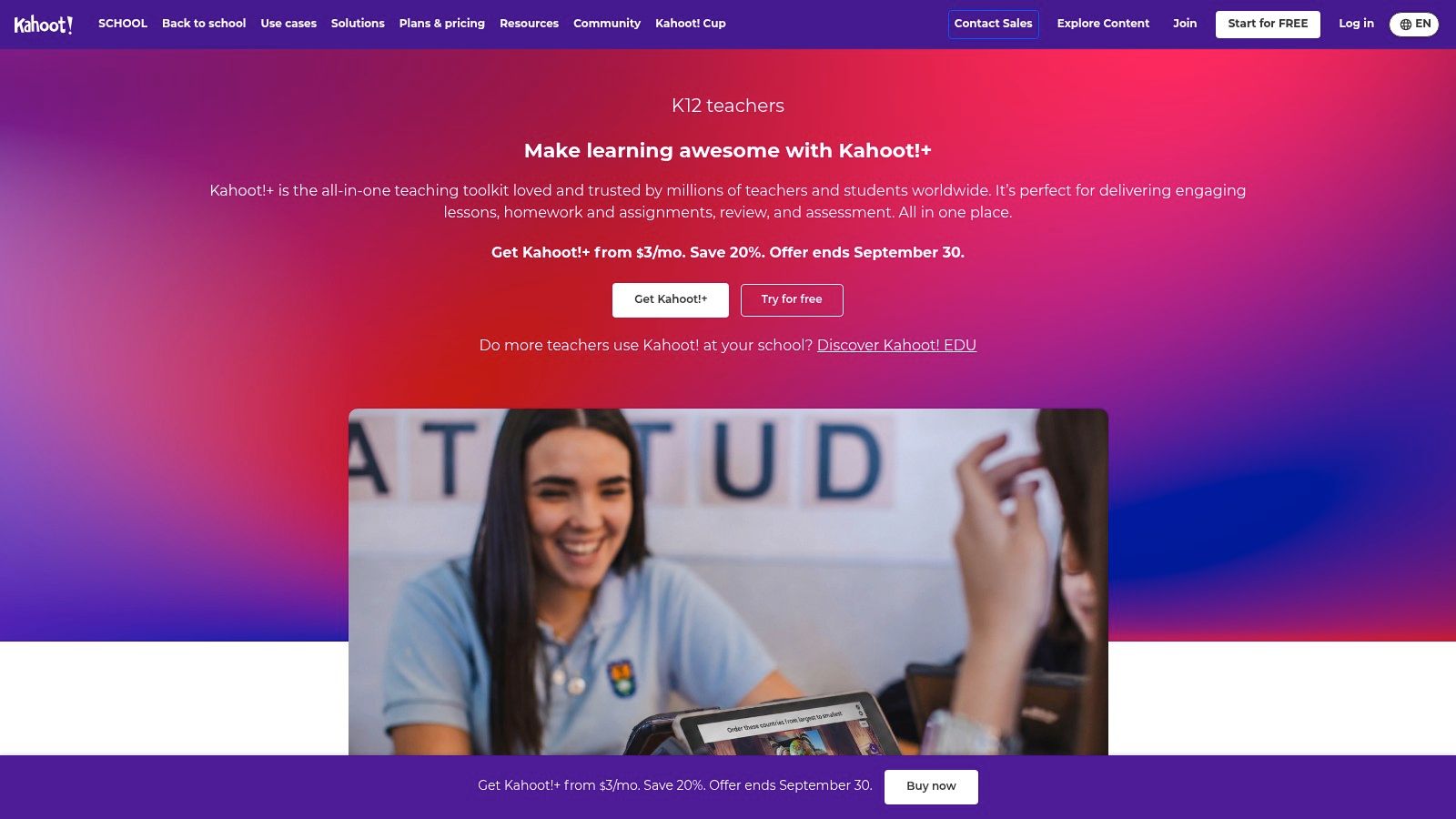
A common classroom moment explains Kahoot's value better than any feature list. You have ten minutes left, exercise books are still open, and you need to know whether to reteach fractions tomorrow or move on. Kahoot can give that answer quickly, while attention is still high and before the lesson slips away.
Kahoot! for schools works best at the front end of the CBE assessment workflow. It helps teachers check recall, spot class-wide confusion, and decide the next teaching move on the same day. It is much less reliable as final evidence for a strand that requires explanation, creation, collaboration, or practical performance.
Used well, it answers narrow questions fast. Which concept collapsed across the class? Which learners are choosing correctly by recognition but still struggling to explain? Which strand needs a slower follow-up task in books, discussion, or performance work? Those are useful decisions, and Kahoot supports them well in live teaching.
The limitation is the same thing that makes it attractive. Speed.
In most schools, the strongest Kahoot routine is a two-step one. Run the live quiz to surface patterns, then capture better evidence with a short written response, pair explanation, or teacher observation linked to the strand. That protects you from over-reading a high-energy quiz as proof of mastery. For parent updates and end-of-term reporting, Kahoot usually needs support from another record because the platform is better at showing immediate patterns than storing nuanced competency evidence over time.
Connectivity matters here more than with some other tools. Live play depends on enough devices, stable internet, and a class setup that can handle the pace without turning assessment time into technical troubleshooting. In well-connected classrooms, that trade-off is acceptable because the feedback loop is so quick. In constrained settings, Kahoot can become harder to manage than the data is worth.
Teachers who get the most from it usually map each quiz to one small learning intention in their own tracker rather than expecting the platform to handle full strand reporting.
Use Kahoot when you need a fast pulse check that leads straight to reteaching, regrouping, or a better follow-up task. Use something else when the school needs stored evidence that can map cleanly to CBE strands and hold up in formal reporting.
6. Google Forms
A Year 5 teacher needs an exit ticket ready before the afternoon lesson starts, wants responses in one place, and has no time to train learners on a new app. Google Forms suits that job well. It is often the fastest way to turn a paper-style check into something you can send, mark, and review the same day.
Google Forms works best when the assessment task itself is simple and the teacher needs control more than novelty. Multiple choice, short answer, paragraph response, file upload, and section branching cover a surprising amount of everyday CBE checking. In Kenyan classrooms, that matters. A study on competency-based assessment use in Kenya found that teachers rely heavily on familiar tools such as written tests, oral or aural questions, rubrics, and portfolios, according to the Kenya study on utilisation of competency-based assessment tools. Google Forms fits because it digitises that existing practice instead of asking teachers to rebuild everything.
The question is not whether Forms can collect answers. It can. The question is whether your school needs those answers to map cleanly to strands, show progress over time, and feed reporting without extra manual work.
For single-skill checks, Forms is practical. A teacher can tag a quiz in the title or spreadsheet, align items to one strand or sub-strand, and scan misconceptions quickly. If the next action is reteach tomorrow, regroup this afternoon, or call three learners for support, Google Forms is usually enough.
The strain shows up later. Strand mapping sits mostly in the teacher's naming system, spreadsheet structure, or external tracker. Mastery interpretation also stays with the teacher. A score of 6 out of 8 does not tell a parent, HOD, or curriculum lead which competency was secure, which one was partial, and what support follows unless someone adds that layer manually.
Connectivity is another trade-off. Forms can run on basic smartphones and low-spec devices, which helps, but it still depends on learners getting online and submitting successfully. In classes with unstable internet, the tool is more reliable for homework, station work, or teacher-led small group checks than for whole-class live assessment where one failed submission can waste ten minutes.
Google Forms earns its place because it is predictable. Use it when you need a quick check that fits existing routines and can be turned into the next teaching move without much setup. Use another system, or pair it with your own tracker, when the school expects stored CBE evidence by strand, clearer mastery reporting, and parent updates that go beyond raw scores.
7. Microsoft Forms for Education
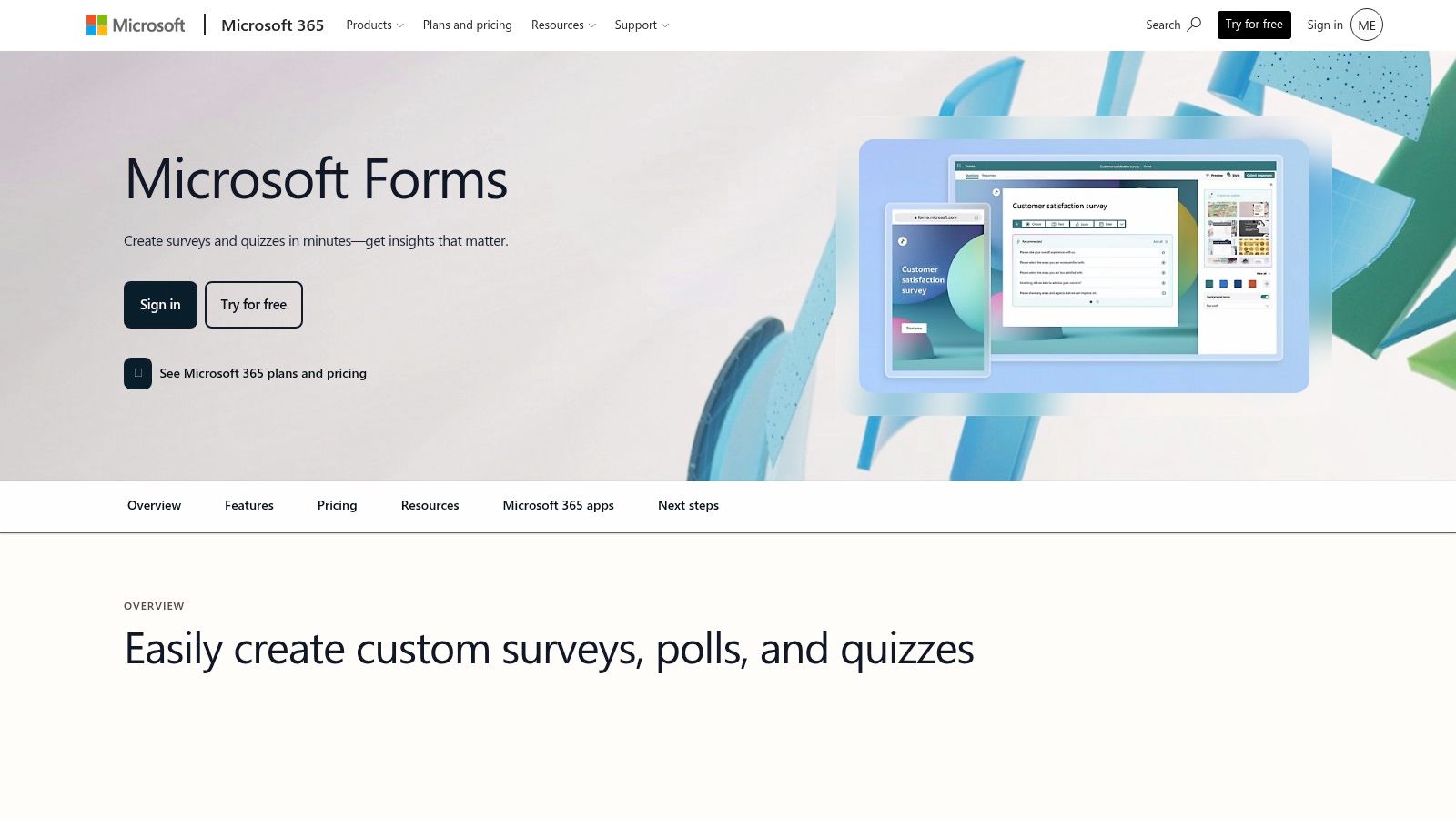
A Year 5 teacher posts a short quiz in Teams after a lesson on measurement. By break time, the responses are already sorted by learner, the low scorers are easy to spot, and the class teacher can pull a support group before the next lesson. That is the case for Microsoft Forms for Education. It works well when the school already teaches, assigns work, and communicates inside Microsoft 365.
Microsoft Forms for Education is strongest as part of a school workflow, not as a standalone assessment system. Teachers can build quick quizzes, auto-mark straightforward items, add branching, and send them through Teams without extra setup. For schools trying to keep formative checks inside one platform, that saves time.
The CBE question is what happens after the quiz. Microsoft Forms collects responses cleanly, but strand mapping still depends on teacher design. In practice, that means naming forms carefully, grouping items by competency, or exporting results into a strand tracker. If the school expects evidence organised by outcome, sub-strand, and date, Forms can support that process, but it does not manage it for you.
Branching is useful here. A learner who misses the first check on prerequisite understanding can get a follow-up item that clarifies whether the gap is vocabulary, procedure, or concept. That gives the teacher better evidence for the next action. Reteach the whole class, pull a small group, assign practice in Teams, or record that a learner is still developing on that strand.
Reporting is the other trade-off. Microsoft Forms gives usable response data fast, but parent-friendly competency reporting usually needs another layer. Raw scores and question summaries are enough for teacher decisions in the moment. They are less useful when a deputy head, curriculum lead, or parent wants to know which specific learning outcome was secure and what support follows.
Connectivity also matters. In a fully connected laptop programme, Forms is easy to run live. In mixed-access classes, it is safer for homework, lab sessions, or device rotations than for whole-class checks where login issues can consume lesson time.
Microsoft Forms earns its place in schools that already run on Teams. Use it when the priority is fast checks, organised distribution, and simple review inside an existing Microsoft setup. Use another tool, or pair it with a separate tracker, when the school needs stronger strand-level evidence storage, clearer mastery reporting, or more specialised item types.
8. Plickers
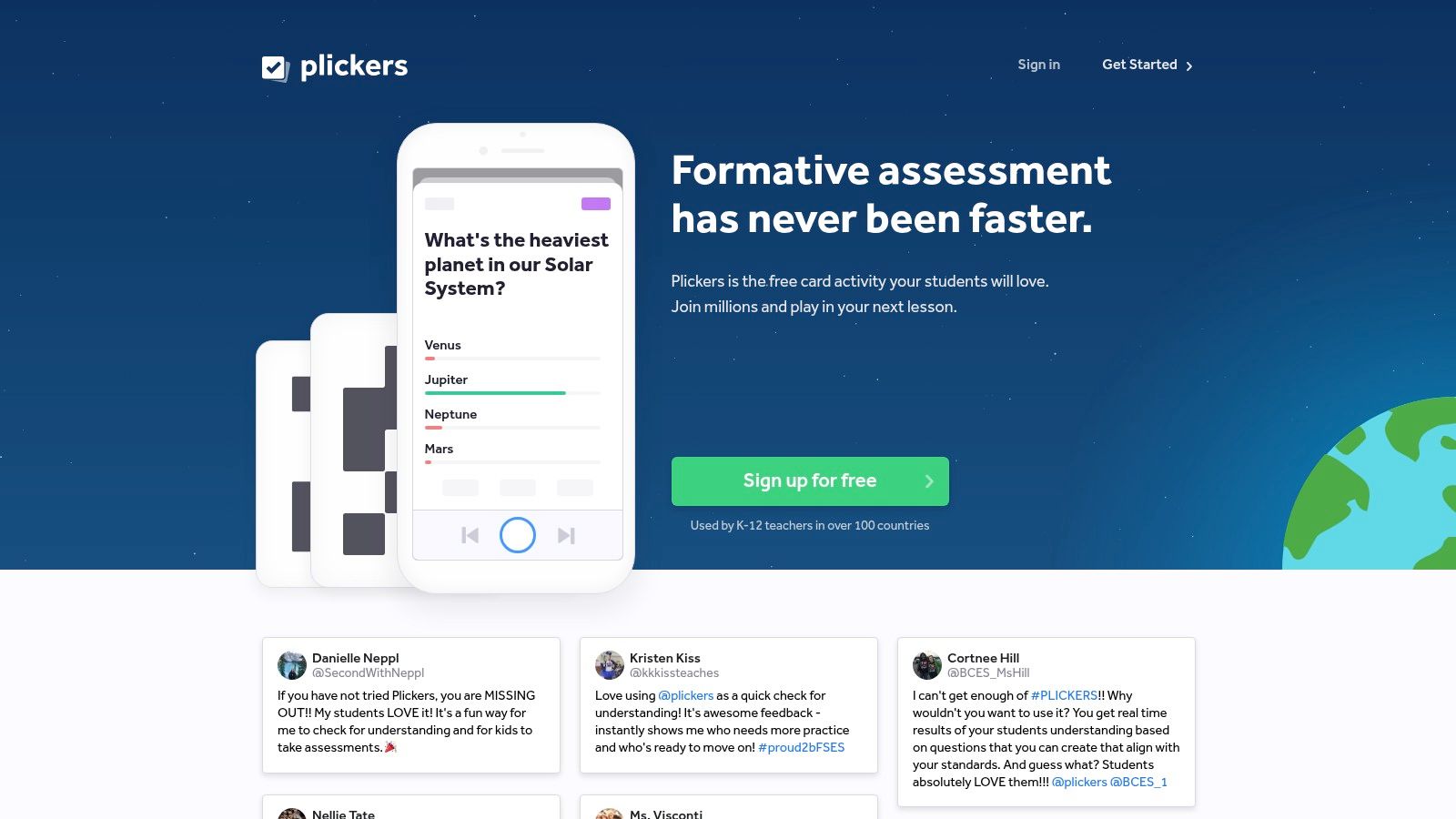
A teacher has one smartphone, 50 learners, and ten minutes left. Plickers fits that lesson better than many higher-profile assessment tools because the learners do not need devices at all. They hold up printed cards, the teacher scans responses, and the class gets a quick read on who is secure, who is guessing, and which misconception needs attention before the lesson ends.
Plickers is most useful at the collection stage of the CBE workflow. It captures whole-class evidence fast in low-connectivity or no-device settings. That matters in schools where digital access is uneven across streams or across learners in the same room, and it is one reason low-tech routines still matter in formative assessment practice across real classrooms.
The trade-off shows up a few minutes later. Plickers is good at telling you how many learners chose each option. It is less good at storing evidence in the way many schools need for outcome tracking, strand mapping, or parent updates. A teacher can still use it well, but only with a clear routine after the scan. Tag the question to a specific learning outcome, note which learners need follow-up, and transfer that judgment into the school's tracker or markbook while the evidence is still fresh.
Used that way, Plickers supports decisions such as these: stop and reteach the concept to the whole class, pull six learners for a short corrective task, or move on because the class is ready for application. It works best for hinge questions, recall checks, and quick discrimination between common errors. It works poorly for written explanation, practical skills, and any competency evidence that needs learner voice or visible process.
The main limitation is not quality. It is range. Plickers gives fast participation and honest coverage of the whole room, but the evidence is thin unless the teacher connects it to a strand-level record afterwards.
A sensible use case is straightforward:
- Run 3 to 5 hinge questions during teaching, not only at the end.
- Map each item to one outcome or sub-strand before class.
- Use the scan result to choose the next teaching move immediately.
- Record mastery separately if the school needs cumulative CBE reporting.
For schools working with constrained connectivity, that is a fair trade. Plickers reduces exclusion during live checks. It does not replace a fuller assessment record.
9. Ziplet
The lesson ends, exercise books are closing, and 42 learners are about to leave. A five-minute written check can still tell you who understood the skill, who is guessing, and who needs a quieter follow-up than they would ever ask for aloud. Ziplet fits that moment well.
Its strength is short response evidence. Teachers can collect exit reflections, confidence checks, and brief written explanations without setting up a full quiz flow. In a CBE classroom, that makes Ziplet more useful for learner voice, self-assessment, and immediate next-step decisions than for proving strand mastery on its own.
That distinction matters. If a school needs evidence mapped cleanly to strands, stored over time, and pulled into parent updates, Ziplet will need support from another record system. The responses are often rich, but they are still short-text signals that a teacher has to interpret and place against the right outcome.
A practical use looks like this. Set one prompt against one lesson intention before class starts. Ask learners to explain what they can now do, where they got stuck, or how confident they feel applying the skill independently. Then sort replies into teaching actions: reteach tomorrow, group for support, extend for application, or contact home if the pattern points to a wider concern such as repeated disengagement.
Ziplet also handles a type of evidence some quiz tools miss. A learner can write, “I got the answer in class but I still cannot do it alone,” and that changes the teacher's next move. For CBE, that helps with formative judgment around readiness and support needs, even though it is weaker for formal reporting.
The trade-off is clear. Ziplet supports reflection better than it supports standardised scoring. It works in classrooms that value regular check-ins and quick written thinking. It is less helpful where connectivity is inconsistent during dismissal time, where younger learners struggle to type reliably, or where the school expects every assessment point to flow straight into a strand-level tracker.
Used with discipline, Ziplet earns its place as a closing routine. Used alone, it leaves too much of the assessment workflow in the teacher's head or in a separate spreadsheet.
10. Edpuzzle
A common classroom moment goes like this. The teacher assigns a revision video for homework, then starts the next lesson unsure who watched, who guessed, and which step in the explanation caused the confusion. Edpuzzle fixes that specific problem by placing questions inside the video and recording what happened at each checkpoint.
Its value in CBE is narrow but real. Edpuzzle works best when the evidence you want is tied to an explanation sequence. A learner watches, pauses, rewinds, and answers at the exact point where a concept or procedure is taught. That gives cleaner evidence than asking for a summary at the end, especially for strands where the misunderstanding sits in one step rather than the final answer.
The workflow matters here. Edpuzzle helps with delivery and first-pass evidence capture. It is less strong at strand mapping and final reporting unless the teacher has already decided which question links to which indicator and is prepared to transfer that evidence into a tracker or gradebook. If that mapping work is not planned in advance, the platform can leave you with completion data, a set of responses, and extra sorting to do later.
I have found it most useful for three jobs: pre-teaching before class, guided revision, and catching where an explanation breaks down.
In a connected school, that can save lesson time. Instead of reteaching the whole topic, the teacher checks which video questions caused the most errors and starts from there. In a constrained setting, the same design becomes expensive quickly. Video needs data, stable enough access, and often an individual device or a reliable homework routine. Without those conditions, Edpuzzle can measure access as much as understanding.
That trade-off is the deciding factor. A school that needs fast strand-level evidence from mixed-connectivity classes will usually get more usable coverage from lighter tools. A school already using video instruction can get strong formative signals from Edpuzzle, but only if teachers keep the clips short, place questions deliberately, and decide in advance how results will feed the next teaching move or a parent update.
Edpuzzle earns its place as a targeted tool in the assessment workflow, not as the main system. Use it where video improves the teaching, the connection can support it, and the evidence collected will be acted on the next day.
Top 10 Formative Assessment Tools: Feature Comparison
| Product | Core features | Quality (★) | Value & pricing (💰) | Target audience (👥) | Unique / edge (✨) |
|---|---|---|---|---|---|
| 🏆 Keybaki | CBE‑mapped library (Grades 7–10), auto 5E planner, CEAs, timetable, offline cache | ★★★★★ | Free for teachers; students 2 subjects free; premium via M‑Pesa (~KES10/day) 💰 | Teachers, parents, students, schools 👥 | 🏆 ✨ CBE‑strand closed‑loop → next‑week planning; offline & projector mode; Nairobi support |
| Formative | Live responses, rich item types, secure modes, district dashboards | ★★★★★ | Freemium → paid plans for full features 💰 | Teachers, assessment leads, districts 👥 | ✨ Rich item types (hotspot/graphing), LMS grade passback, anti‑cheat tools |
| Socrative | Instant quizzes, Rooms, low‑bandwidth friendly, reports | ★★★★☆ | Free tier; Pro for larger classes/features 💰 | Classroom teachers, quick checks 👥 | ✨ Fast mid‑lesson setup; clear actionable reports |
| Quizizz | Live game + student‑paced modes, public quiz library, reports | ★★★★☆ | Freemium; premium/school plans for advanced analytics 💰 | Teachers, students (engagement/review) 👥 | ✨ Game mechanics to boost motivation; large community content |
| Kahoot! (for schools) | Game quizzes, polls, assignable homework, basic reporting | ★★★★☆ | Freemium; paid tiers unlock advanced reporting 💰 | Whole‑class engagement, teachers, schools 👥 | ✨ Very high engagement; broad community templates |
| Google Forms (Quizzes) | Auto‑graded quizzes, response summaries, Classroom integration | ★★★☆☆ | Free; included in Google Workspace 💰 | Teachers using Google ecosystem; low‑bandwidth contexts 👥 | ✨ Free, simple, works on basic devices; Locked Mode on managed Chromebooks |
| Microsoft Forms | Auto‑grading, branching logic, Teams/M365 integration | ★★★☆☆ | Included with Microsoft 365 (best with tenancy) 💰 | Schools standardized on Microsoft 365 👥 | ✨ Branching/insights with Teams Assignments integration |
| Plickers | Teacher scans student cards with one phone; instant multiple‑choice checks | ★★★☆☆ | Free core; Pro for longer sets/features 💰 | Device‑constrained classrooms, rural schools 👥 | ✨ No student devices needed; fast paper‑scan workflow |
| Ziplet | Exit tickets, prompt library, SEL/well‑being checks, scheduling | ★★★☆☆ | Lightweight; Ziplet Plus paid per teacher 💰 | Teachers needing quick checks + SEL pulses 👥 | ✨ Rapid exit tickets + SEL monitoring; scheduled pulses |
| Edpuzzle | Interactive videos with embedded questions, completion tracking | ★★★★☆ | Freemium; Pro/School plans for unlimited library 💰 | Flipped classroom, video‑based instruction 👥 | ✨ Video‑embedded formative checks; LMS integrations |
Build a Repeatable Assessment Routine
The best formative assessment tools don't just collect answers. They help a teacher make the next decision faster and with more confidence. That's the test. If a tool gives you colourful charts but doesn't change tomorrow's lesson, group work, revision task, or parent message, it's not closing the learning loop.
Start small. Pick one learning goal for one class. Decide what evidence would prove learners have understood it. Then choose the lightest tool that can collect that evidence well. In many cases, that may be a short quiz, an exit ticket, a scanned card response, or a strand-linked CEA rather than a full-featured platform.
Kenyan practice already shows formative assessment use is present but still moderate overall. One study of Grade 6 science and technology teachers reported a grand aggregate mean utilisation of 2.8752 with a standard deviation of 1.1697 for the eleven KNEC-recommended tools, and the same study showed strongest use around written tests, oral questions, rubrics, and portfolios through the Kenyan research on implementation of competency-based assessment tools. That suggests adoption improves when tools fit teacher-familiar routines rather than asking schools to rebuild assessment from scratch.
Before choosing any tool, check these practical points:
- CBE strand mapping: Can you tie each check to a strand or sub-strand without manual workaround?
- Auto-marking and scoring: Does it reduce marking time for routine checks?
- Low-bandwidth delivery: Can it still work when learners share devices or the network drops?
- Question types: Do the item formats match the evidence you need?
- Mastery reporting: Can you see what was misunderstood, not just who scored low?
- Parent communication: Can results be explained clearly to families without extra admin?
- Data controls: Can the school manage exports, deletion, and basic privacy expectations?
- Integrations: Does it fit your current classroom system, or create another silo?
- Pricing: Is the cost realistic for the school or family over time?
- Teacher workload: Will teachers use it consistently after the first week?
A simple routine beats an ambitious one that collapses by mid-term. For example, one school might use Plickers for in-class whole-room checks, Google Forms for weekly homework quizzes, and a spreadsheet or LMS for follow-up. Another might prefer one connected workflow where planning, assessment, and reporting sit together.
That's where Keybaki has a clear place for Kenyan CBE classrooms. If your challenge is not just “How do I give a quiz?” but “How do I connect strand-based planning, Continuous Evaluation Assessments, weak-area reteaching, and parent visibility in one weekly cycle?”, it offers a more coherent answer than general-purpose quiz tools. The point isn't that every teacher needs one platform for everything. It's that your assessment routine should leave as little manual translation work as possible between evidence, interpretation, and action.
The strongest choice is usually the tool your teachers can sustain, your learners can access, and your school can use to improve next week's teaching.
If you want a Kenya-built option that links lesson planning, strand-based Continuous Evaluation Assessments, and parent-visible follow-up in one workflow, take a close look at Keybaki. It's designed for CBE classrooms that need practical formative assessment, not just another quiz app, and it works well where shared phones, low bandwidth, and weekly reteaching decisions are part of daily school life.
Comments
Loading…